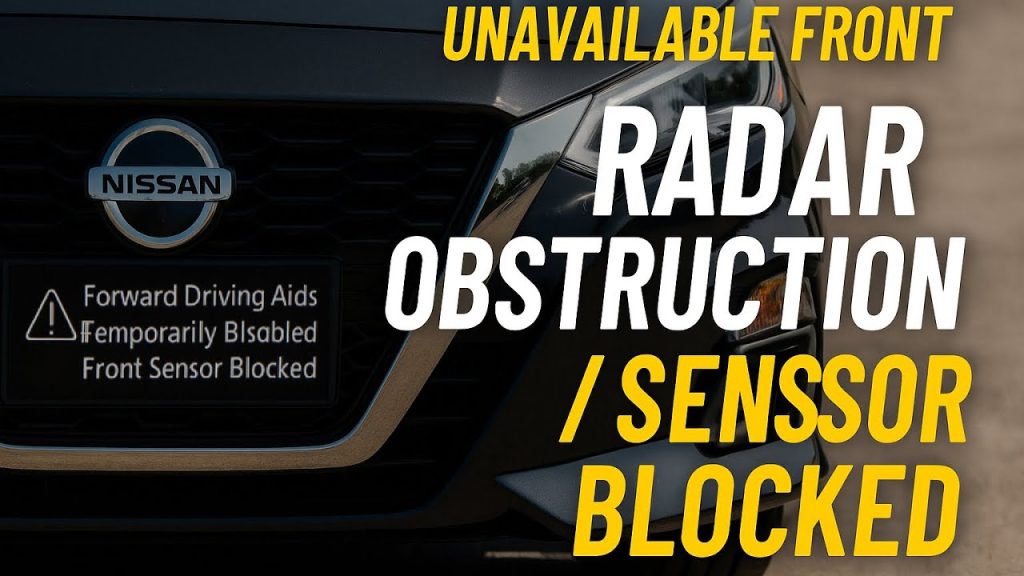
If you drive a Nissan Armada, you might have noticed the front radar sometimes gets blocked or gives false alerts. This can be frustrating and even distracting while on the road.
Knowing how to turn off the front radar obstruction feature can save you from unnecessary warnings and help you stay focused. You’ll learn simple, clear steps to disable this function quickly and safely. Keep reading—you’ll soon have full control over your vehicle’s radar system.
Front Radar System In Nissan Armada
The front radar system in your Nissan Armada plays a crucial role in enhancing safety and convenience while driving. This technology scans the road ahead to detect obstacles, vehicles, and pedestrians, helping to prevent collisions and assist in adaptive cruise control. Understanding how this system works and what can interfere with it is key to keeping it reliable and knowing when you might want to turn it off.
Purpose Of Front Radar
The front radar system monitors the area directly in front of your Nissan Armada. It helps maintain a safe distance from the vehicle ahead by automatically adjusting your speed during cruise control. Additionally, it alerts you to sudden stops or obstacles, which can reduce the risk of accidents.
Think about a time when you were driving in stop-and-go traffic. The radar system eased your stress by handling speed adjustments for you. This hands-free assistance makes long drives less tiring and safer.
Common Obstruction Causes
Sometimes, the radar system may not work correctly because of obstructions. Dirt, snow, or ice buildup on the radar sensor can block its view, causing false alerts or disabling the system. Even something as simple as a bug splatter can interfere with its accuracy.
Other times, aftermarket accessories like grille guards or tow hitches might cover the radar sensor area. This can confuse the system or trigger warning lights on your dashboard. Have you noticed any alerts when the sensor area looks clean? It might be worth checking for hidden blockages or sensor misalignment.
Credit: www.nissankicksforum.com
Signs Of Radar Obstruction
Radar obstruction in a Nissan Armada can cause issues with your vehicle’s advanced safety systems. Recognizing signs of radar obstruction helps maintain proper function. These signs often appear as warnings or reduced system performance.
Warning Messages On Dashboard
The dashboard shows alerts when the radar sensor is blocked. Messages like “Radar Obstruction” or “Front Radar Blocked” may appear. These warnings signal the system cannot detect objects correctly. Ignoring these alerts may reduce safety features.
Impact On Safety Features
Radar obstruction affects features like adaptive cruise control and automatic emergency braking. These systems rely on clear radar signals to work properly. When blocked, the car may not react to obstacles in time. This increases the risk of accidents and reduces driver assistance.
Steps To Turn Off Front Radar
Turning off the front radar on your Nissan Armada can be necessary in various situations, such as when you’re driving in heavy snow or mud that might trigger false alerts. Knowing how to disable this feature manually gives you greater control over your driving experience. Here’s a clear, step-by-step guide to help you through the process.
Accessing Vehicle Settings
Start by getting into your Nissan Armada and powering on the ignition without starting the engine. Look for the main menu on your vehicle’s infotainment screen or dashboard display. Navigate to the “Settings” or “Driver Assistance” section, where most of the advanced safety features are managed.
If you’re unsure where the radar settings are, consult your owner’s manual or look for an icon resembling a car with waves in front. This icon usually indicates radar or collision-related settings. Take your time exploring the menu to avoid accidentally changing other important features.
Disabling The Radar Sensor
Within the radar or collision avoidance menu, you will find an option to turn off the front radar sensor. Select this option carefully, as it might be labeled “Front Radar,” “Forward Collision Warning,” or “Radar Sensor.” After selecting it, confirm your choice to deactivate the sensor.
Keep in mind that some models may require you to hold down the button or toggle the switch for a few seconds before the system registers the change. If your Armada is equipped with physical buttons related to radar or collision systems, such as on the dashboard or steering wheel, these might also provide a quick way to disable the radar.
Confirming The Deactivation
Once you disable the radar sensor, check your dashboard for any warning lights or messages. A deactivation notification usually appears, confirming the sensor is off. If no confirmation appears, try restarting the vehicle and rechecking the settings to ensure the change was saved.
Ask yourself: does the vehicle behave differently without the radar? Testing your Armada’s response in a safe environment after turning off the radar can give you confidence that the feature is truly off. Remember, disabling safety features can affect your driving safety, so use this option wisely and re-enable the radar as soon as possible.
Credit: www.clubarmada.com
Manual Methods To Address Obstruction
Dealing with a front radar obstruction on your Nissan Armada can be frustrating, especially when it interferes with your vehicle’s safety features. Manual methods to address this issue give you immediate control and can prevent unnecessary warnings or system shutdowns. These approaches focus on direct interaction with the sensor area and help you understand how small actions can make a big difference.
Cleaning The Radar Sensor
One of the simplest and most effective ways to clear a radar obstruction is by cleaning the sensor itself. Dirt, dust, or grime buildup can block the radar signals, causing false alerts or disabling the system.
Use a soft cloth with mild soap and water to gently wipe the sensor area. Avoid harsh chemicals or abrasive materials that could scratch or damage the sensor surface. You’ll be surprised how much this quick cleaning can improve sensor performance.
Have you checked your sensor after a rainy or dusty drive? Often, a simple wipe is all that’s needed to restore full functionality.
Temporary Covers And Their Effects
Sometimes, you might consider placing a temporary cover over the sensor to block false alerts, especially if you’re driving in conditions that cause repeated obstructions like heavy snow or mud. However, this approach can have unintended consequences.
- Temporary covers can confuse the radar system, causing it to malfunction or disable safety features.
- They may trigger constant warning lights or alarms, distracting you from the road.
- Some covers might reflect radar signals unpredictably, leading to inaccurate system behavior.
Think twice before using any cover. Instead, focus on cleaning and ensuring the sensor area stays clear naturally. Your safety system works best when it gets a clear, unobstructed signal.
Precautions When Disabling Radar
Disabling the front radar on your Nissan Armada requires careful attention. This feature plays a key role in safety and driving assistance. Turning it off without caution can affect your vehicle’s performance and safety systems. Understanding the risks and precautions helps you avoid problems.
Safety Considerations
The front radar helps detect obstacles and prevent collisions. Disabling it may reduce your vehicle’s ability to warn you of dangers. Drive slower and stay alert without radar support. Avoid disabling the radar in heavy traffic or bad weather. Keep in mind that some safety features may stop working. Check your vehicle manual to know which systems rely on the radar.
When To Seek Professional Help
Some radar issues need expert attention. If you see warning lights or error messages, visit a Nissan service center. Professionals use special tools to diagnose and fix radar problems. Avoid trying complex repairs yourself. Incorrect handling can cause permanent damage or void warranties. Trust trained technicians to ensure your radar works safely and correctly.
Alternatives To Turning Off Radar
Before deciding to turn off the front radar on your Nissan Armada, consider other options that can help maintain safety without disabling this important feature. Radar systems are designed to enhance your driving experience by alerting you to potential obstacles and collisions. Instead of turning it off, you might find these alternatives more practical and safer for everyday use.
Adjusting Sensor Sensitivity
Your Nissan Armada may allow you to adjust the sensitivity of the front radar sensors. Lowering sensitivity can reduce false alerts caused by minor obstructions like dirt, leaves, or small road debris. This way, you keep the radar active but avoid unnecessary warnings that can distract you while driving.
Check your vehicle’s settings menu or consult the owner’s manual to see if this option is available. Sometimes, a small tweak in sensor sensitivity can make a big difference in how the radar system reacts. Have you noticed specific conditions where the radar is too sensitive? Adjusting it might solve that without fully turning it off.
Using Radar-compatible Accessories
Some accessories, like certain roof racks or bike carriers, can interfere with radar signals. Instead of disabling the radar, look for radar-compatible options designed to minimize obstruction. These accessories help maintain your vehicle’s safety features while still allowing you to carry your gear.
When shopping for add-ons, ask sellers if their products are tested for radar compatibility. This small step can prevent you from accidentally blocking radar sensors and keeps your Nissan Armada’s safety systems fully functional. Have you ever bought an accessory that caused unexpected sensor alerts? Choosing radar-friendly gear can save you that hassle.
Credit: www.clubarmada.com
Frequently Asked Questions
How Do I Disable Front Radar On My Nissan Armada?
To disable the front radar on your Nissan Armada, locate the settings menu on the dashboard. Access the driver assistance features and select the front radar option. Follow the on-screen instructions to turn it off. Ensure your vehicle is parked safely before making any changes.
Why Does My Nissan Armada Show Radar Obstruction?
Your Nissan Armada may show a radar obstruction if the sensor is blocked. Common causes include dirt, snow, or ice on the sensor. Clean the sensor area gently with a soft cloth. If the warning persists, consult a professional technician to inspect the sensor for any underlying issues.
Can I Drive With Radar Obstruction Warning?
Driving with a radar obstruction warning is not recommended. The warning indicates that the sensor is not functioning properly. This may affect the vehicle’s safety features. It is advisable to address the obstruction issue promptly to ensure safe driving conditions and optimal performance of the vehicle’s safety systems.
Where Is The Front Radar Sensor Located On Armada?
The front radar sensor on a Nissan Armada is typically located behind the grille. It is positioned centrally and may be behind the Nissan emblem. This location helps in effective sensing of the surroundings. Ensure the sensor area is clean and free from obstructions for optimal performance.
Conclusion
Turning off the front radar obstruction on your Nissan Armada is simple. Follow the steps carefully to avoid any issues. This helps keep your sensors working properly and prevents false alerts. Remember to check the radar after clearing any dirt or objects.
Staying aware of your vehicle’s safety features ensures a smoother drive. Keep this guide handy for quick reference anytime you need it. Stay safe and enjoy your ride with confidence.