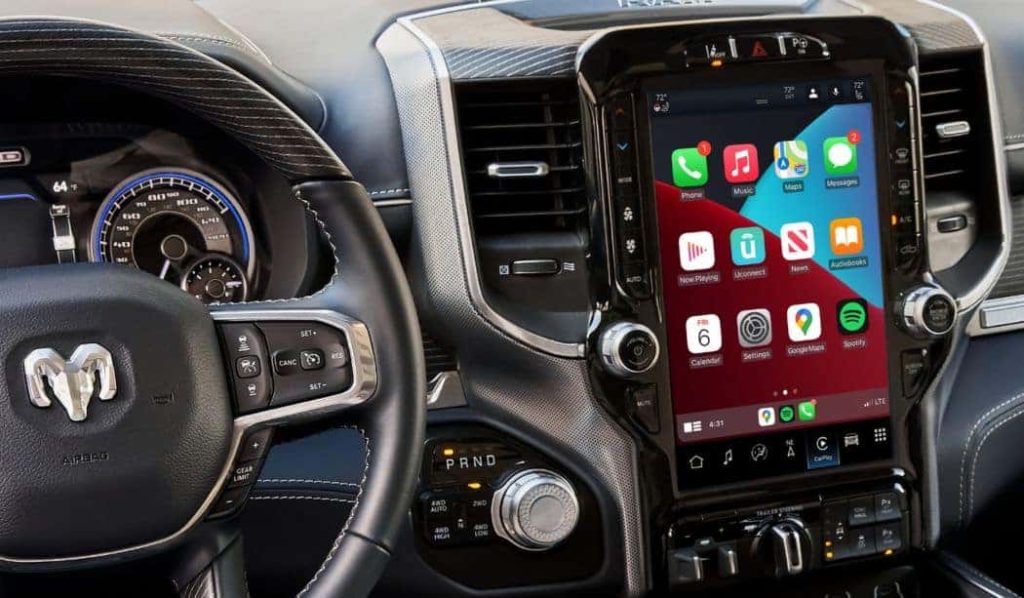
Are you ready to unlock the full potential of your Dodge vehicle? Connecting to Uconnect is easier than you think, and once you do, your driving experience will change for the better.
Imagine controlling your music, navigation, and calls—all hands-free and right at your fingertips. In this guide, you’ll discover simple, step-by-step instructions to get your Uconnect system up and running quickly. Stick with me, and you’ll be enjoying seamless connectivity in no time.
Let’s dive in!
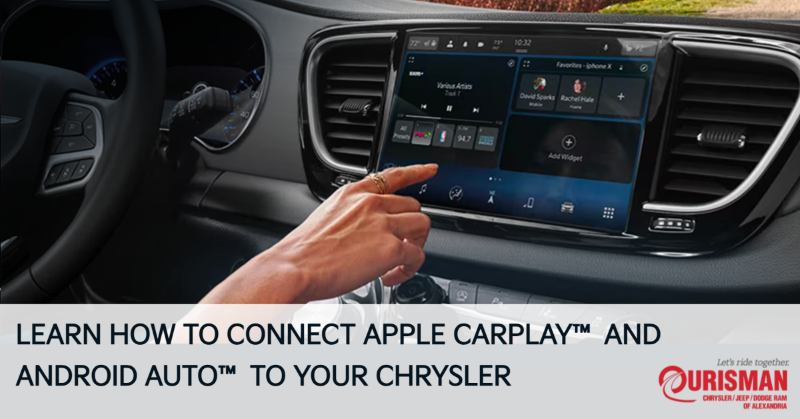
Credit: www.ourismancdjalexandria.com
Preparing Your Device
Preparing your device is the first step to connect to Uconnect Dodge smoothly. It ensures your phone or tablet is ready for a fast and stable connection. Proper preparation avoids connection errors and saves time.
Follow these simple checks before pairing your device with your Dodge vehicle.
Check Compatibility
Not all devices work with Uconnect. Check if your phone supports Bluetooth and Wi-Fi connections. Visit Dodge’s official website or user manual for a list of compatible devices. Make sure your phone’s operating system meets the minimum requirements.
Enable Bluetooth And Wi-fi
Turn on Bluetooth on your phone to allow wireless connection. Also, enable Wi-Fi, as some Uconnect features need it. Open your phone’s settings to switch on both options. Keep your device visible to nearby devices during pairing.
Update Software
Outdated software can cause connection problems. Check your phone’s system updates in settings. Install the latest updates to improve compatibility and fix bugs. Also, update the Uconnect app if you use it for easier setup and better functions.
Credit: www.gandruddodgechryslerjeep.com
Accessing Uconnect System
Accessing the Uconnect system in your Dodge vehicle is simple and quick. The system lets you control music, navigation, and phone calls easily. Knowing how to reach the Uconnect menu is key for a smooth experience. Follow these steps to get started.
Start Your Vehicle
Turn on your Dodge vehicle to activate the Uconnect system. The touchscreen will light up once the engine runs or the key is in the accessory position. Make sure the system finishes loading before moving on.
Navigate To Uconnect Menu
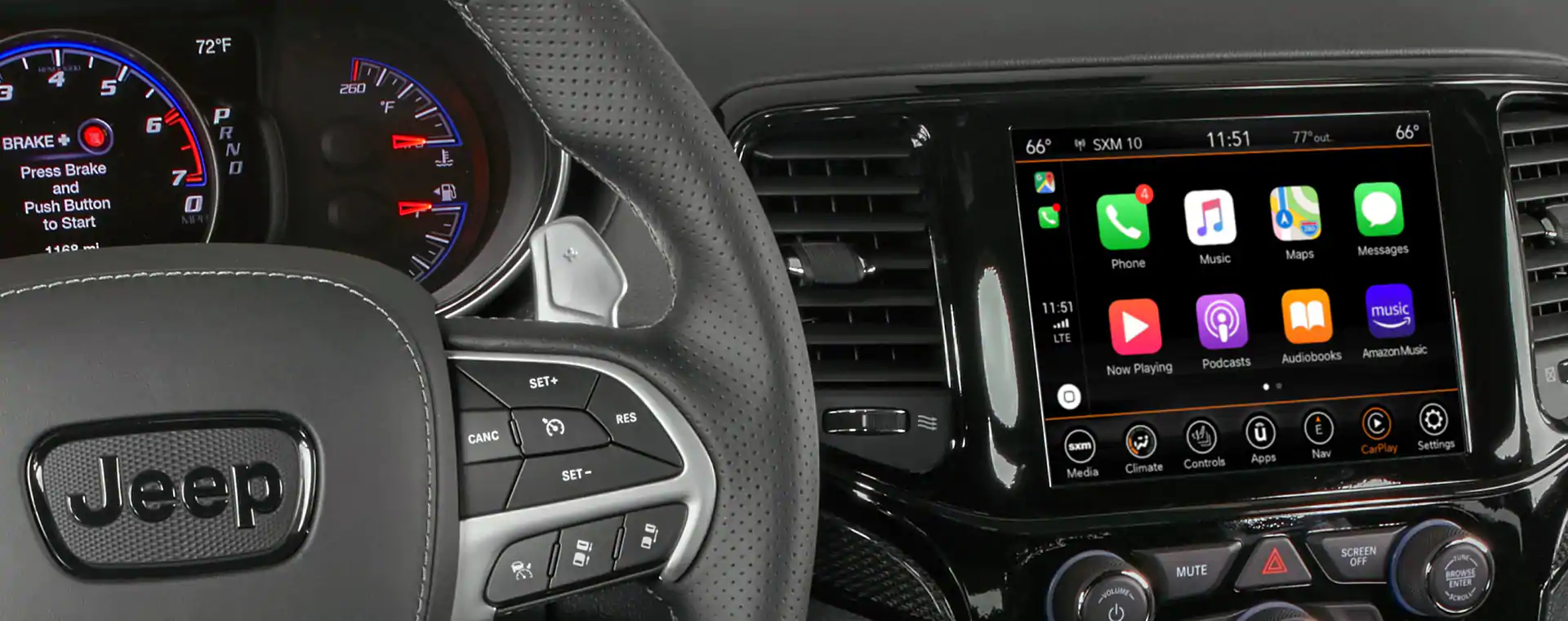
On the main screen, look for the Uconnect icon or button. Tap it to open the main menu. This menu shows options like audio, phone, navigation, and settings. Use the touchscreen or control knobs to scroll through the menu.
Select Connectivity Options
Find and tap the “Connectivity” or “Connections” section in the menu. This area lets you link your phone or other devices via Bluetooth or USB. Choose the desired connection method and follow on-screen prompts to pair your device with Uconnect.
Pairing Your Phone
Pairing your phone with Uconnect Dodge is the key to accessing hands-free calls, music streaming, and navigation seamlessly. The process is straightforward but requires a few simple actions on both your phone and your vehicle’s system. Let’s break down how you can get connected quickly and without frustration.
Activate Phone Bluetooth
Start by turning on the Bluetooth feature on your phone. This is usually found in the Settings menu under “Connections” or “Bluetooth.” Make sure your phone is visible to other devices so Uconnect can detect it.
If you’ve ever struggled to find Bluetooth settings, try using the search bar in your phone’s settings app. This small trick saves time and gets you ready for the next step faster.
Search For Uconnect Device
Next, on your Uconnect screen, navigate to the Bluetooth menu and select the option to add or pair a new device. Your car’s system will start searching for nearby Bluetooth devices.
Look for the name “Uconnect” or something similar on your phone’s list of available devices. If you don’t see it immediately, give it a few seconds or refresh the list on your phone.
Confirm Pairing Code
Once your phone and Uconnect identify each other, a pairing code appears on both screens. It’s crucial to verify that the codes match to ensure a secure connection.
Accept the pairing request on your phone and Uconnect system. Sometimes, you may be prompted to allow access to your contacts and messages—granting permission enhances your experience with hands-free features.
Have you noticed how a quick confirmation step prevents many connection errors? Taking this moment ensures your phone and vehicle communicate perfectly every time.
Using Uconnect Features
Using Uconnect features in your Dodge vehicle makes driving safer and more fun. The system connects your phone and car. This lets you use many helpful options without distraction. You can talk on the phone, listen to music, and control commands by voice. These features keep your hands on the wheel and eyes on the road.
Making Calls
Uconnect lets you make calls easily through the car’s system. Connect your phone via Bluetooth. Then, use the touchscreen or voice commands to dial numbers. Your contacts are available on the screen. You can answer or reject calls without touching your phone. This keeps your drive safe and smooth.
Streaming Music
Play your favorite songs using Uconnect’s music streaming. Connect your phone or USB device to the system. Choose music apps like Spotify or Pandora through the touchscreen. Control music playback with simple taps or voice commands. Enjoy clear sound from your car’s speakers without handling your phone.
Using Voice Commands
Voice commands make using Uconnect easy and safe. Press the voice button on the steering wheel. Say what you want, like calling a contact or playing a song. The system understands simple commands and acts fast. This keeps your focus on driving while managing tasks hands-free.
Troubleshooting Connection Issues
Connection issues with your Uconnect system can be frustrating, especially when you rely on it for navigation, calls, or entertainment. Before giving up, try some simple troubleshooting steps that often fix common problems quickly. These practical tips can save you time and get your system working smoothly again.
Restart Devices
Sometimes, the easiest fix is the best one. Restart your smartphone and your vehicle’s Uconnect system to clear any temporary glitches. This simple reboot can refresh the connection and resolve many issues without complicated steps.
Turn off your car completely, wait a few seconds, and then turn it back on. Do the same for your phone by powering it down and then restarting. Have you noticed how many tech problems disappear after a quick restart?
Reset Uconnect System
If restarting didn’t work, try resetting the Uconnect system itself. This will clear any software bugs that might be interrupting the connection. Look for the reset option in your vehicle’s settings or consult your owner’s manual for exact instructions.
Resetting won’t erase your saved data like contacts or radio presets, but it refreshes the system’s core functions. Think of it as giving your car’s brain a fresh start to reconnect properly.
Check For Interference
Wireless signals can be affected by interference from other devices or environmental factors. Check if other Bluetooth devices are active nearby, as they might be competing with your Uconnect connection. Try turning off other electronics to see if that improves the link.
Also, consider your location. Tall buildings, tunnels, or even weather conditions can impact signal strength. Have you experienced better connections when parked in an open area? This simple observation can guide your troubleshooting efforts.
Tips For Smooth Connectivity
Maintaining a steady connection with Uconnect Dodge enhances your driving experience. Smooth connectivity avoids interruptions and keeps features working properly. Follow these simple tips to ensure your system stays reliable and responsive.
Keep Software Updated
Uconnect needs regular software updates for best performance. Updates fix bugs and improve compatibility with devices. Check for updates in the settings menu or through the Uconnect website. Install new versions as soon as they are available. Updated software helps prevent connection problems and adds new features.
Limit Connected Devices
Too many devices connected at once can slow down Uconnect. Disconnect devices not in use to free system resources. Prioritize the device you use most for calls or music. Reducing connected devices improves response time and reduces interference. A simple device list check can keep your connection clear.
Regularly Restart System
Restarting Uconnect refreshes its system and clears minor glitches. Turn off the vehicle and wait a few seconds before restarting. This resets the connection and often solves temporary issues. Make it a habit to restart the system regularly for smooth operation. A quick reboot can save time and frustration.

Credit: www.youtube.com
Frequently Asked Questions
How Do I Pair My Phone With Uconnect?
To pair your phone with Uconnect, activate Bluetooth on your phone. Then, select “Uconnect” from your phone’s device list. Follow on-screen prompts to complete the pairing process. Ensure your vehicle is in park and engine is running during this procedure for safety.
Can I Use Uconnect Without A Subscription?
Yes, you can use Uconnect without a subscription for basic features. These include Bluetooth connectivity, media player, and hands-free calling. Advanced features like navigation and remote services require a subscription. Check your vehicle’s manual for specific functionalities available without a subscription.
What Should I Do If Uconnect Won’t Connect?
If Uconnect won’t connect, first restart your phone and vehicle. Ensure Bluetooth is enabled and within range. Delete old device pairings from Uconnect. Try pairing again. If issues persist, consult your vehicle’s manual or contact Dodge customer support for further assistance.
How Do I Update My Uconnect System?
To update your Uconnect system, visit the Uconnect website and download the latest software version. Use a USB drive to transfer the update to your vehicle. Follow the on-screen instructions carefully to complete the installation process. Ensure your vehicle is parked and turned on during the update.
Conclusion
Connecting to Uconnect Dodge is simple and quick. Follow the steps carefully for the best results. Make sure your phone’s Bluetooth is on and nearby. Pair your device with the system to enjoy hands-free calls and music. Keep your software updated to avoid connection problems.
Enjoy a safer drive with easy access to your favorite apps. Stay connected without distraction. This guide helps you use Uconnect Dodge with confidence. Try it today and feel the difference.