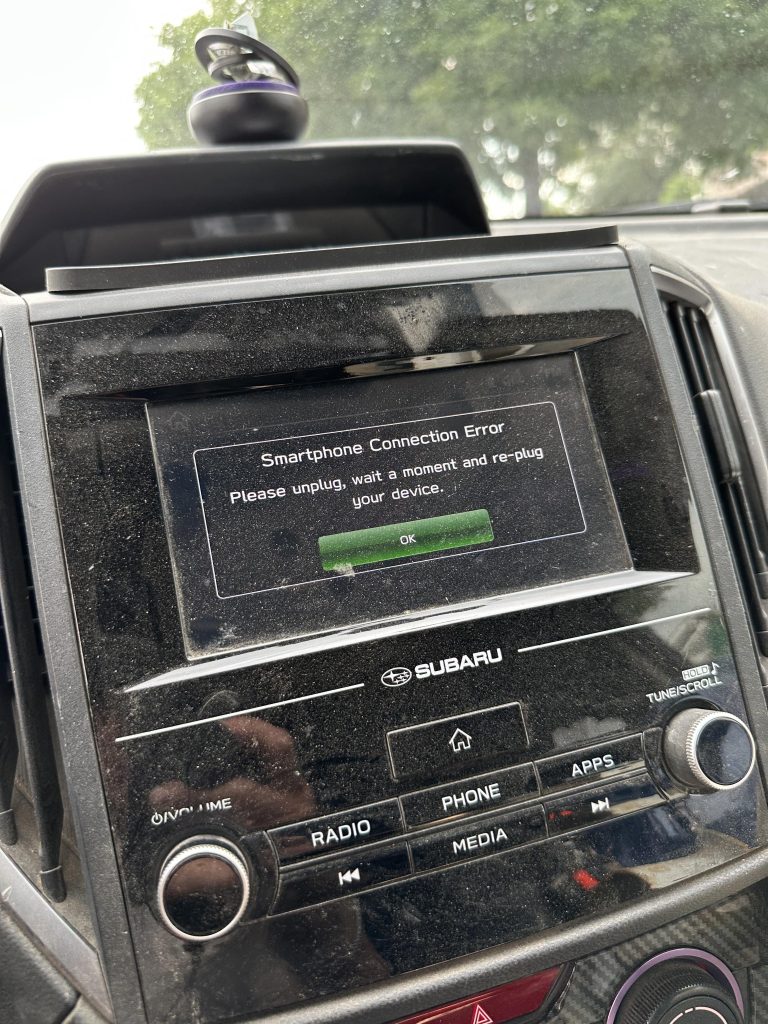
Are you frustrated because Apple CarPlay won’t work in your Subaru? You’re not alone.
Many Subaru owners face this exact problem and don’t know why their phone won’t connect properly. It’s confusing, especially when you rely on CarPlay for maps, music, and calls while driving. But don’t worry—this article will help you understand the common reasons behind the issue and show you simple fixes you can try right now.
Keep reading to get your Apple CarPlay up and running smoothly in your Subaru.
Common Apple Carplay Issues
Apple CarPlay can transform your driving experience, but it’s frustrating when it doesn’t work in your Subaru. Understanding the common issues can help you troubleshoot quickly and get back on track. Let’s look at the main problems that might be stopping CarPlay from connecting or functioning properly.
Connection Problems
One of the biggest hurdles is establishing a stable connection between your iPhone and your Subaru’s infotainment system. Are you using the right cable? Not all USB cables support CarPlay, especially if they’re old or damaged.
Wireless CarPlay can also fail due to weak Bluetooth or Wi-Fi signals. If your phone struggles to maintain these connections, CarPlay won’t activate properly. Try toggling Bluetooth and Wi-Fi off and on, or reconnect your phone from scratch to see if that helps.
Compatibility Concerns
Not all Subaru models support Apple CarPlay, or they might require a software update to do so. Have you checked if your vehicle’s system is compatible? Sometimes, even if your car is listed as compatible, the infotainment software needs to be updated to the latest version.
Also, your iPhone’s iOS version matters. If it’s outdated, CarPlay might not work smoothly or at all. Make sure your iPhone runs iOS 13 or later, as earlier versions have limited or no CarPlay support.
Software Glitches
Occasionally, software bugs can interfere with CarPlay’s functionality. These glitches might cause the system to freeze, display errors, or fail to launch apps correctly. Restarting both your iPhone and the car’s infotainment system can clear temporary glitches.
If problems persist, resetting your car’s infotainment settings or your iPhone’s network settings can help. Have you noticed that after an update, CarPlay started acting up? That’s a sign a bug might be at play, and waiting for a patch or reinstalling software might be necessary.

Credit: www.reddit.com
Check Your Subaru Model
Checking your Subaru model is essential to understand why Apple CarPlay might not work. Not all Subaru vehicles support CarPlay, and compatibility depends on the model and year. Identifying your exact model helps narrow down the issue and find the right solution.
Carplay Compatibility List
Subaru supports Apple CarPlay on many models, but not all. Most newer models offer this feature, especially those with the STARLINK multimedia system. Here are some common Subaru models that support CarPlay:
- Subaru Outback
- Subaru Forester
- Subaru Crosstrek
- Subaru Impreza
- Subaru Legacy
Check if your model is on this list. If not, your Subaru might not have CarPlay compatibility.
Model Year Restrictions
Apple CarPlay support depends on the model year. Subaru started adding CarPlay mostly from 2017 onward. Older models usually do not have this feature.
For example:
| Model | First Year with CarPlay |
|---|---|
| Outback | 2018 |
| Forester | 2018 |
| Crosstrek | 2018 |
| Impreza | 2017 |
| Legacy | 2018 |
Models older than these years might lack CarPlay hardware or software support. Confirm your model year to know if CarPlay should work.
Inspect Your Iphone Settings
Checking your iPhone settings is key to fixing Apple CarPlay issues in your Subaru. Sometimes, simple settings block the connection. Other times, outdated software stops CarPlay from working properly. Adjusting your iPhone settings can solve most problems fast.
Enable Carplay
CarPlay must be turned on in your iPhone settings. Go to Settings > General > CarPlay. Find your Subaru’s name and tap it. If CarPlay is off, switch it on. This allows your iPhone to connect to your car.
Trust This Car
Your iPhone needs to trust your Subaru for CarPlay to work. When you connect the phone, a pop-up asks if you trust this car. Tap Trust. Without this, the connection will fail. You can reset trust by going to Settings > General > Reset > Reset Location & Privacy.
Update Ios Version
CarPlay needs the latest iOS version to work well. Old iOS versions may cause bugs. Check your iPhone’s software by going to Settings > General > Software Update. Download and install any available updates. Updated software improves compatibility with your Subaru’s system.
Credit: www.subaruoutback.org
Examine Usb And Wireless Connections
CarPlay issues in your Subaru often link to connection problems. Check both USB and wireless setups to find the cause. Small mistakes with cables or ports can stop CarPlay from working.
Testing connections helps narrow down the problem quickly. Try different cables and ports. Also, review how wireless CarPlay is set up. These checks solve most common connection errors.
Use Genuine Cables
Non-genuine cables may not support CarPlay properly. Use Apple-certified cables to ensure compatibility. Cheap or damaged cables can disrupt data transfer. This causes CarPlay to fail or disconnect often.
Check the cable for any visible damage or wear. Replace old or frayed cables immediately. A strong and stable cable connection is key for CarPlay to work.
Try Different Usb Ports
Some Subaru models have multiple USB ports. Not all ports support CarPlay. Test each port to see if CarPlay connects. Dirt or debris inside ports can block the connection.
Clean the USB port gently with a soft brush or cloth. Avoid using sharp objects that can damage the port. A clean, working port helps maintain a strong connection.
Wireless Carplay Setup
Wireless CarPlay uses Bluetooth and Wi-Fi to connect your iPhone. Make sure Bluetooth and Wi-Fi are both enabled on your phone. Your Subaru’s infotainment system must support wireless CarPlay.
Check the car’s settings to confirm wireless CarPlay is turned on. Forget previous connections and try pairing your phone again. Restart both the car system and your iPhone to refresh the connection.
Reset Infotainment System
Resetting your Subaru’s infotainment system can often resolve issues with Apple CarPlay not working. This process clears temporary glitches that block the connection, offering a fresh start without complicated fixes. It’s a simple step that many Subaru owners overlook but can make a big difference in restoring functionality.
Soft Reset Steps
A soft reset is a quick way to reboot the infotainment system without erasing your settings. It refreshes the software and can fix minor bugs that disrupt Apple CarPlay.
- Turn off your vehicle and open the driver’s door to ensure the system fully powers down.
- Press and hold the power button on the infotainment screen for about 10 seconds.
- Release the button when the screen goes black and waits for the system to restart.
- After reboot, reconnect your iPhone to check if Apple CarPlay is working properly.
Have you tried this simple reset before digging deeper? Many users find this step resolves connection problems quickly.
Factory Reset Options
If a soft reset doesn’t fix the issue, a factory reset might be necessary. This option erases all custom settings and restores the system to its original state. It’s more drastic but often clears hidden software conflicts affecting Apple CarPlay.
- Access the Settings menu on your Subaru’s infotainment screen.
- Navigate to the System or General tab, then find the Factory Reset or Reset option.
- Confirm the reset by following the on-screen prompts. Your system will reboot automatically.
- After the reset, set up your preferences again and try connecting Apple CarPlay.
Before you reset, consider if you have backed up important settings or paired devices. Losing these could be inconvenient but may be worth it to get CarPlay working seamlessly again.
Update Firmware And Software
Updating firmware and software is essential for Apple CarPlay to work smoothly in your Subaru. Outdated systems often cause connection problems or failures. Both your car’s infotainment system and your iPhone need the latest updates to communicate properly.
Regular updates fix bugs and improve compatibility. They also add new features that enhance your CarPlay experience. Ignoring updates can lead to frustrating errors and interruptions during use.
Subaru Infotainment Updates
Subaru releases regular updates for its infotainment system. These updates improve system stability and CarPlay performance. You can check for updates in your car’s settings menu or on Subaru’s official website.
- Connect your car to Wi-Fi or use a USB drive to update.
- Follow on-screen instructions carefully to complete the process.
- Keep your car in park and engine on during updates.
Updating your Subaru’s system ensures it supports the latest CarPlay features. It also resolves many common connectivity problems.
Iphone Software Updates
Your iPhone must run the latest iOS version for CarPlay to work well. Apple regularly releases updates that fix bugs and improve wireless and wired connections.
- Go to Settings > General > Software Update.
- Download and install any available updates.
- Restart your iPhone after updating.
Keeping your iPhone updated helps maintain a stable link with your Subaru. It also ensures compatibility with the latest CarPlay improvements.
Common Quick Fixes
Experiencing issues with Apple CarPlay in your Subaru can be frustrating. Many problems have simple solutions. Trying a few quick fixes may get your CarPlay working again fast.
Restart Devices
Turn off your Subaru’s infotainment system completely. Restart your iPhone by holding the power button. Wait a few seconds, then turn both back on. This refresh often solves connection glitches.
Disable Restrictions
Check your iPhone’s settings for any restrictions on CarPlay. Go to Settings > Screen Time > Content & Privacy Restrictions. Make sure CarPlay is allowed under allowed apps. Restrictions can block CarPlay from working properly.
Check Bluetooth Settings
Ensure Bluetooth is enabled on both your iPhone and Subaru system. Open Bluetooth settings and check if your phone is connected to the car. Disconnect and reconnect if needed. Bluetooth connection plays a key role in CarPlay function.
When To Seek Professional Help
Knowing when to seek professional help can save time and frustration. Some CarPlay issues need expert diagnosis and repair. Attempting fixes beyond your skills may cause more problems.
Professional support ensures your Subaru and Apple device work smoothly together. Experts have the right tools and knowledge to solve complex issues quickly.
Dealership Support
Subaru dealerships offer specialized service for CarPlay problems. They understand your car’s system and software better than anyone else. Technicians can check hardware, update software, or fix wiring issues.
Visit your dealership if CarPlay won’t connect despite trying basic fixes. They may run detailed diagnostics to find hidden problems. Dealerships also provide warranty-covered repairs for eligible vehicles.
Apple Support Options
Apple experts can help with iPhone or iOS-related CarPlay issues. They guide you through settings, software updates, and troubleshooting steps. Apple Support offers phone, chat, and in-store help.
Contact Apple if your iPhone does not recognize your Subaru or CarPlay freezes. They can test your device for software bugs or hardware faults. Apple’s support ensures your phone works well with CarPlay.

Credit: www.reddit.com
Frequently Asked Questions
Why Is Apple Carplay Not Connecting?
Apple CarPlay might not connect due to a faulty USB cable, outdated software, or incompatible settings. Ensure your iPhone and Subaru’s system are updated. Try using a different cable or reconnecting. Also, check if CarPlay is enabled in your car’s settings.
These steps often resolve connection issues.
How Do I Enable Carplay In My Subaru?
To enable CarPlay, connect your iPhone via USB. Go to the Subaru infotainment screen and select “Settings. ” Ensure CarPlay is turned on. Also, check your iPhone’s settings under “General” > “CarPlay” and allow CarPlay access. This setup usually activates CarPlay in your Subaru.
Can Bluetooth Affect Carplay Functionality?
Yes, Bluetooth can affect CarPlay if the connection is unstable. Disconnect Bluetooth devices and reconnect your iPhone using a USB cable. Ensure your Subaru’s Bluetooth settings don’t interfere with the CarPlay connection. A direct USB connection is often more reliable for CarPlay.
Is My Subaru Model Compatible With Carplay?
Not all Subaru models support CarPlay. Check your vehicle’s manual or Subaru’s website for compatibility details. Most newer models from 2017 onwards support CarPlay. If your model is older, consider aftermarket solutions to enable CarPlay functionality in your Subaru.
Conclusion
Apple CarPlay may not work in your Subaru due to software or connection issues. Check your phone’s settings and cable for damage. Make sure your Subaru’s system supports CarPlay and is updated. Restart your phone and car system to refresh connections.
Sometimes, a simple reset fixes many problems. Keep your devices clean and cables secure. If problems persist, contact Subaru support or visit a service center. Staying patient helps. Soon, you can enjoy CarPlay without trouble.