Having a Shark Robot Vacuum is like having a reliable cleaning partner that tirelessly roams your floors, keeping them spotless. But what if you need to turn it off?
Whether you’re troubleshooting, conserving battery, or simply need some peace and quiet, knowing how to turn off your Shark Robot Vacuum can be crucial. You might think it’s just a simple button press, but missing this small detail can lead to unnecessary frustration.
Stick around, and you’ll discover the straightforward steps to ensure your vacuuming buddy takes a well-deserved break exactly when you want. Let’s dive into making your life just a little bit easier.

Credit: www.youtube.com
Locate The Power Button
Finding the power button on your Shark robot vacuum is the first step to turning it off. This button controls the device’s main functions and stops it from running. Knowing exactly where it is helps you quickly pause or shut down the vacuum.
The power button is usually easy to spot. It often has a symbol of a circle with a line through the top, the universal power icon. This design helps users recognize it instantly.
Every Shark robot vacuum model may have a slightly different button location. Checking the right spot ensures you do not press the wrong button by mistake. This avoids unwanted settings changes or interruptions.
Check The Top Surface Of The Vacuum
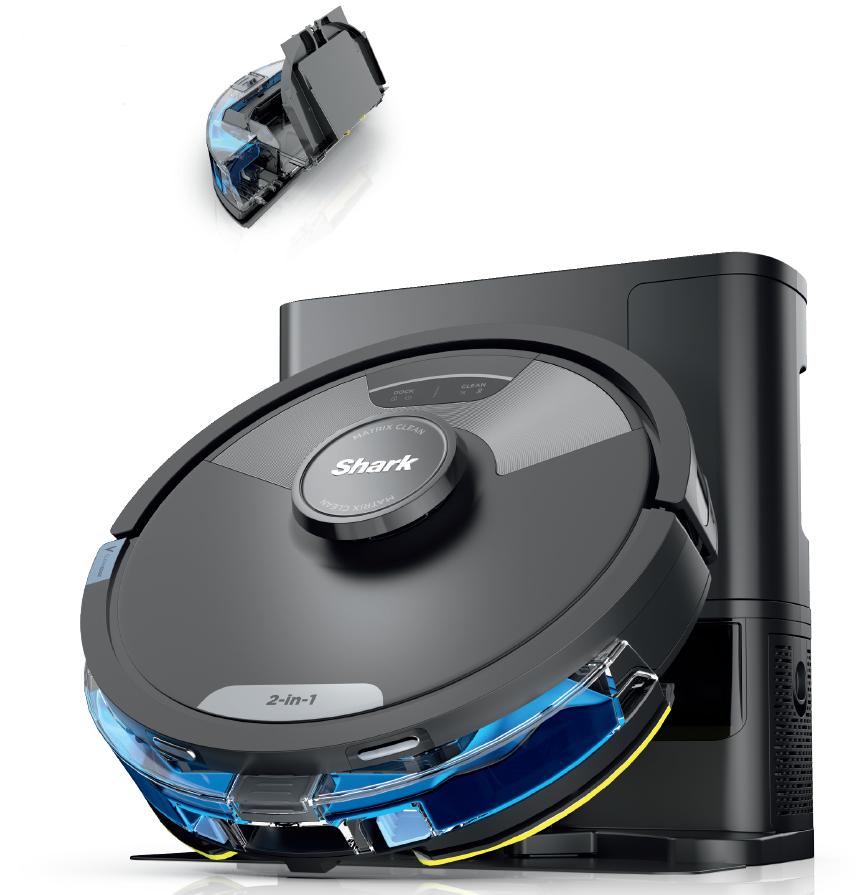
The power button often sits on the top of the vacuum. It is near the center or the front edge for easy access. Some models have a small, round button that glows when the vacuum is on.
Look Near The Display Panel
Models with a display screen usually place the power button close to it. This arrangement keeps all controls in one place. The button might be slightly raised or have a different color to stand out.
Inspect The Side Edges
On some Shark vacuums, the power button sits on the side. This location helps prevent accidental presses during cleaning. It may be flush with the surface or slightly recessed.
Refer To The User Manual
The user manual always shows the exact location of the power button. It includes pictures and diagrams. Reading this guide saves time and confusion.
Credit: support.sharkclean.com
Use The Remote Control
Using the remote control to turn off your Shark robot vacuum is quick and simple. The remote gives you full control over the vacuum’s functions from a distance. This is useful when you want to pause or stop the vacuum without walking to the device.
The remote control usually comes with your Shark robot vacuum. It has clearly labeled buttons that make operation easy. You can turn the vacuum off safely without interrupting its cleaning cycle abruptly.
Locate The Power Button On The Remote
Find the power button on the remote control. It is often marked with a standard power symbol. This button controls the vacuum’s main power function. Pressing it will stop the vacuum and turn it off.
Press The Power Button To Turn Off
Press the power button once. The vacuum will stop moving and shut down. Hold the button for a second if a single press does not work. This ensures the command is registered by the vacuum.
Check The Vacuum’s Status Light
Look at the vacuum’s status light after pressing the button. The light should turn off or change color. This signals the vacuum is powered down. If the light stays on, try pressing the button again.
Use Additional Remote Functions If Needed
The remote may have other buttons for pausing or docking. Use these if you want to stop cleaning but not fully turn off the vacuum. This helps save battery without shutting the device completely.
Turn Off Via Mobile App
Turning off a Shark Robot Vacuum using the mobile app offers quick control from anywhere. It saves time by avoiding manual buttons on the device. The app connects directly to your robot, letting you manage power settings easily.
Connect To The Robot
Open the SharkClean app on your smartphone. Ensure your phone is connected to the same Wi-Fi network as the robot. The app should automatically detect your vacuum. Tap on your robot’s name to establish a connection. Wait a moment for the app to sync with the device.
Navigate To Power Settings
Once connected, look for the control panel within the app. Find the section labeled “Power” or “Robot Controls.” Tap on the power options to see available commands. Select the “Turn Off” or “Power Down” button to stop the vacuum. Confirm the action if the app asks for it.
Manual Shutdown Steps
Knowing how to manually shut down your Shark Robot Vacuum can save you time and avoid frustration, especially when automatic controls don’t respond. The process is simple but requires a couple of clear steps to ensure the device powers off safely. This way, you protect the vacuum’s battery and prevent accidental starts.
Remove From Charging Dock
Start by carefully lifting your Shark Robot Vacuum off its charging dock. The vacuum often stays active while connected to power, so removing it is essential before turning it off.
Once it’s off the dock, the vacuum is free from its charging source, which allows you to perform the manual shutdown without interference. Have you noticed how your vacuum sometimes keeps running while docked? Removing it stops that immediately.
Press And Hold Buttons
Next, locate the power button on your Shark Robot Vacuum. Press and hold it down for about 3 to 5 seconds. You’ll know it’s shutting down when the lights go off or you hear a click.
This simple action cuts the power and stops all vacuum functions. If you press the button too briefly, the vacuum might just pause or go into standby mode instead. Have you ever accidentally paused your vacuum, thinking you turned it off? Holding the button firmly avoids that confusion.
Troubleshooting Power Issues
Power issues can stop your Shark Robot Vacuum from turning off properly. Troubleshooting these problems helps save time and frustration. Start by checking the battery condition. Then try resetting the robot to clear minor errors. Both steps often fix power-related problems quickly.
Check Battery Status
The battery might be low or faulty. Look at the vacuum’s indicator lights. A red or flashing light often means low battery. Place the vacuum on its charging dock. Wait at least an hour to allow full charging.
Check the battery contacts for dirt or damage. Clean them gently with a dry cloth. Dirty contacts can prevent proper charging. If the battery does not charge, it may need replacement.
Reset The Robot
Resetting clears small software glitches causing power problems. Find the reset button or use the app if available. Hold the reset button for about 10 seconds. Release it and wait for the robot to restart.
The vacuum should turn off and on during reset. After resetting, test if the power issue is fixed. Repeat the process if needed or check the battery again.
Safety Tips For Shutdown
Turning off your Shark Robot Vacuum safely is important to protect the device and avoid accidents. Following safety tips helps keep the vacuum in good condition. It also prevents damage to your home and ensures your personal safety. Always handle the vacuum with care during shutdown. Simple precautions can save you time and money later.
Unplug The Charging Dock
Always unplug the charging dock before shutting down the vacuum. This stops the power supply and reduces the risk of electrical shock. Disconnecting the dock also prevents the vacuum from turning on by mistake.
Use The Power Button Correctly
Press the power button gently to turn off the vacuum. Avoid holding it too long, as this can reset the device. Follow the instructions in the user manual for the correct shutdown process.
Remove The Battery If Necessary
For long periods without use, remove the vacuum’s battery if possible. This avoids battery drain and potential damage. Handle the battery with care to prevent short circuits or leaks.
Keep The Vacuum On A Stable Surface
Place the vacuum on a flat, stable surface before turning it off. This prevents it from falling or tipping over. A stable position also protects the internal parts from harm.
Clean The Vacuum Before Shutdown
Empty the dustbin and clean the brushes before turning off the vacuum. This keeps the vacuum working well and avoids blockages. Regular cleaning extends the device’s lifespan.

Credit: manuals.plus
Frequently Asked Questions
How Do I Turn Off A Shark Robot Vacuum Manually?
To turn off a Shark Robot Vacuum manually, press and hold the power button for 3-5 seconds. The device will then shut down completely. This method works for most Shark models and ensures the vacuum stops all operations safely.
Can I Turn Off A Shark Robot Vacuum Using The App?
Yes, you can turn off the Shark Robot Vacuum using the SharkClean app. Open the app, select your device, and tap the power or stop button. This feature allows remote control and convenient shutdown from your smartphone.
What Should I Do If My Shark Vacuum Won’t Turn Off?
If your Shark Vacuum won’t turn off, try pressing and holding the power button longer. If it still won’t shut down, remove the battery or unplug it from charging. Contact Shark customer support if the issue persists.
Does The Shark Robot Vacuum Turn Off Automatically?
Yes, the Shark Robot Vacuum turns off automatically after completing its cleaning cycle. It returns to the charging dock and powers down to conserve energy when idle.
Conclusion
Turning off a Shark robot vacuum is quick and simple. Use the power button on the device or the remote control. You can also unplug it from the charging base for extra safety. Knowing how to switch it off helps save battery and keeps your home quiet.
Keep these tips handy for easy use every day. Now you can control your Shark vacuum with confidence and ease.