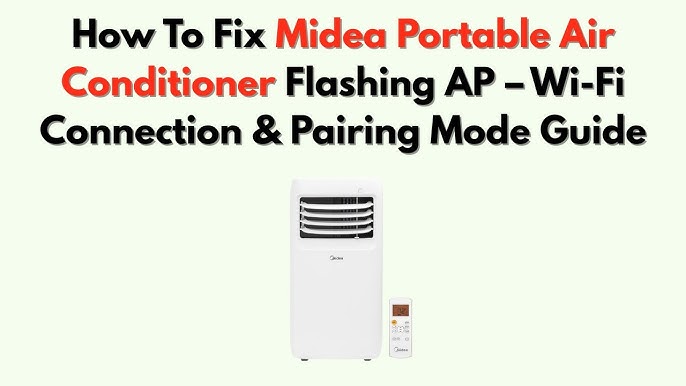
Are you struggling to connect your Midea air conditioner to WiFi? You’re not alone.
Getting your AC online can unlock smart control, energy savings, and convenience right from your phone. But the setup can feel confusing if you don’t know where to start. Don’t worry—this guide will walk you through each step in simple terms.
By the end, you’ll have your Midea air conditioner connected and ready to cool your space with just a tap. Keep reading to make your home smarter and your life easier.
Prepare Your Air Conditioner
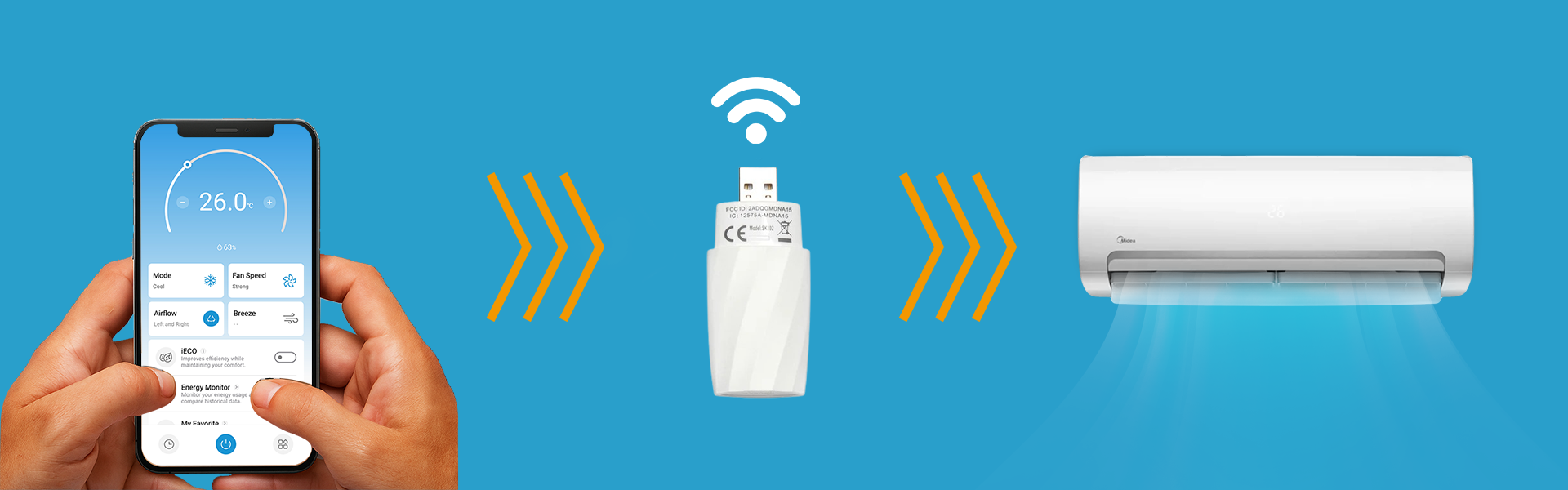
Connecting your Midea air conditioner to WiFi helps you control it remotely. Before starting, prepare the air conditioner for the connection process.
Proper preparation makes the setup easier. Check some important details first to avoid problems.
Check Wifi Compatibility
Make sure your Midea air conditioner supports WiFi connection. Not all models have this feature. Look for the WiFi symbol or check the user manual.
The air conditioner should connect to 2.4 GHz WiFi networks. It may not work with 5 GHz networks. Confirm your router supports 2.4 GHz.
- Look for WiFi symbol on the remote or unit
- Read the user manual for WiFi features
- Use a 2.4 GHz WiFi network only
Ensure Stable Internet Connection
Strong and steady internet is important for the air conditioner to work well with WiFi. Place the AC near your router if possible.
A weak signal can cause connection problems. Avoid walls or metal objects between the AC and router. Test your internet speed before setup.
- Place the AC close to the WiFi router
- Remove obstacles between router and AC
- Test internet speed for stability
- Restart router if connection is weak
Credit: theachub.pk
Download Midea App
Connecting your Midea air conditioner to WiFi is easy. First, you need the Midea app. This app lets you control your air conditioner from your phone.
Make sure you download the correct version of the app for your device. Follow the steps below to get started.
Find The Right App Version
Check your phone’s operating system. Download the app from the right store. Use the Google Play Store for Android devices.
For Apple devices, use the App Store. Make sure you choose the latest version of the app.
- Open the store on your phone
- Search for “Midea Air” app
- Download and install the app
Create Or Log Into Your Account
Open the Midea app on your phone. You need an account to use the app. If you don’t have an account, create one now.
If you already have an account, log in with your username and password. This connects your app to your air conditioner.
- Tap “Sign Up” for a new account
- Enter your email and set a password
- For existing accounts, tap “Log In”
Set Up Wifi On Your Air Conditioner
Connecting your Midea air conditioner to wifi lets you control it remotely. This guide shows how to set up wifi on your unit easily.
Follow the steps below to power on the device, reset wifi settings, and connect to the network.
Power On And Reset Wifi Settings
Start by turning on your Midea air conditioner. Then, reset the wifi settings to prepare for a new connection.
- Press the power button on the remote or unit to switch it on.
- Locate the wifi reset button on the air conditioner.
- Hold the reset button for about 5 seconds until the wifi indicator blinks.
- Release the button to complete the reset process.
Connect To Device Network
After resetting, connect your smartphone or tablet to the air conditioner’s wifi network. This lets you finalize the setup.
| Action | Details |
| Open Wifi Settings | On your phone, go to wifi settings. |
| Select Network | Find the network named “Midea_AC_XXXX”. |
| Connect | Tap to connect without a password. |
| Open Midea App | Launch the app to complete wifi setup. |
Credit: www.youtube.com
Connect Air Conditioner To Wifi Network
Connecting your Midea air conditioner to your wifi allows easy control from your phone. This guide shows you how to link your device with your home network.
Follow the simple steps below to get your air conditioner online quickly and without trouble.
Select Your Home Wifi
First, turn on the air conditioner’s wifi mode. Use the remote or app to open the wifi settings menu. Look for your home network name on the list shown.
- Make sure your phone or device is near the air conditioner.
- Check that the wifi network is active and working.
- Select the exact name of your home wifi from the list.
Enter Wifi Password
After selecting the network, you must enter your wifi password. This step secures the connection between your air conditioner and the internet.
| Tip | Details |
| Use correct case | Password letters must match uppercase or lowercase exactly. |
| Avoid extra spaces | Do not add spaces before or after the password. |
| Check symbols | Include any special characters as shown in your password. |
Confirm Connection
Once the password is entered, the air conditioner will try to connect to the wifi. You need to confirm the connection to finish setup.
- Wait for the device to show a success message or green light.
- Test the connection by using the mobile app to control the air conditioner.
- If connection fails, recheck your password and wifi signal strength.
Troubleshoot Common Issues
Connecting your Midea air conditioner to WiFi can make controlling it easier. Some problems can stop the connection from working well.
This guide helps you fix common WiFi connection issues with your Midea air conditioner. Try these simple solutions to get back online.
Wifi Not Detected
If your air conditioner does not find your WiFi network, check the distance. The signal may be weak if the router is far away.
- Move the router closer to the air conditioner.
- Remove any obstacles between the device and router.
- Restart your router to refresh the network.
- Make sure your WiFi network is set to 2.4 GHz, not 5 GHz.
- Check if the WiFi name is hidden; unhide it if needed.
Connection Fails
If your air conditioner tries to connect but fails, check your password and network settings. Incorrect info can cause failure.
| Issue | Solution |
| Wrong WiFi password | Re-enter the correct password carefully. |
| Router firewall blocks device | Disable firewall temporarily or add device to allowed list. |
| Too many devices on network | Disconnect unused devices to free up space. |
| Air conditioner firmware outdated | Update firmware via the app or device settings. |
App Sync Problems
The app may not sync with your air conditioner even if WiFi works. This can stop you from controlling the unit remotely.
Try these fixes to solve app sync issues:
- Restart the app and log in again.
- Check if the app has permission to access WiFi and location.
- Clear app cache from your phone settings.
- Update the app to the latest version.
- Reboot your phone to refresh connections.
Credit: github.com
Control Air Conditioner Remotely
Connecting your Midea air conditioner to WiFi lets you control it from anywhere. Use your smartphone to manage settings without being near the unit.
This guide helps you adjust your air conditioner using the app and set schedules for better comfort.
Adjust Settings Via App
The Midea app lets you change temperature, fan speed, and mode easily. You can do this from your phone anytime.
This remote control helps you keep your home comfortable without walking to the unit.
- Open the Midea app on your phone
- Connect to your air conditioner
- Adjust temperature and fan speed
- Switch between cooling, heating, or fan modes
Set Schedules And Timers
You can create schedules to turn the air conditioner on or off at set times. This saves energy and keeps your home ready.
Timers let you set the air conditioner to run for a specific time before it turns off automatically.
- Open the scheduling section in the app
- Choose days and times for the air conditioner to run
- Set timers for automatic shut-off
- Save your schedule for regular use
Frequently Asked Questions
How Do I Connect Midea Ac To Wifi?
To connect, download the Midea Air app and create an account. Turn on the AC and enable WiFi mode. Follow the in-app instructions to link your home WiFi network. Ensure your phone is on the same network for smooth setup.
What Are The Wifi Requirements For Midea Ac?
Midea AC supports 2. 4 GHz WiFi networks only. Ensure your router broadcasts a 2. 4 GHz signal. The network must be stable with a strong signal near the AC. Avoid 5 GHz networks as they are not compatible.
Can I Control Midea Ac Remotely Via Wifi?
Yes, once connected to WiFi, you can control the AC remotely. Use the Midea Air app to adjust settings, turn on/off, and set timers from anywhere. This feature adds convenience and energy efficiency.
Why Won’t My Midea Ac Connect To Wifi?
Common issues include wrong WiFi password, 5 GHz network usage, or weak signal. Restart your router and AC, then try reconnecting. Ensure the app is updated and your phone is near the AC during setup.
Conclusion
Connecting your Midea air conditioner to WiFi is simple and quick. Follow the steps carefully to avoid any trouble. Once connected, enjoy easy control from your phone anytime. This setup helps save energy and keeps your room comfortable. Stay cool and relaxed without extra effort.
Give it a try today and see the difference it makes.