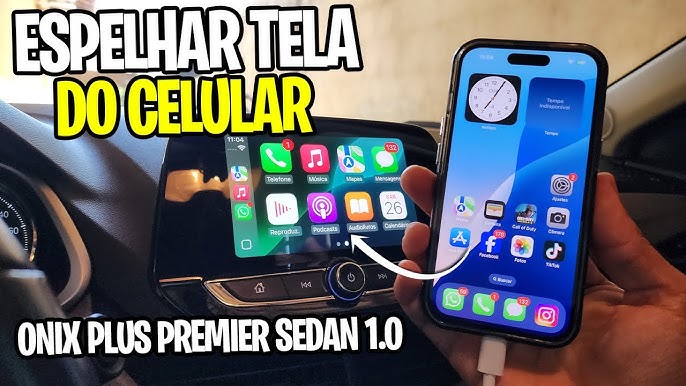
Imagine having your iPhone’s apps, maps, and music right on your car’s big screen—making every drive smoother and safer. You might think this is complicated or requires special tools, but it’s easier than you expect.
If you want to know how to mirror your iPhone to your car screen quickly and without stress, you’re in the right place. Keep reading, and you’ll discover simple steps that will change the way you drive forever.
Requirements For Mirroring
Mirroring your iPhone to your car screen lets you see apps and videos on a bigger display. It needs specific devices and software to work smoothly.
Check your iPhone and car screen compatibility before starting. You also need the right cables and apps to connect both devices.
Compatible Iphone Models
Not all iPhones support screen mirroring to car displays. Most models with iOS 13 or later can mirror using Apple CarPlay or other apps.
- iPhone 5s and newer support basic mirroring features
- iPhone 6 and later models work best with CarPlay
- iPhones running iOS 13 or higher have more mirroring options
Car Screen Compatibility
Your car screen must support mirroring or Apple CarPlay. Some screens need a wired connection, while others work wirelessly.
- CarPlay compatible screens work seamlessly with iPhones
- Some aftermarket car screens support mirroring apps
- Older car screens may need extra devices to mirror
Necessary Cables And Adapters
You may need special cables or adapters to connect your iPhone to the car screen. The type depends on your car and phone model.
- Lightning to USB cable for wired CarPlay connection
- USB-C to HDMI adapter for some newer iPhones
- Wireless adapters if your car supports wireless mirroring
- HDMI cables for cars with HDMI input ports
Apps And Software Needed
Some cars require apps to enable mirroring. Apple CarPlay is common, but third-party apps also work for different screens.
- Apple CarPlay app built into iOS for most cars
- Third-party apps like ApowerMirror for non-CarPlay screens
- Car manufacturer apps that support screen mirroring
- Updated iOS version for best app compatibility

Credit: apps.apple.com
Methods To Mirror Iphone
Mirroring your iPhone to a car screen lets you see apps and media while driving. It improves convenience and safety by showing navigation or music controls on a bigger display.
There are several ways to mirror your iPhone. Each method fits different car models and user needs. Below, we explain common methods.
Using Apple Carplay
Apple CarPlay is a popular way to mirror your iPhone in the car. It connects your phone to the car’s infotainment system. CarPlay shows apps like Maps, Messages, and Music on the car screen.
To use CarPlay, plug your iPhone into the car’s USB port or connect wirelessly if supported. Then, the car screen will display your iPhone interface in a simple layout for driving.
Screen Mirroring Via Bluetooth
Some cars allow screen mirroring using Bluetooth. This method connects your iPhone to the car wirelessly. It sends audio and limited video content to the car screen.
- Turn on Bluetooth on both iPhone and car system
- Pair the devices through settings
- Select screen mirroring or media sharing on the car’s display
- Start mirroring your iPhone screen or audio
Connecting With Hdmi Adapter
You can use an HDMI adapter to mirror your iPhone to a car screen. This method needs a compatible adapter and an HDMI input on the car display. It gives a direct wired connection and high-quality display.
| Item | Purpose |
| Lightning to HDMI Adapter | Connect iPhone to HDMI cable |
| HDMI Cable | Transmit video and audio to car screen |
| Car Screen with HDMI Input | Display iPhone content |
Wireless Mirroring Apps
Many apps allow wireless mirroring of your iPhone to the car screen. These apps use Wi-Fi or local networks to send your screen content. They work with compatible car systems or external devices like smart TVs.
Popular wireless mirroring apps include:
- ApowerMirror
- LetsView
- AirBeam
Install the app on your iPhone and the car system or connected device. Follow app instructions to start mirroring.
Step-by-step Setup
Mirroring your iPhone to your car screen lets you see your apps while driving. This guide helps you connect easily.
Follow simple steps to prepare your iPhone, link it to the car, and adjust settings for the best view.
Preparing Your Iphone
Start by making sure your iPhone is ready for screen mirroring. Check your software and connections first.
- Update your iPhone to the latest iOS version.
- Turn on Wi-Fi and Bluetooth in Settings.
- Enable Screen Mirroring or AirPlay from the Control Center.
- Connect your iPhone to the same Wi-Fi network as your car, if needed.
Connecting To Car Screen
Link your iPhone to your car’s display using a cable or wirelessly, depending on your car model.
- Use a Lightning to USB cable for a wired connection.
- For wireless, enable Bluetooth and Wi-Fi on both devices.
- Access your car’s media or screen mirroring menu.
- Select your iPhone from the available devices list.
- Allow connection requests on your iPhone if prompted.
Adjusting Settings For Optimal Display
Change settings to make sure your iPhone screen fits well on your car display and works smoothly.
| Setting | What to Do |
| Brightness | Adjust to a comfortable level on both devices. |
| Orientation | Lock portrait or landscape mode on iPhone. |
| Volume | Control sound through car speakers or iPhone. |
| Notifications | Turn off or limit notifications for safety. |

Credit: www.reddit.com
Troubleshooting Tips
Mirroring your iPhone to your car screen can be very useful. Sometimes, problems may stop it from working. This guide helps you fix common issues fast.
Check these tips to get your connection back and enjoy your phone on the car display.
Common Connection Issues
Connection problems happen often when mirroring your iPhone to the car screen. Make sure your devices are ready to pair and the settings are correct.
- Check if Bluetooth or Wi-Fi is turned on both devices.
- Ensure your car supports iPhone screen mirroring.
- Restart your iPhone and the car system.
- Confirm that the cables or adapters are plugged in well.
- Turn off airplane mode on your iPhone.
Fixing Audio And Video Problems
Sometimes the screen shows, but audio or video may not work right. Check the settings for sound and display on both devices.
| Problem | Possible Fix |
| No sound from car speakers | Check volume and mute settings on phone and car |
| Video not showing on car screen | Restart the app or reconnect the devices |
| Audio out of sync with video | Disconnect and reconnect the mirroring connection |
| Screen flickers or is blurry | Adjust brightness or check cable quality |
Updating Software And Firmware
Old software can cause issues. Make sure your iPhone and car system use the latest versions for smooth mirroring.
Follow these steps to update your devices:
- On your iPhone, go to Settings > General > Software Update.
- If an update is available, tap Download and Install.
- Check your car’s user manual for update instructions.
- Visit the car manufacturer’s website for the latest firmware.
- Install updates and restart the car system.
Safety Tips While Driving
Mirroring your iPhone to your car screen can be helpful. It lets you use apps and maps safely. Always focus on driving first.
Following safety tips keeps you and others safe on the road. Learn how to use your phone smartly while driving.
Avoiding Distractions
Distractions can cause accidents. Keep your eyes on the road and hands on the wheel. Use your car screen only when needed.
- Set up your phone before driving
- Do not text or browse while driving
- Keep volume low to hear traffic sounds
- Use car controls instead of phone buttons
- Ask passengers to help with phone tasks
Using Voice Commands
Voice commands help you keep your focus. You can make calls or change music without touching your phone. Use Siri or car voice controls.
- Hands-free operation
- Less distraction
- Quick access to apps
- Improves driving safety
Legal Considerations
Many places have laws about phone use in cars. Know your local rules before mirroring your iPhone. Follow these simple laws to stay safe and legal.
| Law | Description |
| No texting | Do not type messages while driving |
| Hands-free only | Use phone with voice or car controls |
| Screen use limits | Only use screens for navigation or calls |
| Penalties | Fines or points for breaking rules |

Credit: apps.apple.com
Frequently Asked Questions
How Do I Connect Iphone To My Car Screen?
To connect your iPhone, use Apple CarPlay via USB or wireless. Enable CarPlay in your car’s settings. Make sure your iPhone is updated and unlocked. Follow on-screen prompts to mirror your screen safely.
Can I Mirror Iphone Without Apple Carplay?
Yes, you can use third-party apps like ApowerMirror or AirServer. These apps require Wi-Fi connection and compatible car screens. Check your car’s manual to ensure support. This method is less stable than CarPlay but works well for media sharing.
Is Iphone Mirroring Compatible With All Car Models?
No, iPhone mirroring mainly works with CarPlay-supported vehicles. Most newer cars support CarPlay, but some older models don’t. Check your car manufacturer’s website for compatibility. If unsupported, use external devices like HDMI adapters or third-party apps.
Does Mirroring Iphone Drain Car Battery Faster?
Mirroring your iPhone can increase battery usage slightly. However, most cars supply power via USB, minimizing drain. Wireless mirroring may use more battery than wired connections. Always monitor your car’s battery health during extended use.
Conclusion
Mirroring your iPhone to the car screen makes driving safer and fun. It lets you see maps, music, and calls easily. Choose the right method for your car and phone model. Follow simple steps to connect quickly without trouble. Keep your eyes on the road while using this feature.
Enjoy hands-free control and better road focus. Try it today for a smoother drive experience.