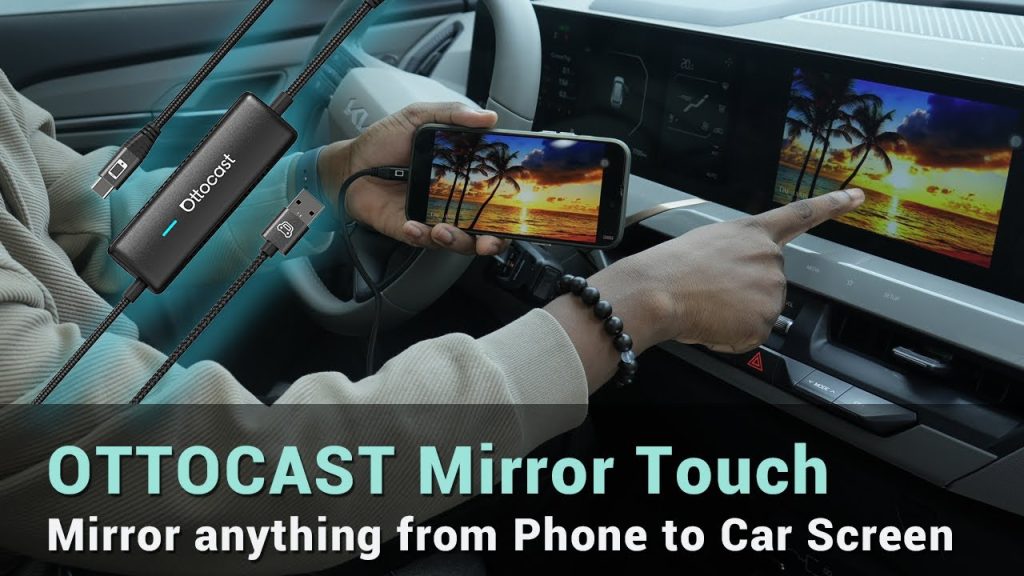
Imagine having your favorite apps, maps, and music right on your car’s big screen—without fumbling with your phone while driving. If you want to make your drive safer and more enjoyable, learning how to mirror your phone to your car screen is the game-changer you need.
You’ll discover simple, step-by-step ways to connect your phone seamlessly. Ready to take control of your drive and stay connected like never before? Keep reading, because the solution is easier than you think.

Credit: www.youtube.com
Choose The Right Connection Method
Mirroring your phone to your car screen lets you use apps safely while driving. Picking the right connection method is key for a smooth experience.
There are two main ways to connect: wired and wireless. Each has benefits and limits. You also must check if your devices are compatible.
Wired Vs Wireless Options
Wired connections use cables like USB or HDMI to link your phone to the car. Wireless options use Wi-Fi or Bluetooth to connect without cables.
- Wired:Often more stable with less lag.
- Wireless:Offers freedom from cables but may have delays.
- Wired:Usually needs specific cables and ports.
- Wireless:Works well if both devices support wireless mirroring.
Compatibility Check
| Device Type | Connection Method | Notes |
| iPhone | Wired (Lightning to USB), Wireless (AirPlay) | Car must support Apple CarPlay |
| Android Phone | Wired (USB-C), Wireless (Miracast, Android Auto) | Car must support Android Auto or Miracast |
| Older Phones | Mostly Wired | Wireless may not be supported |
| Car Screen | Check for USB, HDMI ports or Wi-Fi/Bluetooth support | Compatibility varies by model and year |

Credit: www.walmart.com
Prepare Your Phone And Car
Mirroring your phone to the car screen lets you see apps and maps easily. Preparing both devices helps the process work smoothly.
This guide covers enabling developer options and updating software on your phone and car system.
Enable Developer Options
Developer options unlock advanced settings on your phone. These settings help with connecting to the car’s screen.
- Open your phone’s Settings app.
- Scroll to About Phone or About Device.
- Find the Build Number entry.
- Tap Build Number seven times quickly.
- Enter your phone’s PIN if asked.
- Return to the main Settings menu.
- Look for Developer Options and open it.
- Enable USB debugging or similar options.
Update Software
Keeping your phone and car software updated prevents connection issues. Updates add fixes and new features.
| Device | How to Update | Why It Matters |
|---|---|---|
| Phone | Go to Settings > System > Software Update | Ensures compatibility with car systems |
| Car System | Use the car’s settings menu or visit dealer | Improves screen mirroring and connectivity |
Connect Using Usb Cable
Mirroring your phone to the car screen using a USB cable is simple. It gives a stable connection and clear display.
This guide helps you connect your phone to the car screen with a USB cable step by step.
Selecting The Correct Cable
Use a cable that fits your phone and car USB port. Most phones use USB-C or Lightning cables.
Check if the cable supports data transfer, not just charging. A charging-only cable will not mirror your screen.
- USB-C to USB-A for most Android phones
- Lightning to USB-A for iPhones
- Use original or certified cables for best results
Setting Up On Phone
Unlock your phone and connect it to the car with the USB cable. A prompt may appear on your phone.
Allow the phone to share its screen or data with the car system. This permission is needed for mirroring.
- Enable USB debugging if required (Android)
- Allow access to phone data when prompted
- Open the app or feature for screen mirroring
Accessing Car Screen
On your car screen, select the input source for the USB connection. This may be called Phone, Android Auto, or CarPlay.
The phone’s screen should appear on the car display. Use the car controls to navigate your phone apps safely.
- Press the media or phone button on the car console
- Choose the USB or phone connection option
- Use car touchscreen or buttons to control mirrored screen

Credit: www.walmart.ca
Connect Via Wireless Mirroring
Mirroring your phone to your car screen lets you see apps and media on a bigger display. You can do this without wires using wireless mirroring methods.
Wireless mirroring keeps your car interior tidy and lets you control your phone safely while driving.
Using Bluetooth
Bluetooth connects your phone and car wirelessly for basic data sharing. It is easy to set up but has limits on video quality and speed.
- Turn on Bluetooth on your phone and car system.
- Search for available devices and select your car.
- Pair your phone with the car by confirming the code.
- Use your car’s interface to access phone features.
- Note that Bluetooth may not support full screen mirroring.
Using Wi-fi Direct
Wi-Fi Direct lets devices connect directly without a router. It gives faster speeds and better video quality than Bluetooth.
| Step | Action |
| 1 | Enable Wi-Fi Direct on your phone and car. |
| 2 | Find and select your car from the Wi-Fi Direct list. |
| 3 | Confirm the connection on both devices. |
| 4 | Open the screen mirroring option on your phone. |
| 5 | Start mirroring your screen to the car display. |
Using Third-party Apps
Apps help connect your phone to the car screen wirelessly. Some apps work with both Android and iPhone devices.
Common features of these apps include:
- Support for various car models
- Easy setup with simple instructions
- Ability to mirror videos, maps, and music
- Options for touch control through the car screen
Troubleshooting Common Issues
Mirroring your phone to your car screen can make driving safer and more fun. Sometimes, connection problems happen. You can fix these issues easily with some simple checks.
Below are common problems and ways to solve them. Follow these tips to keep your phone and car screen working well together.
Connection Drops
Connection drops are when your phone loses the link to the car screen. This can be caused by weak signals or interference.
- Make sure your phone and car are close to each other.
- Check if Bluetooth or Wi-Fi is turned on and working.
- Turn off other devices that may cause interference.
- Restart your phone and car system to reset connections.
- Update your phone and car software to the latest versions.
No Display On Car Screen
If your phone is connected but the car screen stays blank, try these fixes.
| Cause | Solution |
| Incorrect input source | Select the right source on your car screen menu. |
| Loose cable connection | Check and reconnect all cables securely. |
| Phone screen not shared | Enable screen mirroring in your phone settings. |
| Car system needs update | Update your car’s firmware or software. |
Audio Problems
Audio issues can stop sound from playing through your car speakers. Try these steps to fix sound problems.
Check these points:
- Volume is not muted or too low on your phone and car system.
- Audio output is set to the car system, not the phone speaker.
- Bluetooth or cable connection supports audio transfer.
- Restart both devices to clear temporary bugs.
Optimize Your Mirroring Experience
Mirroring your phone to your car screen helps you see apps and media clearly. To get the best results, you need to adjust settings and manage distractions.
Safe driving is key, so make sure your setup does not interfere with your focus on the road.
Adjusting Display Settings
Check your car screen’s brightness and contrast to match daylight or night. Adjust the phone’s display resolution if possible to avoid blurry images.
Choose landscape or portrait mode based on what looks best on your car’s display. Set your phone to auto-rotate for smooth transitions.
- Lower brightness at night to reduce glare
- Increase brightness in bright sunlight
- Use screen mirroring apps with quality settings
- Test different orientations for better view
Managing Notifications
Notifications can distract you while driving. Use your phone’s Do Not Disturb mode to limit alerts. Some car systems allow notification controls through settings.
Mute non-essential notifications and keep only important alerts like navigation or calls enabled.
- Turn on Do Not Disturb while driving
- Allow calls and navigation alerts only
- Disable social media and app notifications
- Use voice alerts to stay informed safely
Ensuring Safety While Driving
Keep your eyes on the road, not the screen. Set up your phone before you start driving. Use voice commands to control your phone hands-free.
Do not interact with the screen while the vehicle is moving. Pull over safely if you need to adjust settings or check your phone.
- Set up mirroring before driving
- Use voice control features
- Do not touch the screen while driving
- Stop the car to make changes if needed
Frequently Asked Questions
How Do I Connect My Phone To Car Screen Wirelessly?
To connect wirelessly, enable Bluetooth or Wi-Fi on both devices. Use apps like Apple CarPlay or Android Auto for seamless mirroring. Ensure your car supports wireless mirroring. Follow on-screen prompts to pair your phone and car screen successfully.
What Apps Work Best For Phone To Car Screen Mirroring?
Popular apps include Apple CarPlay, Android Auto, and MirrorLink. These apps offer smooth, compatible interfaces for navigation, music, and calls. Choose the app compatible with your phone and car system for the best experience.
Can I Mirror My Phone Screen Without Cables?
Yes, wireless mirroring is possible via Bluetooth, Wi-Fi, or dedicated apps. Ensure both devices support wireless connection standards. This allows you to stream content and control apps without physical cables.
Is Mirroring Phone To Car Screen Safe While Driving?
Mirroring is safe if used responsibly. Use voice commands and minimize screen interaction. Avoid distractions by setting up before driving. Always follow local laws regarding phone use in vehicles.
Conclusion
Mirroring your phone to your car screen is simple and useful. It enhances your driving experience. Follow the steps and enjoy seamless connectivity. Stay updated with the latest apps and technology. This improves your car journeys. Enjoy music, navigation, and calls easily.
Use this guide to connect your devices. Make every drive more enjoyable and efficient. Keep safety in mind. Always focus on the road. Explore the benefits today and upgrade your car experience.