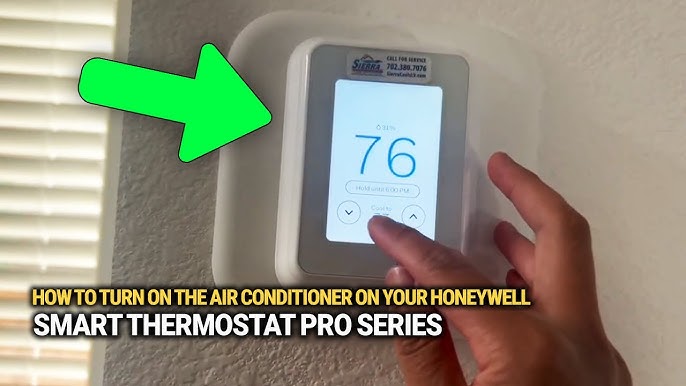
Are you struggling to figure out how to turn on your air conditioner using your Honeywell thermostat? You’re not alone.
Sometimes, even the simplest tasks can feel confusing when the controls aren’t clear. But don’t worry—this guide will walk you through each step in a way that’s easy to follow. By the end, you’ll be comfortably cool and in control of your thermostat, without any guesswork.
Ready to make your home the perfect temperature? Let’s get started!
Honeywell Thermostat Basics
Honeywell thermostats help control your air conditioner easily. They keep your home comfortable and save energy.
This guide explains the key features and types of Honeywell thermostat models. It helps you understand how to use them well.
Key Features
Honeywell thermostats have many useful features. They make cooling your home simple and efficient.
- Easy-to-read digital display
- Programmable schedules for different times
- Manual and automatic temperature control
- Energy-saving settings
- Alerts for filter changes and maintenance
- Remote control via smartphone apps (for some models)
Types Of Models
Honeywell offers various thermostat models. Each model fits different needs and home setups.
| Model | Description | Control Type |
| Manual Thermostat | Simple dial or button controls | Manual |
| Programmable Thermostat | Set temperature schedules | Automatic |
| Smart Thermostat | Wi-Fi enabled, remote control | Automatic with app |
| Touchscreen Thermostat | Interactive display, easy navigation | Manual/Automatic |

Credit: www.youtube.com
Preparing Your Thermostat
Before turning on your air conditioner with a Honeywell thermostat, you need to prepare the device. Proper preparation helps ensure smooth operation.
This guide covers how to check the power supply and set up Wi-Fi connectivity on your thermostat.
Power Supply Check
Make sure your thermostat has a steady power supply. A weak or no power source can stop it from working properly.
- Check if the thermostat display is on.
- Confirm batteries are installed if your model uses them.
- Replace old batteries with new ones if the screen is blank.
- Ensure the circuit breaker for the HVAC system is switched on.
- Look for loose wires behind the thermostat cover.
Wi-fi Connectivity Setup
Connecting your Honeywell thermostat to Wi-Fi lets you control it remotely using a smartphone app.
| Step | Action |
| 1 | Open the thermostat menu using the touchscreen. |
| 2 | Select the Wi-Fi settings option. |
| 3 | Choose your home Wi-Fi network from the list. |
| 4 | Enter your Wi-Fi password carefully. |
| 5 | Wait for the thermostat to confirm connection. |
Turning On The Air Conditioner
Using a Honeywell thermostat to turn on your air conditioner is simple. You can switch it on manually or use the touchscreen controls.
This guide will help you start your air conditioner quickly and easily.
Manual Activation Steps
To turn on the air conditioner manually, first locate the thermostat unit. It is usually mounted on a wall in a central room.
Follow these steps to activate the air conditioner:
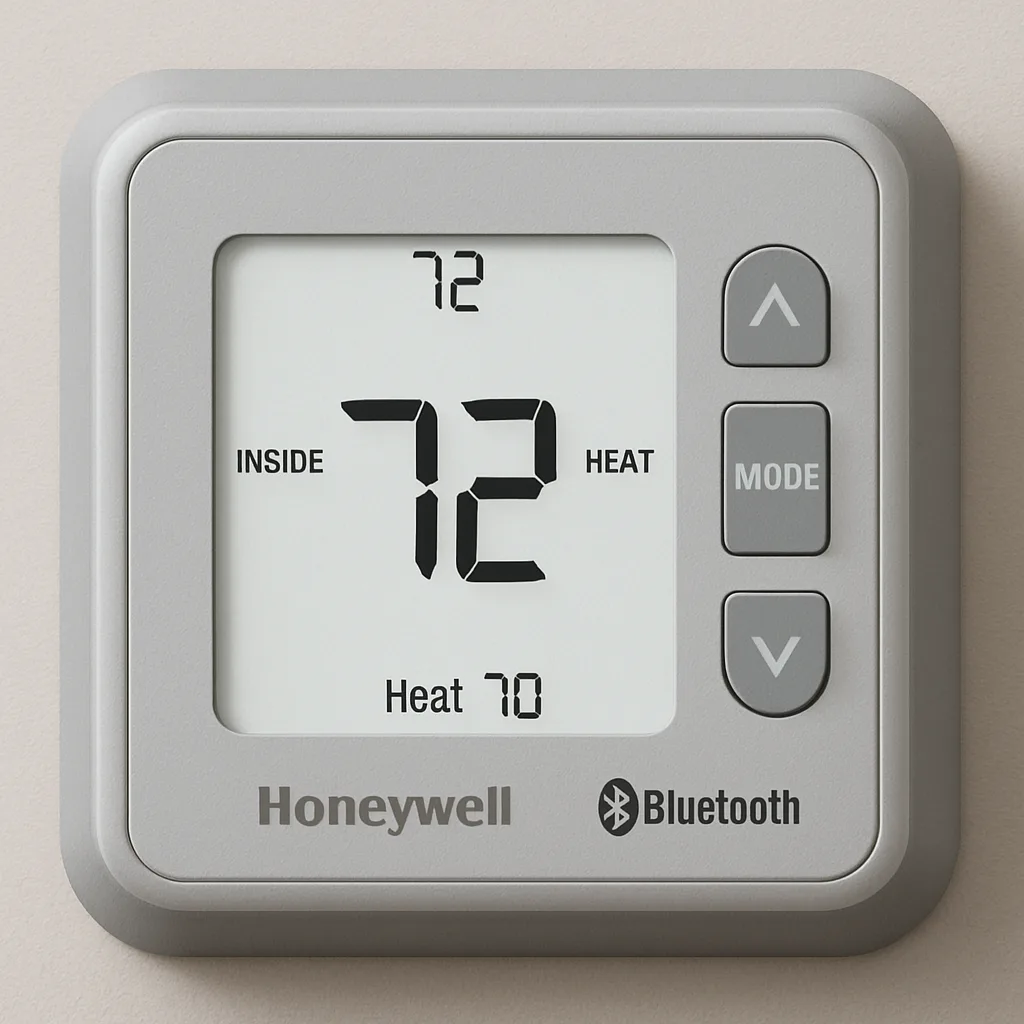
- Press the “Mode” button until the display shows “Cool.”
- Use the arrow buttons to set your desired temperature.
- Press the “Fan” button to adjust fan speed if needed.
- Wait a few moments for the air conditioner to start cooling.
Using The Touchscreen Controls
If your Honeywell thermostat has a touchscreen, turning on the air conditioner is easy. Touch the screen to wake it up.
Then follow these instructions:
- Tap the “Mode” icon on the screen.
- Select “Cool” from the options displayed.
- Set the temperature by sliding or tapping the temperature controls.
- Choose the fan speed if the option is available.
- The air conditioner will turn on and start cooling your space.
Setting The Desired Temperature
Turning on your air conditioner with a Honeywell thermostat is easy. Setting the right temperature keeps your room cool and comfortable.
You can adjust the temperature manually or use the auto mode for convenience. Both options help maintain a pleasant indoor climate.
Adjusting Temperature Settings
To set the temperature manually, press the up or down arrow buttons on your Honeywell thermostat. This changes the target temperature for the air conditioner.
Choose a temperature that feels comfortable. The thermostat will run the air conditioner to reach this setting.
- Press the up arrow to increase the temperature.
- Press the down arrow to decrease the temperature.
- The display shows the current set temperature.
- The AC will turn on or off to match this temperature.
Using Auto Mode
Auto mode lets the Honeywell thermostat decide when to cool. It adjusts the temperature automatically for comfort and energy savings.
In auto mode, the thermostat will switch the AC on or off depending on the room temperature and the set point.
- Press the mode button until “Auto” appears on the screen.
- Set your desired temperature using the arrow buttons.
- The thermostat controls the AC to keep the room near this temperature.
- You do not need to turn the AC on or off manually.
Using Mobile App Control
Controlling your Honeywell thermostat with a mobile app makes using your air conditioner easy.
You can turn on the AC from anywhere with your smartphone.
Downloading The Honeywell App
First, download the Honeywell app from your phone’s app store. It works on both Android and iOS devices.
- Open the Google Play Store or Apple App Store.
- Search for “Honeywell Home.”
- Tap “Install” or “Get” to download the app.
- Once installed, open the app and create an account.
- Link your Honeywell thermostat by following the on-screen instructions.
Remote Activation Tips
Use these tips to ensure your AC turns on smoothly using the app.
| Tip | Details |
| Check Wi-Fi | Make sure your thermostat is connected to your home Wi-Fi. |
| App Updates | Keep the app updated for the latest features and fixes. |
| Set Schedules | Use the app to set cooling schedules to save energy. |
| Enable Notifications | Turn on alerts to know when the AC turns on or off remotely. |
| Test Remote Control | Try turning on the AC before leaving home to confirm it works. |

Credit: device.report
Troubleshooting Common Issues
Sometimes your Honeywell thermostat may not work correctly with your air conditioner. This guide helps you fix common problems fast.
Follow these tips to get your AC running smoothly again using your Honeywell thermostat.
Thermostat Not Responding
If your thermostat screen is blank or not reacting to your touch, try these fixes.
- Check if the thermostat has power. Replace batteries if needed.
- Make sure the circuit breaker is not tripped.
- Reset the thermostat by turning it off and on again.
- Inspect the wiring for loose or damaged connections.
- Clean the thermostat gently to remove dust or dirt.
Air Conditioner Not Turning On
Your AC may not start even if the thermostat shows it should. Use this table to check possible causes and solutions.
| Issue | Possible Cause | How to Fix |
| AC does not respond to thermostat | Blown fuse or tripped breaker | Reset breaker or replace fuse |
| Compressor not starting | Faulty contactor or capacitor | Call a professional technician |
| Thermostat set incorrectly | Wrong mode or temperature | Set thermostat to “Cool” and lower temperature |
| Dirty air filter | Blocked airflow | Replace or clean air filter |
Energy Saving Tips
Using a Honeywell thermostat to control your air conditioner helps save energy. Setting the right temperature and schedule lowers your electric bill.
Small changes in how you use your AC can make a big difference in energy use and comfort.
Optimal Temperature Settings
Set your Honeywell thermostat to a temperature that is cool but not too cold. Around 78°F (25°C) is good for saving energy.
Avoid setting the temperature lower than needed. It makes the AC work harder and uses more power.
- Set temperature to 78°F when you are home and active
- Raise the temperature a few degrees when you are away
- Use fans to help cool the room without lowering the temperature
Scheduling Cooling Times
Use the Honeywell thermostat’s scheduling feature to turn the AC on and off automatically. This avoids cooling an empty house.
Set the AC to start cooling before you arrive home and to turn off when you leave. This saves energy and keeps your home comfortable.
- Program the thermostat to cool during the day if someone is home
- Set higher temperatures during work hours or at night if you sleep comfortably warmer
- Use vacation mode if you will be away for several days
Credit: lahvaclc.com
Frequently Asked Questions
How Do I Activate My Honeywell Thermostat?
To activate your Honeywell thermostat, press the power button on the device. Ensure the thermostat is connected to a power source. Follow the on-screen instructions to set the desired temperature. Ensure your air conditioner is also powered on and properly connected for optimal performance.
Why Won’t My Ac Turn On?
If your AC won’t turn on, check the thermostat settings first. Ensure it’s set to “cool” and the temperature is below room level. Inspect the circuit breaker and ensure the air conditioner is connected properly. If issues persist, consulting a professional technician might be necessary.
How Do I Set Cooling Mode?
To set cooling mode on your Honeywell thermostat, press the “Mode” button. Scroll until you see “Cool,” then select it. Adjust the temperature to your desired cooling level. Ensure that your air conditioning unit is operational and connected to the thermostat.
Can I Schedule My Ac With Honeywell?
Yes, you can schedule your AC using a Honeywell thermostat. Access the schedule settings on the thermostat menu. Set specific times and temperatures for different days. This feature helps optimize energy use and ensures comfort when needed.
Conclusion
Turning on your air conditioner with a Honeywell thermostat is simple. Just follow the steps carefully, and your home will cool down quickly. The thermostat lets you control temperature easily and saves energy. Regular use helps maintain comfort during hot days.
Keep your thermostat clean and updated for the best results. Now, enjoy a cool and cozy space anytime you want. Simple tools, clear steps—no hassle at all.