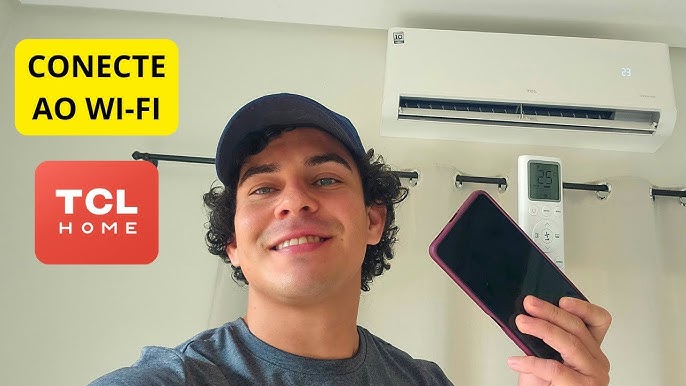
Are you struggling to connect your TCL air conditioner to WiFi? Getting your AC online can unlock a world of convenience, letting you control the temperature right from your phone.
Imagine adjusting your home’s cooling before you even step inside—saving energy and staying comfortable all day. In this guide, you’ll find simple, step-by-step instructions that anyone can follow. By the end, you’ll have your TCL air conditioner connected and ready to make your life easier.
Keep reading to discover how easy it really is!
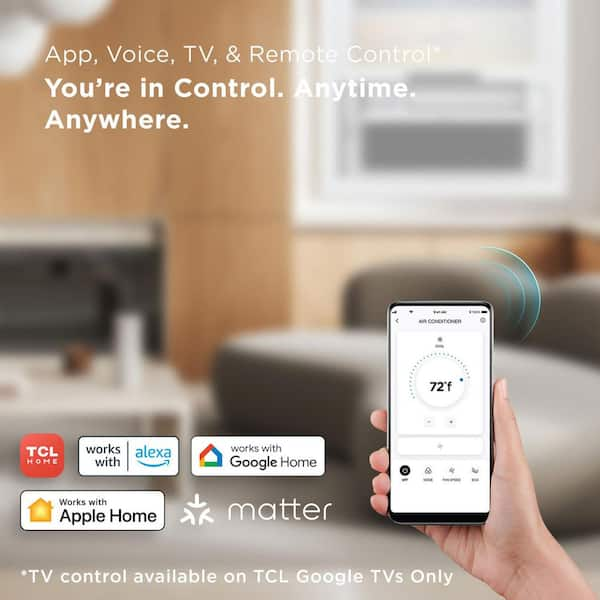
Credit: www.homedepot.com
Prepare Your Air Conditioner
Connecting your TCL air conditioner to WiFi lets you control it remotely. To start, you need to prepare the air conditioner for the connection.
Preparing your device ensures a smooth setup process and helps avoid common problems.
Check Wifi Compatibility
Make sure your TCL air conditioner supports WiFi connection. Not all models have this feature built-in.
Check the user manual or the product label on the air conditioner to confirm WiFi compatibility.
- Look for WiFi or smart control icons on the device
- Check the model number online for WiFi features
- Confirm if your home WiFi is 2.4 GHz, as many devices don’t support 5 GHz
Download The Required App
TCL air conditioners use a specific app to connect and control the device. Download the app before you start.
The app is available for free on both Android and iOS devices. It helps you manage your air conditioner settings.
- Go to Google Play Store or Apple App Store
- Search for the official TCL smart AC app
- Install the app on your phone or tablet
- Create an account if required
Gather Necessary Information
Before connecting, have all needed information ready. This saves time and avoids errors during setup.
Important details include your WiFi network name and password. You also need your TCL air conditioner nearby.
- WiFi network name (SSID)
- WiFi password
- TCL air conditioner model number
- Smartphone or tablet with the app installed
- Remote control for the air conditioner (if needed)
Set Up Your Wifi Network
Connecting your TCL air conditioner to wifi lets you control it remotely. Before starting, prepare your wifi network for a smooth setup.
Proper wifi setup ensures your air conditioner stays connected and responds quickly to commands.
Ensure Stable Internet Connection
Check that your internet connection is strong and stable near the air conditioner. Weak signals can cause connection drops.
- Place your wifi router close to the air conditioner if possible.
- Remove obstacles like walls or metal objects between router and AC.
- Restart your router before setup to refresh the connection.
- Use a wifi extender if the signal is weak in the AC area.
Confirm Network Frequency
TCL air conditioners usually connect only to 2.4 GHz wifi networks. Check your router’s settings to confirm the network frequency.
| Network Frequency | Compatible with TCL AC |
|---|---|
| 2.4 GHz | Yes |
| 5 GHz | No |
Note Down Wifi Credentials
Keep your wifi network name and password ready. You will need them to connect your air conditioner to the network.
- Network Name (SSID)
- Network Password
- Network Type (WPA2 recommended)
Connect Tcl Ac To Wifi
Connecting your TCL air conditioner to WiFi lets you control it from your phone. This guide helps you set it up step-by-step.
Follow these simple steps to connect your TCL AC to your home network and enjoy smart control features.
Power On And Reset The Ac
First, turn on your TCL air conditioner. Make sure it has power and is working normally.
If you have trouble connecting, reset the AC to clear old settings. This helps start fresh for WiFi setup.
- Press the power button to switch on the AC.
- Locate the reset button on the unit or remote.
- Hold the reset button for 5 seconds until the AC restarts.
- Wait for the AC to power on again before continuing.
Open The App And Register Device
Download the TCL app from your phone’s app store. Open it to begin registration.
Create an account or log in. Then select the option to add a new device.
- Open the TCL app on your smartphone.
- Sign in or create a new account.
- Tap “Add Device” or “Register Device.”
- Choose your air conditioner model from the list.
Follow Pairing Instructions
The app will guide you through the pairing process. Follow the instructions carefully.
You will connect the AC to your WiFi network using the app and the remote control.
- Put the AC in pairing mode by pressing specific buttons on the remote.
- Select your WiFi network in the app.
- Enter your WiFi password when asked.
- Wait for the app to confirm the connection.
Troubleshoot Connection Issues
If the AC does not connect, check your WiFi signal and password. Weak signals cause problems.
Try resetting the AC and restarting the app to fix common errors.
- Make sure your phone is on the same WiFi network.
- Check that the WiFi password is correct.
- Move the AC closer to the router if the signal is weak.
- Restart the TCL app and try pairing again.
- If problems continue, reset the AC and repeat the setup steps.

Credit: climamarket.com
Control Ac Using Smartphone
Connecting your TCL air conditioner to WiFi lets you control it with your smartphone. This makes it easy to manage your AC from anywhere.
Using the TCL app, you can change settings, set timers, and check energy use quickly and simply.
Adjust Temperature Settings
With your smartphone, you can raise or lower the temperature without moving. The app lets you set the exact temperature you want for comfort.
- Open the TCL app on your phone
- Select your connected air conditioner
- Use the temperature controls to adjust heat or cool
- Save your preferred temperature for easy access
Set Timers And Modes
You can schedule your TCL AC to turn on or off at specific times. This helps save energy and keeps your room comfortable.
| Mode | Description |
| Cool | Sets AC to cool the room |
| Fan | Circulates air without cooling |
| Dry | Reduces humidity in the room |
| Auto | Adjusts mode based on temperature |
Monitor Energy Usage
The TCL app shows how much energy your AC uses. You can check daily or monthly data to track consumption.
- Set temperature between 24°C and 26°C
- Use timers to avoid running AC when not needed
- Keep doors and windows closed during operation
Maintain Wifi Connection
Keeping your TCL air conditioner connected to WiFi ensures smooth remote control. A stable connection helps you adjust settings anytime.
Follow simple tips to maintain your air conditioner’s WiFi link. This guide covers app updates, network changes, and security steps.
Update App And Firmware
Regular updates improve performance and fix bugs. Check your TCL app and air conditioner firmware often to avoid connection problems.
- Open the TCL app and look for update notifications.
- Download and install the latest app version from your app store.
- Access your air conditioner’s settings to check firmware status.
- Follow on-screen instructions to update firmware if needed.
- Restart the device after updates to apply changes.
Handle Network Changes
WiFi settings can change if you switch routers or modify your network. Update your air conditioner to match new network details quickly.
| Network Change | Action Needed |
| New WiFi Name (SSID) | Reconnect device with new SSID in app |
| Changed WiFi Password | Update password in air conditioner’s WiFi settings |
| Router Replacement | Reset WiFi connection and pair again |
| Network Frequency Change (2.4GHz/5GHz) | Ensure air conditioner supports new frequency |
Secure Your Connection
Protect your air conditioner’s WiFi link from unauthorized access. Use strong passwords and secure network settings for safety.
- Set a strong, unique WiFi password for your home network.
- Enable WPA3 or WPA2 encryption on your router.
- Regularly change your WiFi password to improve security.
- Limit device access by setting up a guest network if needed.
- Keep your router’s firmware updated to protect against threats.
Credit: www.homedepot.com
Frequently Asked Questions
How Do I Connect My Tcl Ac To Wifi?
To connect your TCL AC to WiFi, download the TCL Smart app. Follow in-app instructions to link your air conditioner to your home network. Ensure your phone and AC are on the same WiFi for smooth connection.
What Are The Wifi Requirements For Tcl Air Conditioners?
TCL air conditioners require a 2. 4 GHz WiFi network for compatibility. Ensure your router supports this frequency. A stable internet connection is necessary for uninterrupted remote control.
Can I Control Tcl Ac Remotely Via Wifi?
Yes, once connected to WiFi, you can control your TCL AC remotely using the TCL Smart app. Adjust temperature, modes, and schedules from anywhere with internet access.
What To Do If Tcl Ac Wifi Connection Fails?
If connection fails, restart your router and AC unit. Verify WiFi password accuracy and network compatibility. Reset the AC’s WiFi settings and try reconnecting through the app.
Conclusion
Connecting your TCL air conditioner to WiFi makes control simple and smart. Follow the steps carefully for a smooth setup. A strong WiFi signal helps maintain a steady connection. Use the TCL app to adjust settings from anywhere. Enjoy the comfort of managing your AC with ease.
Stay cool and save energy with smart control. Keep your device updated for best performance. This small setup brings big convenience to your home.