
Are you wondering if your Cricut machine can cut foam board? You’re not alone.
Many crafters want to take their projects to the next level by using foam board, but they’re unsure if their Cricut can handle it. Imagine creating perfect shapes and designs with ease, without struggling with messy tools or wasting materials.
You’ll discover the truth about cutting foam board with Cricut, plus tips to get the best results every time. Keep reading—you’re about to unlock new creative possibilities!
Credit: www.thecountrychiccottage.net
Cricut And Foam Board Basics
Cricut machines are popular tools for crafting and cutting many materials. Foam board is a lightweight material used for signs and models.
People often ask if Cricut can cut foam board. Understanding the basics helps you decide how to use your Cricut with foam board.
Types Of Foam Boards
Foam boards come in different types. They vary by thickness, density, and surface finish. These differences affect how easy they are to cut.
- Standard Foam Board: Lightweight and smooth surface, good for simple projects.
- Gator Board: Denser and stronger, used for more durable displays.
- Double-Sided Foam Board: Has surfaces on both sides for printing or painting.
- Colored Foam Board: Comes in various colors for creative designs.
Cricut Machine Models Suitable For Foam
Not all Cricut machines can cut foam board well. Some models have stronger blades and motors. These models work better with thicker materials.
- Cricut Maker: Strong motor and special blades for thick materials like foam board.
- Cricut Explore Air 2: Can cut thin foam sheets but may struggle with thick boards.
- Cricut Joy: Best for small projects and thin materials, not ideal for foam board.
Essential Tools And Materials
Cutting foam board with Cricut needs special tools and materials. These help get clean cuts and protect your machine.
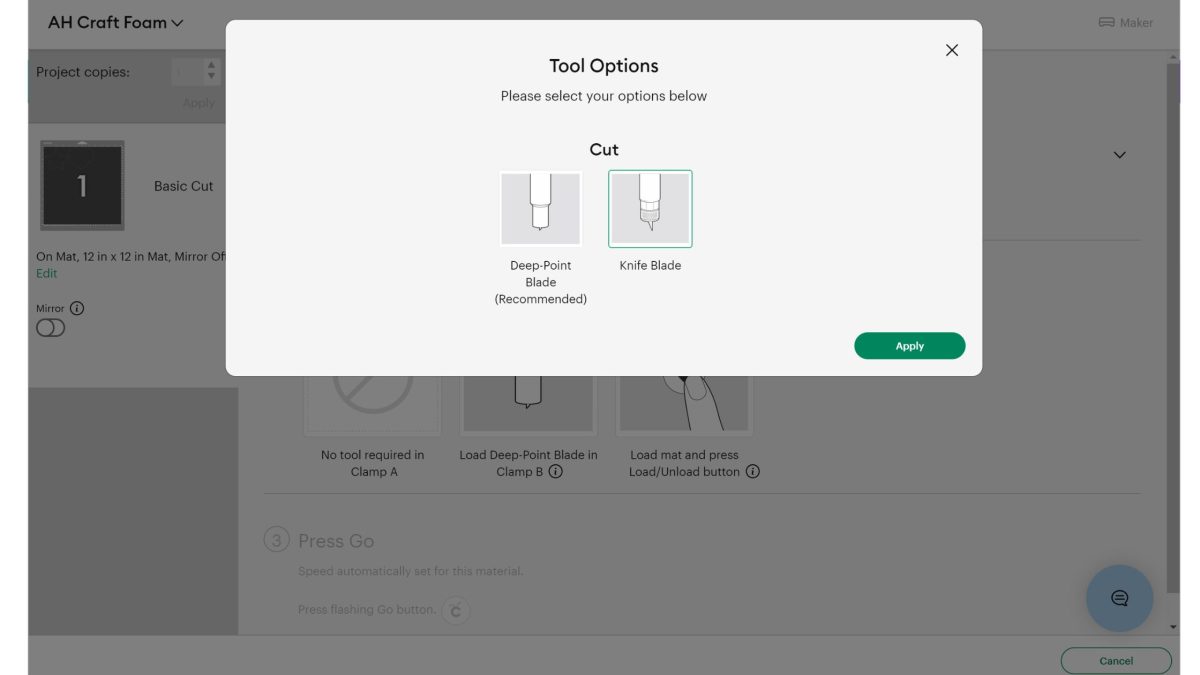
- Deep-Point Blade: Designed for cutting thick materials like foam board.
- StrongGrip Mat: Holds foam board firmly during cutting.
- Scoring Stylus or Tool: Helps fold foam board without cracking.
- Masking Tape: Can secure edges to prevent slipping.
- Cleaning Kit: Keeps blades and mats free of debris for better cuts.

Credit: www.youtube.com
Preparing Foam Board For Cutting
Cutting foam board with a Cricut machine needs some preparation. You must choose the right foam and set it up correctly. This helps you get clean cuts every time.
This guide covers how to select foam thickness, secure the foam on the mat, and adjust the machine settings.
Selecting The Right Foam Thickness
Foam boards come in different thicknesses. Thinner foam cuts more easily but may bend. Thicker foam is firmer but needs stronger cutting settings.
- Use foam boards 3mm thick or less for the best cut results.
- Avoid very thick foam over 6mm, as it may damage the blade.
- Check your Cricut model’s recommended thickness before starting.
Securing Foam On The Cutting Mat
To cut foam board accurately, you must hold it firmly on the mat. Loose foam moves and ruins the design.
- Use a strong adhesive mat designed for thick materials.
- Apply painter’s tape on the edges to hold the foam in place.
- Press down firmly to remove air bubbles under the foam.
- Make sure the mat is clean and sticky before placing foam.
Adjusting Machine Settings
Set your Cricut machine to cut foam board safely. Adjust blade depth, speed, and pressure for clean cuts.
| Setting | Recommended Value |
| Blade Type | Deep Cut Blade |
| Cutting Speed | Slow (around 1-2) |
| Pressure | High or Max |
| Passes | 2 or more if needed |
Cutting Techniques For Foam Board
Cutting foam board with a Cricut machine needs special care. Foam board is thick and soft, so you must use the right tools and settings.
This guide explains how to cut foam board cleanly using different techniques. Follow these tips for better results.
Using The Deep-point Blade
The deep-point blade is best for cutting thick materials like foam board. It has a sharper tip and can cut deeper than a regular blade.
Make sure to install the deep-point blade carefully. Adjust the blade depth to match your foam board thickness. This helps avoid tearing or incomplete cuts.
Multiple Passes Vs Single Pass
Cutting foam board in one pass can be hard. The blade might not cut all the way through or could damage the material.
Using multiple passes means the blade cuts the same line more than once. This makes a cleaner cut without pushing too hard.
- Single pass works for thin foam boards
- Multiple passes suit thicker boards
- Adjust passes for best cutting depth
- Use low speed to avoid tearing
Avoiding Common Cutting Issues
Cutting foam board can cause problems like tearing, incomplete cuts, or blade clogging. Follow simple tips to avoid these issues.
- Use a fresh deep-point blade for clean cuts
- Secure the foam board to the cutting mat firmly
- Use low speed and moderate pressure settings
- Check blade depth before starting the cut
- Remove cut pieces carefully to prevent damage

Credit: www.reddit.com
Design Tips For Foam Board Projects
Using a Cricut to cut foam board can create clean and precise designs. Planning your project well helps get the best results.
Good design choices make your foam board project look professional and last longer.
Optimizing File Designs For Foam
Keep your designs simple and clear for cutting foam board. Thin lines or small details may not cut well.
Use bold shapes and avoid very fine details. This helps the blade cut smoothly and the foam hold its shape.
- Use thicker lines for cutting paths
- Limit small, intricate details
- Test cut on scrap foam before final cut
- Save files in SVG format for best results
Choosing Suitable Fonts And Shapes
Select fonts that are bold and easy to read. Thin or script fonts may tear or not cut properly on foam.
Simple shapes with smooth edges work best. Avoid sharp corners or tiny parts that might break off.
- Use sans-serif or block fonts
- Choose large font sizes for clarity
- Pick basic shapes like circles, squares, or stars
- Avoid shapes with many sharp points
Layering And Assembly Ideas
Layer foam board pieces to add depth and interest. Use glue or double-sided tape to hold layers together.
Plan your assembly to make sure pieces fit well. Label each part before cutting to keep track.
- Create base, middle, and top layers for 3D effect
- Use different colors or thicknesses of foam board
- Cut tabs or slots to join pieces without glue
- Work slowly to align layers carefully
Troubleshooting Foam Board Cuts
Cutting foam board with a Cricut can be tricky sometimes. You may face issues like incomplete cuts or blade problems.
Knowing how to fix these problems helps you get clean cuts every time. Let’s look at common issues and solutions.
Dealing With Incomplete Cuts
Incomplete cuts happen when the blade does not cut through the foam board fully. This can leave parts still attached and hard to remove.
Check the blade pressure settings and make sure they match the foam board thickness. Also, try cutting the design twice for better results.
- Use the correct blade for foam board
- Increase cut pressure in the Cricut settings
- Run the cut job twice if needed
- Make sure the foam board is flat on the mat
Handling Blade Dullness
A dull blade can cause rough or incomplete cuts. Foam board is thick and tough, so blades can wear out faster than with paper.
Check your blade regularly and replace it if cuts look uneven. A new blade cuts cleaner and saves time.
- Inspect blade for nicks or dull edges
- Replace blade after several foam board projects
- Clean blade to remove foam residue
- Use a blade designed for thick materials
Fixing Mat Adhesion Problems
If the foam board does not stick well to the cutting mat, it can shift during cutting. This causes misaligned or partial cuts.
Make sure your mat is clean and sticky enough. You can also use painter’s tape on the edges to hold the foam board in place.
- Clean the mat to remove dust and debris
- Use a strong grip mat for thick materials
- Secure edges with painter’s tape
- Press foam board firmly onto the mat
Safety And Maintenance
Cutting foam board with a Cricut machine needs care for safety and tool health. Proper steps help avoid accidents and keep tools sharp.
Following safety rules and regular cleaning protects your Cricut and improves your foam projects.
Proper Blade Handling
Use the right blade for foam cutting to prevent damage and injury. Handle blades carefully to avoid cuts.
- Always hold blades by the base, not the tip.
- Use a blade cover when not in use.
- Replace dull blades quickly to avoid poor cuts.
- Keep blades away from children and pets.
Cleaning And Storing Tools
Clean your tools after each use to remove foam bits and dust. Proper storage prevents rust and damage.
| Tool | Cleaning Method | Storage Tip |
| Blade | Wipe with a dry cloth | Use blade cover, store in dry box |
| Mat | Remove foam scraps gently | Keep flat, away from heat |
| Machine | Dust with soft brush | Cover when not in use |
Maintaining Cricut For Foam Projects
Regular checks keep your Cricut cutting foam smoothly. Follow these simple maintenance tips to extend machine life.
- Check blade condition before each project.
- Clean cutting mat and remove residue after use.
- Update Cricut software to improve performance.
- Store machine in a cool, dry place.
- Use recommended settings for foam board cuts.
Frequently Asked Questions
Can Cricut Machines Cut Foam Board?
Yes, Cricut machines can cut foam board with the right settings. Use the Deep-Point Blade for precise cuts. Ensure your foam board is not thicker than 3/16 inches. Adjust your machine’s pressure settings for clean edges. Test with a small piece first to perfect your technique.
What Blade Is Best For Cutting Foam Board?
The Deep-Point Blade is ideal for cutting foam board. It offers the needed precision and depth. This blade ensures clean and sharp cuts. Always use it with the appropriate settings on your Cricut machine. Regularly check and replace the blade for optimal performance.
How To Prepare Foam Board For Cricut?
Start by securing the foam board onto your Cricut mat. Ensure it lies flat and without wrinkles. Adjust your machine settings to match the board’s thickness. Use masking tape to prevent movement during cutting. Test a small section to ensure accuracy before proceeding.
Can Cricut Explore Air 2 Cut Foam Board?
Yes, Cricut Explore Air 2 can cut foam board. Use the Deep-Point Blade for best results. Adjust the pressure settings for thicker materials. Always test with a scrap piece first. Ensure your foam board is within the recommended thickness for optimal cutting performance.
Conclusion
Cricut can cut foam board with the right settings and tools. Use a deep-cut blade and adjust the pressure carefully. Cutting small pieces works better than large ones. Take your time and test on scrap foam first. This helps avoid mistakes and saves materials.
Crafting with foam board becomes easier with practice. You can make signs, models, and fun projects at home. Keep your machine clean and blades sharp for best results. Enjoy creating with your Cricut and foam board combination.