Is your Samsung microwave oven acting up or not working as it should? Sometimes, all it takes is a simple reset to get it back to perfect working order.
But how do you reset your Samsung microwave oven quickly and safely? You’ll find easy, step-by-step instructions that anyone can follow. Whether your microwave is frozen, unresponsive, or showing error codes, learning how to reset it can save you time and frustration.
Keep reading to discover the simple tricks that will have your microwave running like new again.
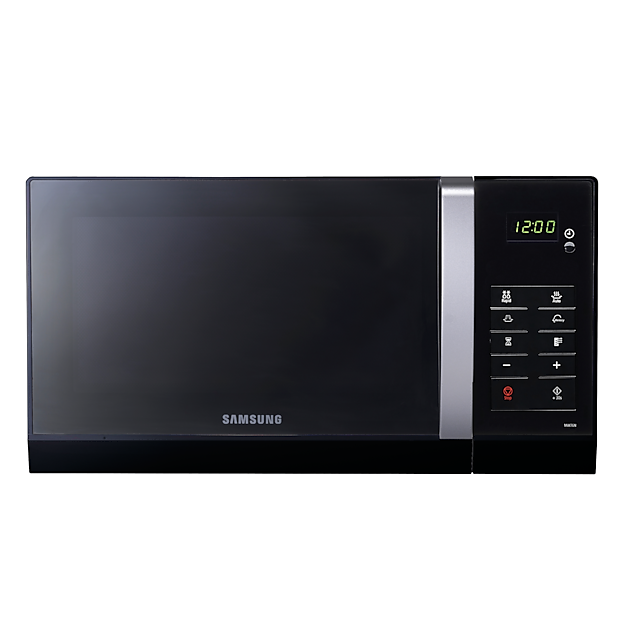
Credit: www.samsung.com
Reset Methods
Unplug the microwave and wait for a few minutes to clear its memory. Press the stop or reset button on the control panel to restart the system. This simple process can fix many minor errors and restore normal functions.
Resetting your Samsung microwave oven can be a handy trick to know, especially when faced with unexpected glitches or errors. Whether it’s a minor hiccup or something more persistent, knowing how to reset can save you time and frustration. In this section, we’ll explore the different reset methods, each catering to various needs and situations. You’ll find that resetting your microwave is not as daunting as it may seem.Soft Reset Steps
Sometimes, all your microwave needs is a gentle nudge to get back on track. A soft reset is perfect for minor issues like clearing error messages or fixing a frozen display. – Unplug the Microwave: Simply unplug the microwave from the power outlet. Wait about 30 seconds to a minute before plugging it back in. – Use the Cancel/Stop Button: Press the ‘Cancel/Stop’ button on the microwave’s keypad. This can often reset minor errors without the need to unplug. Soft resets are simple and can often solve the problem quickly. Have you tried this easy fix before considering more complex solutions?Hard Reset Procedure
For more stubborn issues, a hard reset might be necessary. This can address more serious malfunctions. – Power Cycle: Unplug the microwave and leave it unplugged for at least 10 minutes. This allows the internal systems to fully reset. – Check Circuit Breaker: Ensure that the circuit breaker for your kitchen is not tripped. Reset it if necessary, then plug the microwave back in. This method can help clear more persistent errors. Remember, patience is key here. Have you waited long enough before plugging it back in?Factory Reset Options
In rare cases, you might need to restore the microwave to its original factory settings. This should be your last resort. – Consult the Manual: Refer to your microwave’s user manual for specific instructions, as factory reset procedures can vary by model. – Service Center Assistance: If the manual doesn’t help, contacting Samsung’s customer support or a service center might be necessary. Factory resets are more involved but can be essential when other methods fail. Are you sure all other options have been exhausted before taking this step?
Credit: www.samsung.com
When To Reset
Knowing when to reset your Samsung microwave oven can save you time and frustration. Resetting is not just a quick fix but often a necessary step to clear errors or glitches. But how do you decide if your microwave really needs a reset?
Common Issues Requiring Reset
Sometimes your microwave might stop working properly without any clear reason. You might notice it not heating food, buttons becoming unresponsive, or the display acting strange.
These problems often hint at a software glitch or minor electrical issue. Resetting the microwave can refresh its system and restore normal operation. For example, I once had a microwave that wouldn’t start after a power surge—resetting fixed it instantly.
Other signs that a reset is needed include:
- The microwave stops mid-cycle without warning
- It beeps continuously without input
- The door lock mechanism won’t disengage
Error Codes And Troubleshooting
Samsung microwaves display error codes when something goes wrong. These codes help you understand if a reset might solve the problem or if more serious repair is needed.
Common error codes like “dE” (door error) or “SE” (sensor error) often clear up after a reset. You can check the user manual or Samsung’s website for specific meanings.
| Error Code | Possible Cause | Reset Effectiveness |
|---|---|---|
| dE | Door not closed properly | High – Reset can clear false detection |
| SE | Sensor malfunction | Medium – Reset may help, but sensor check advised |
| F1 | Keypad error | High – Reset usually resolves keypad glitches |
If you see an error code, ask yourself: Have I checked the door or cleaned the sensor? A reset can often restart your microwave’s system, but if errors persist, professional help might be necessary.
Precautions Before Reset
Before resetting your Samsung microwave oven, take some important precautions. These steps help avoid damage and loss of important information. Following simple safety and backup measures saves time and effort later.
Safety Tips
- Unplug the microwave before starting the reset process.
- Keep the microwave door closed during reset.
- Avoid touching internal parts to prevent electric shock.
- Ensure the microwave is dry and clean before resetting.
- Do not use metal objects near the microwave during the reset.
Backup Settings
Your microwave may have custom settings for power levels or cooking modes.
Note down any special timer or power settings before reset.
This helps restore your preferred settings after resetting the oven.
Check the user manual for steps on saving or recording settings.
After Reset Actions
After resetting your Samsung microwave oven, some important actions are needed to bring it back to normal use. The reset clears all settings, so you need to set up the microwave again. Taking these steps ensures your microwave works safely and properly.
Reprogramming Your Microwave
Start by setting the clock to the correct time. This helps with timers and cooking settings.
Next, review the preset cooking programs. Customize them according to your favorite dishes. This way, you save time during cooking.
Check the power level settings. Adjust them to match your usual cooking preferences. This keeps your food cooked evenly and well.
Testing Functions
Run a simple test to make sure the microwave heats correctly. Use a microwave-safe cup with water and heat it for one minute.
Listen for unusual sounds or check if the turntable moves smoothly. These signs show if the microwave is working right.
Try using different functions such as defrost and timer. Confirm each function responds correctly on the control panel.
Tips To Avoid Frequent Resets
Frequent resets of your Samsung microwave oven can be frustrating and may indicate underlying issues that need attention. Avoiding constant resets not only saves time but also prolongs the life of your appliance. Simple habits and care routines can make a big difference in keeping your microwave running smoothly.
Maintenance Practices
Regular cleaning is key to preventing problems that cause resets. Food spills and grease buildup can interfere with the microwave’s sensors and electronics. Wiping the interior and exterior after every use helps maintain optimal performance.
Check the door seal often. A damaged or dirty seal can cause the microwave to malfunction. If you notice any cracks or debris, clean the seal gently or replace it if necessary.
Inspect the ventilation areas to ensure they are clear of dust and obstructions. Poor airflow can cause overheating, triggering automatic resets. Using a vacuum or soft brush to clean vents monthly can prevent this issue.
Proper Usage Guidelines
Are you loading your microwave correctly? Overloading with heavy or uneven items can strain the magnetron and cause resets. Make sure to place food in the center of the turntable for even heating.
Use microwave-safe containers only. Metal or foil can cause sparks that not only reset the oven but also pose safety hazards. Double-check labels before placing dishes inside.
Avoid running the microwave empty. This can damage internal components and lead to frequent resets. If you need to heat the appliance without food, place a cup of water inside to absorb the microwaves.
Have you noticed that your power outlet or circuit breaker trips when you use the microwave? Using a dedicated electrical circuit for your microwave reduces power fluctuations and prevents resets. It’s worth checking your kitchen’s electrical setup if resets keep happening.

Credit: www.samsung.com
Frequently Asked Questions
How Do You Reset A Samsung Microwave Oven?
To reset, unplug the microwave for 1-2 minutes. Then, plug it back in. This clears errors and resets settings.
Why Does My Samsung Microwave Need Resetting?
Resetting fixes software glitches, clears error codes, and restores normal function. It often resolves unresponsive buttons or display issues.
Can I Reset Samsung Microwave Without Unplugging It?
No, unplugging is the safest method to reset. It cuts power and resets internal circuits effectively.
Will Resetting Erase My Microwave’s Saved Settings?
Yes, resetting clears all custom settings and clock time. You will need to reprogram your preferences afterward.
Conclusion
Resetting your Samsung microwave oven is simple and quick. Just follow the steps carefully. This helps clear errors and restores normal functions. A reset often fixes small glitches without needing a technician. Keep the manual handy for specific model instructions.
Regular checks can prevent future issues. Enjoy using your microwave with peace of mind. Easy fixes save time and money. Remember, safety first when handling electrical appliances. Now, your microwave is ready to use again. Simple steps make a big difference!