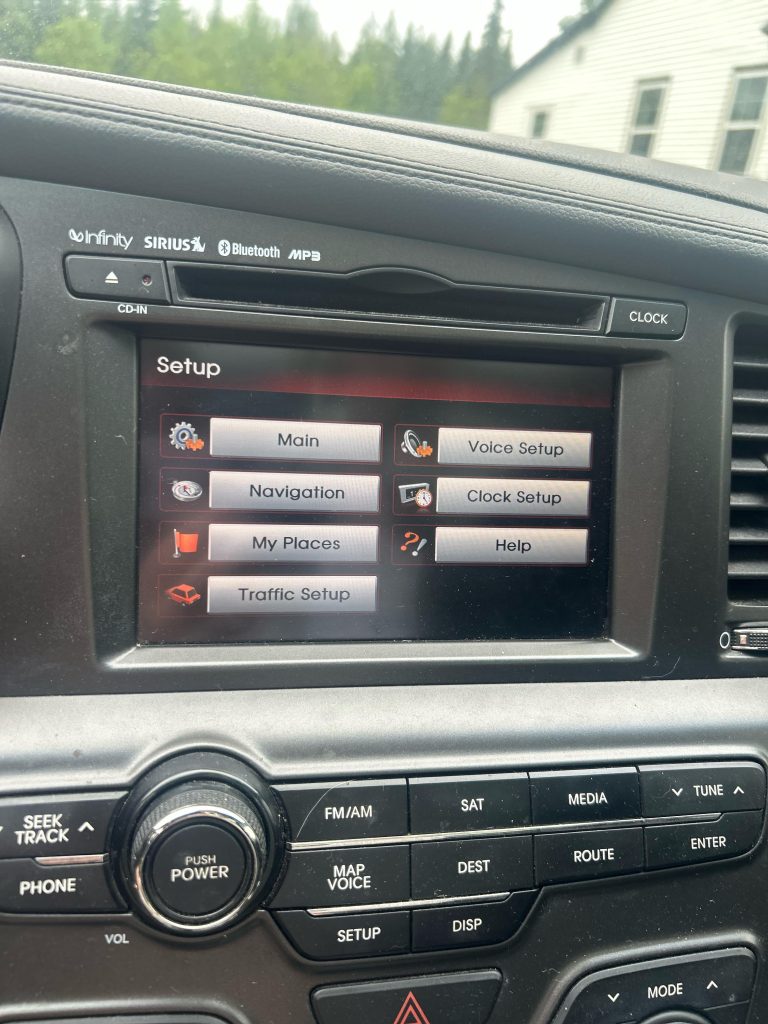
Are you ready to enjoy hands-free calls and stream your favorite music while driving your Kia? Connecting Bluetooth to your car might seem tricky, but it’s actually quick and simple once you know the steps.
In this guide, you’ll discover exactly how to pair your phone with your Kia’s system, making your drives safer and more enjoyable. Keep reading, and you’ll be connected in no time—no tech skills required!
Prepare Your Devices
Getting your devices ready is the first crucial step to connect Bluetooth to your Kia. Without proper preparation, you might face pairing issues or connection drops. Make sure both your Kia and phone are set up correctly before diving into the connection process.
Check Compatibility
Not all phones and Kia models support Bluetooth in the same way. Check your car’s manual or Kia’s official website to confirm your model supports Bluetooth connectivity. On the phone side, verify that your device has Bluetooth capabilities and runs on a compatible operating system version.
Did you know some older Kia models might only support hands-free calling and not audio streaming? Knowing this upfront saves you from frustration later. It’s also helpful to check if your phone’s Bluetooth version matches or is close to your car’s system, as mismatched versions can cause unstable connections.
Enable Bluetooth On Your Phone
Before pairing, turn on Bluetooth on your phone. On most devices, this is done by navigating to the settings menu and toggling the Bluetooth option on. Keep your phone’s Bluetooth visible or discoverable during the pairing process to ensure your Kia’s system can detect it.
Have you ever missed pairing because your phone was set to hidden mode? It happens more often than you think. Also, close any apps that might interfere with Bluetooth connections, like other music or call apps, to prevent conflicts.
Credit: owners.kia.com
Access Kia Infotainment System
Accessing the Kia infotainment system is your first move to connect Bluetooth. This system controls all your media, calls, and settings, making it essential to get it right. Understanding how to find and use these controls can save you time and frustration.
Turn On The Vehicle
Start by powering on your Kia. Insert the key or press the start button to activate the electrical system without fully starting the engine. This powers up the infotainment screen so you can begin the Bluetooth setup.
If you’ve ever tried to connect your phone while driving, you know it’s tricky. Getting the system ready before you hit the road helps avoid distractions and keeps you safe.
Navigate To Bluetooth Settings
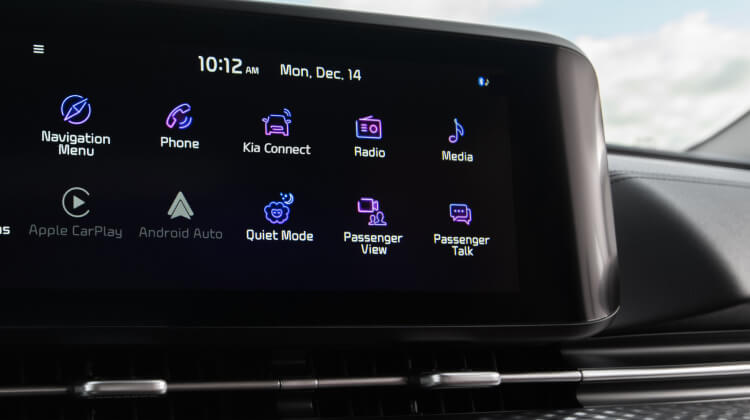
Once the infotainment screen is active, look for the settings menu. Depending on your Kia model, you might see a gear icon or a menu button on the touchscreen or dashboard.
Tap on the settings, then select the Bluetooth option. Here, you’ll find the controls to pair a new device or manage existing connections.
- Check that Bluetooth is turned on.
- Make your vehicle discoverable if needed.
- Prepare your phone to search for the car’s Bluetooth signal.
Have you noticed how many cars hide these settings behind menus? Knowing exactly where to look can turn a confusing process into a quick task.
Pair Your Phone With Kia
Pairing your phone with your Kia allows you to enjoy hands-free calls, stream music, and access apps safely while driving. The process is straightforward but requires a few simple steps to ensure a secure connection. Let’s walk through how you can connect your phone quickly and without hassle.
Search For Available Devices
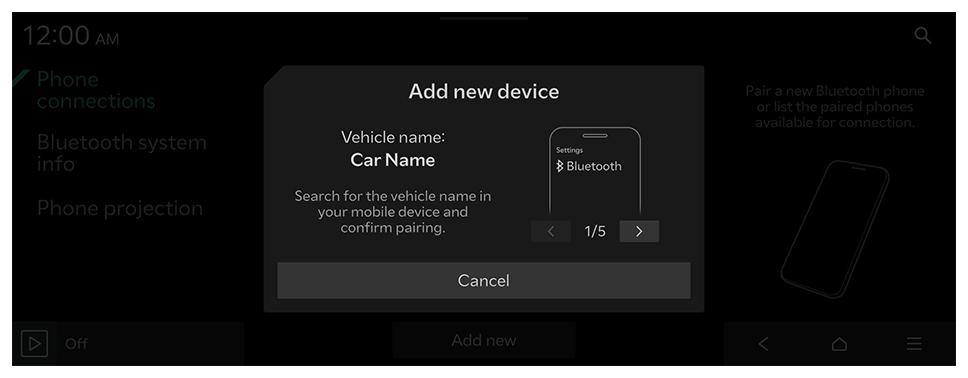
Start by turning on Bluetooth on your phone and making sure your Kia’s infotainment system is in pairing mode. Usually, you can find this option under the “Bluetooth” or “Phone” menu on your car’s display. Your Kia will begin searching for nearby devices automatically.
Have you noticed how some phones take longer to appear? If your device doesn’t show up immediately, try toggling Bluetooth off and on again on your phone. This simple trick often refreshes the connection list and helps your phone appear in the car’s search results.
Select Your Phone
Once your phone appears on the Kia screen, tap its name to select it. Your phone might also display the name of your Kia’s system, so be sure to choose the correct device. This action initiates the pairing request between the two devices.
Keep in mind that selecting the wrong device can cause confusion or delay the process. If you see multiple devices with similar names, double-check which one belongs to your car by looking at the Bluetooth settings on your phone.
Confirm Pairing Code
A code will appear on both your phone and the Kia’s display. This code verifies that you are connecting to the intended device and not another nearby Bluetooth device. Carefully compare the numbers on both screens.
If the codes match, confirm the pairing on both your phone and the car’s system. This step ensures the connection is secure and allows you to start using Bluetooth features immediately. Sometimes, the system will also ask for permission to access contacts and messages—granting access improves your hands-free experience.
Manage Bluetooth Connections
Managing Bluetooth connections in your Kia keeps your driving experience smooth. It helps avoid confusion between devices and ensures quick pairing. Proper management saves time and improves safety while driving.
Set Default Device
Choose a device that connects automatically each time you start your car. This device will have priority over others. To set a default device:
- Access the Bluetooth settings on your Kia’s infotainment system.
- Find the list of paired devices.
- Select the device you want as default.
- Confirm it as the primary or default device.
Setting a default device helps your car connect faster. It avoids manual searching every time you drive.
Remove Old Devices
Old or unused devices can clutter your Bluetooth list. Removing them keeps the system clean and efficient. Follow these steps to delete old devices:
- Open Bluetooth settings on the car’s screen.
- View all paired devices.
- Select the device you no longer use.
- Choose the option to delete or remove it.
Clearing old devices prevents connection errors. It also frees up space for new devices.
Troubleshoot Connection Issues
Experiencing trouble connecting your Bluetooth to your Kia can be frustrating, especially when you’re in a hurry. However, many connection issues have simple fixes that you can try on your own. Let’s look at some practical steps to get your devices talking smoothly again.
Restart Devices
Turning your phone and your Kia’s infotainment system off and on can clear temporary glitches. This simple action often resets the Bluetooth functions and resolves minor bugs.
Try restarting both devices before digging deeper. Have you noticed how often a quick reboot fixes tech problems without any hassle?
Reset Bluetooth Settings
If restarting doesn’t help, resetting Bluetooth settings can remove any corrupted connections blocking pairing. On your phone, go to Bluetooth settings and choose the option to forget your Kia’s device.
Next, clear the paired devices list on your car’s Bluetooth menu. This lets you start fresh and can solve persistent connection failures.
Update Software
Outdated software can cause compatibility issues between your phone and your Kia’s system. Check for updates on both your phone and your car’s infotainment system.
Manufacturers often release updates to improve Bluetooth stability. Have you checked recently if your devices need an update?
Credit: webmanual.kia.com
Use Bluetooth Features
Using Bluetooth features in your Kia enhances driving comfort and safety. It allows easy connection between your phone and car system. Enjoy wireless convenience while keeping your focus on the road. Explore key functions you can use with Bluetooth in your Kia.
Make Hands-free Calls
Bluetooth lets you make calls without holding your phone. Connect your phone to the car’s system and use the steering wheel controls or touch screen to dial. Receive calls directly through the car speakers. It keeps your hands on the wheel and eyes ahead.
Stream Music
Play your favorite songs through the car’s audio system using Bluetooth. Connect your smartphone and select music apps to stream wirelessly. Control playback using the car’s interface or voice commands. Enjoy clear sound without tangled wires.
Access Voice Commands
Bluetooth enables voice command features in your Kia. Activate voice control to make calls, play music, or get navigation help. This feature responds to simple spoken commands, making it easier to stay connected. Use voice commands for safer, hands-free operation.
Credit: owners.kia.com
Frequently Asked Questions
How Do I Pair My Phone With Kia Bluetooth?
To pair your phone, turn on Bluetooth on both devices. Access your Kia’s media system, select Bluetooth settings, then add a new device. Choose your phone from the list and confirm the pairing code on both devices.
Why Won’t My Kia Connect To Bluetooth?
Check if Bluetooth is enabled on both devices. Ensure your phone is within range and not connected to another device. Restart your Kia’s media system and your phone, then try pairing again.
Can I Connect Multiple Devices To Kia Bluetooth?
Yes, many Kia models support multiple Bluetooth connections. You can switch between paired devices easily through the media system’s Bluetooth menu.
How To Troubleshoot Bluetooth Audio Issues In Kia?
Restart your phone and Kia’s media system. Clear Bluetooth cache on your phone. Ensure the volume is up and no other apps interfere with audio playback.
Conclusion
Connecting Bluetooth to your Kia is quick and easy. Just follow the steps carefully. Pairing your phone helps you stay safe on the road. You can play music and make calls without distraction. Remember to keep your phone’s Bluetooth turned on.
Check your car’s manual if you face any issues. Enjoy hands-free driving with a simple setup. Stay connected while focusing on the road ahead. Bluetooth adds comfort and convenience to every trip. Give it a try today for a better driving experience.