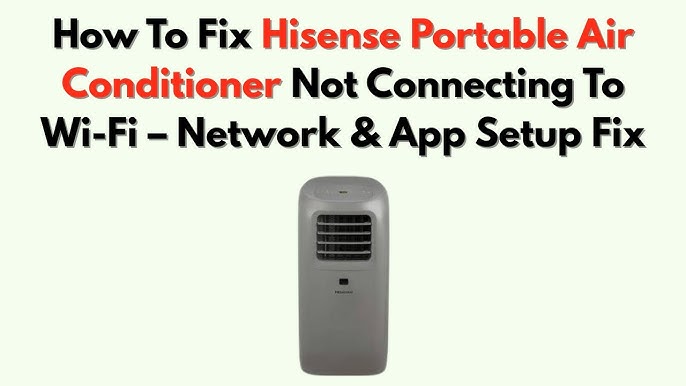
Are you ready to take full control of your Hisense air conditioner right from your phone? Connecting your Hisense AC to WiFi lets you adjust settings, monitor energy use, and even schedule cooling — all without leaving your seat.
If you’ve ever wondered how to make this happen but felt unsure where to start, you’re in the right place. This guide breaks down each simple step so you can get your air conditioner online quickly and easily. Keep reading to unlock the full smart potential of your Hisense AC and enjoy comfort like never before.

Credit: www.myalley.my
Preparation Steps
Prepare the following tools before starting the setup:
- Smartphone or tabletwith the Hisense app installed.
- WiFi passwordfor your home network.
- Hisense air conditioner remotefor manual control.
- Stable WiFi connectionwith good signal strength.
Check your WiFi network compatibility:
- The air conditioner supports 2.4 GHz WiFionly, not 5 GHz.
- Make sure the router’s SSID is visible, not hidden.
- Passwordshould not contain special characters.
- Ensure internet accessis active on your network.

Credit: www.myalley.my
Activating Wifi Mode
The WiFi buttonis usually found on the remote control. It may have a WiFi symbolor be labeled “WiFi.” Press this button to start the connection process.
After pressing the button, the air conditionerwill enter WiFi mode. You might see a blinking light on the unit.
This blinking light means the air conditioner is ready to connect to your network.
Connecting Via Smartphone
Download the Hisense appfrom the Google Play Store or Apple App Store. This app helps connect your air conditioner to WiFi easily. Make sure the app is the official one to avoid issues.
Open the app and create a new accountusing your email or phone number. Follow the instructions to set up your profile. This account lets you control the air conditioner remotely.
After account creation, log inand prepare to add your air conditioner. Keep your WiFi network name and password ready for smooth setup.
Connecting The Air Conditioner
Open the Hisense appon your smartphone. Make sure your phone is connected to the WiFi networkyou want your air conditioner to use. Follow the on-screen instructions to start the connection process.
Choose your air conditioner model from the device list. The app will search for available devices nearby. Select your air conditioner to connect it to your WiFi network.
Troubleshooting Common Issues
Resetting the air conditioner can fix many connection issues. Find the reset button on the unit. Press and hold it for about 5 seconds until the display flashes. This clears old settings and prepares the device for a fresh connection.
Ensuring a stable network connection is key. Place the air conditioner close to your WiFi router. Walls and distance can weaken the signal. Use a strong, secure WiFi network with a password. Avoid public or open networks. Restart your router if the connection seems slow or unstable.
- Check if other devices connect to the same WiFi.
- Turn off other devices that may use much bandwidth.
- Make sure the WiFi frequency is 2.4 GHz, not 5 GHz, as many units only support 2.4 GHz.

Credit: www.youtube.com
Testing The Connection
Open the Hisense app on your smartphone to control the air conditioner. Check if the device appears in the app’s device list. Try turning the AC on or off using the app. If the command works, the connection is successful.
Check the WiFi signal strengthnear the air conditioner unit. A weak signal can cause connection problems. Move your router closer or use a WiFi extender if needed.
| WiFi Signal Level | Connection Quality | Action |
|---|---|---|
| Strong (3-4 bars) | Good | No change needed |
| Medium (2 bars) | Fair | Consider moving router closer |
| Weak (1 bar) | Poor | Use WiFi extender or relocate router |
Frequently Asked Questions
How Do I Connect Hisense Ac To Wifi?
To connect, turn on your Hisense AC and open the mobile app. Select your WiFi network, enter the password, and follow on-screen prompts to complete setup. Ensure your phone is on the same network for smooth connection.
Why Won’t My Hisense Ac Connect To Wifi?
Check your WiFi signal strength and password accuracy. Restart your router and AC unit. Ensure your Hisense AC firmware and app are updated. Use a 2. 4 GHz network, as many devices do not support 5 GHz bands.
Can I Control Hisense Ac Remotely Via Wifi?
Yes, after connecting to WiFi, you can control your Hisense AC remotely using the official mobile app. This allows you to adjust temperature, modes, and timers from anywhere, enhancing convenience and energy efficiency.
What App Is Required For Hisense Ac Wifi Control?
Use the official Hisense Air Conditioner app available on iOS and Android. This app enables WiFi setup, remote control, and access to advanced features for your Hisense AC unit.
Conclusion
Connecting your Hisense air conditioner to WiFi is simple and quick. Just follow the steps carefully, and you will control your AC from anywhere. This connection helps save energy and keeps your home comfortable. No need to worry about complicated setups.
Enjoy easy access using your phone or tablet. Stay cool with smart technology that fits your life. Now, your air conditioner works better and smarter every day.