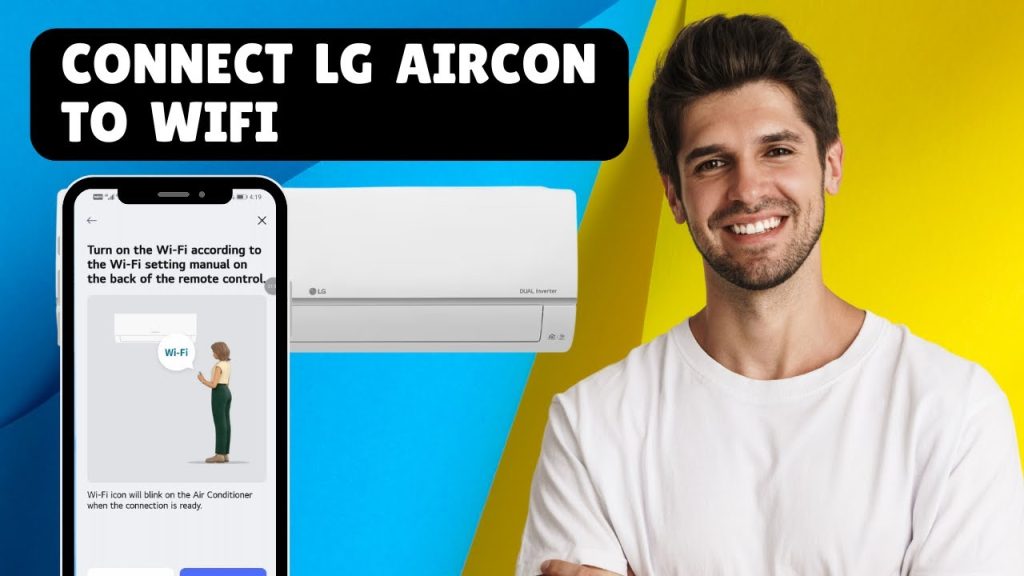
Connecting your LG air conditioner to WiFi might sound tricky, but it’s easier than you think. Imagine controlling your AC from anywhere, adjusting the temperature before you even step inside.
Sounds convenient, right? In this guide, you’ll find simple, step-by-step instructions that anyone can follow. By the end, you’ll have your LG air conditioner connected and ready to make your life more comfortable and hassle-free. Keep reading—you’re just a few clicks away from smarter cooling.

Credit: www.youtube.com
Check Wifi Compatibility
Check if your LG air conditioner supports WiFi connection. Some older models do not have this feature. Look for a WiFi symbolor check the user manual for compatibility.
Make sure your home WiFi is 2.4 GHz. Many LG AC units do not work with 5 GHz networks.
Have your WiFi network name and passwordready. You will need these to connect the AC to WiFi.
Ensure your WiFi signal is strong and stablenear the air conditioner. Weak signals can cause connection problems.
Prepare Your Air Conditioner
Make sure the air conditioner is plugged inand the power switch is turned on. The unit should display some lights or show a ready signal on the screen.
Resetting the network settings can help if the air conditioner had previous Wi-Fi connections. This clears old data and prepares it for a new connection.
- Find the reset buttonon the unit or remote control.
- Press and hold it for about 5 seconds until the unit beeps or flashes.
- The unit will restart and erase old network settings.
Download Lg Thinq App
Search for the LG ThinQ appin your device’s app store. It is available on both Google Playand the Apple App Store. Use simple keywords like “LG ThinQ” to find it fast.
After finding the app, tap installand wait for it to download. The app is small, so it should be quick.
- Open the app once installed.
- Create a new account by entering your emailand password.
- Or log in if you already have an account.
- Follow the on-screen prompts to verify your account.
Having an account helps to save your device settingsand control your AC remotely.

Credit: www.lg.com
Connect Ac To Wifi
Open the LG ThinQ app on your phone. Tap the plus (+) sign to add a new device. Choose “Air Conditioner” from the list of devices.
Select your exact LG air conditioner modelto ensure compatibility. This helps the app find the right settings for your unit.
Enter your WiFi network’s name (SSID)and password. Make sure your phone is connected to the same WiFi network. Confirm the information is correct before proceeding.
Troubleshoot Connection Issues
Check the WiFi signal strengthnear your LG air conditioner. Weak signals cause connection problems. Move the router closer or remove obstacles.
Restart the air conditioner and the router. This simple step often fixes temporary glitches. Turn both devices off, wait for 30 seconds, then turn them back on.
Update the air conditioner’s firmware. Old software can stop the WiFi from working properly. Visit LG’s official website or use the app to check for updates.
Control Ac With Your Phone
Control your LG air conditioner easily with your smartphone. Use the LG ThinQ app to connect your AC to WiFi. This allows you to adjust the temperature remotely. Change settings from anywhere, whether you are at work or outside.
- Adjust Temperature Remotely:Cool or warm your room before you arrive.
- Set Schedules:Program your AC to turn on or off at specific times.
- Monitor Energy Usage:Check how much power your AC uses to save money.
With these features, managing your LG air conditioner becomes simple and smart.
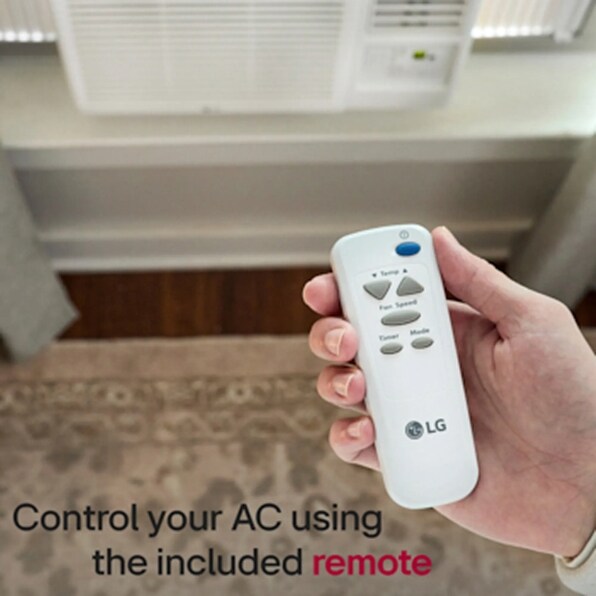
Credit: www.lg.com
Frequently Asked Questions
How Do I Connect My Lg Ac To Wifi?
To connect your LG air conditioner to WiFi, ensure your AC is WiFi-enabled. Download the LG ThinQ app and follow on-screen instructions. Connect your smartphone to the same WiFi network. Enter your network password when prompted. Once connected, you can control your AC using the app.
Why Isn’t My Lg Ac Connecting To Wifi?
Ensure your WiFi network is stable and within range. Check if your AC and smartphone are on the same network. Restart your router and AC unit. Verify that your router settings allow new device connections. If issues persist, refer to the AC manual or contact LG support.
Can I Control Lg Ac Remotely Without Wifi?
Yes, you can control your LG AC remotely using the LG ThinQ app. However, a WiFi connection is necessary for remote functionality. Without WiFi, you can only operate it manually or with a remote control. Ensure your mobile data is enabled if WiFi is unavailable.
What Is Lg Thinq App Used For?
The LG ThinQ app enables remote control of your LG appliances. It allows you to monitor, adjust settings, and receive maintenance alerts. Connect your air conditioner to the app for enhanced convenience and energy efficiency. The app also offers smart features like scheduling and voice control.
Conclusion
Connecting your LG air conditioner to WiFi is simple and quick. Just follow the steps carefully, and you will control your AC from anywhere. This connection saves time and makes your home comfortable with ease. No need to worry about complicated settings or technical terms.
Enjoy the convenience of adjusting temperature with your phone anytime. Stay cool and save energy by managing your LG air conditioner through WiFi. Try it today and see how easy it can be.