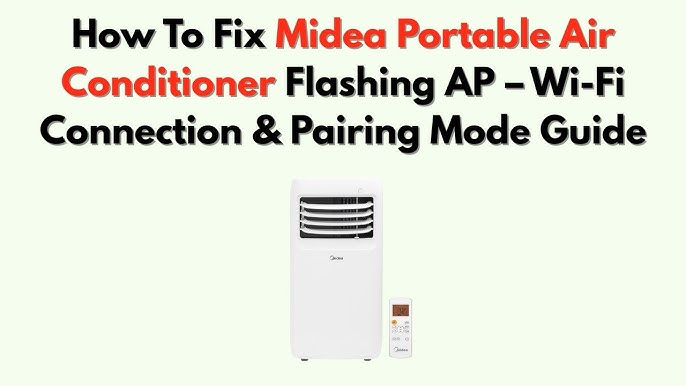
Are you ready to take full control of your Midea air conditioner right from your phone? Connecting your Midea AC to WiFi lets you adjust the temperature, set schedules, and save energy—all without leaving your seat.
If you’ve ever struggled with complicated instructions or felt frustrated by tech setups, this guide is made just for you. Keep reading, and you’ll discover simple, step-by-step instructions that anyone can follow to get your Midea air conditioner online quickly and easily.
Let’s make your home smarter and more comfortable today!
Credit: theachub.pk
Check Wifi Compatibility
Check if your WiFi network uses 2.4 GHz frequency. Most Midea air conditioners only connect to 2.4 GHz networks. The 5 GHz network is often not supported. Verify your router settings to confirm the frequency band.
Make sure the WiFi network is stable and has a strong signalwhere the air conditioner is installed. A weak signal may cause connection problems.
Use a password-protected WiFi. Open networks or captive portals usually do not work with smart devices. Ensure the password is correct and entered carefully during setup.
| WiFi Feature | Requirement |
|---|---|
| Frequency | 2.4 GHz only |
| Signal Strength | Strong and stable |
| Network Security | Password protected (WPA/WPA2) |
| SSID | Visible (not hidden) |
Download The Midea App
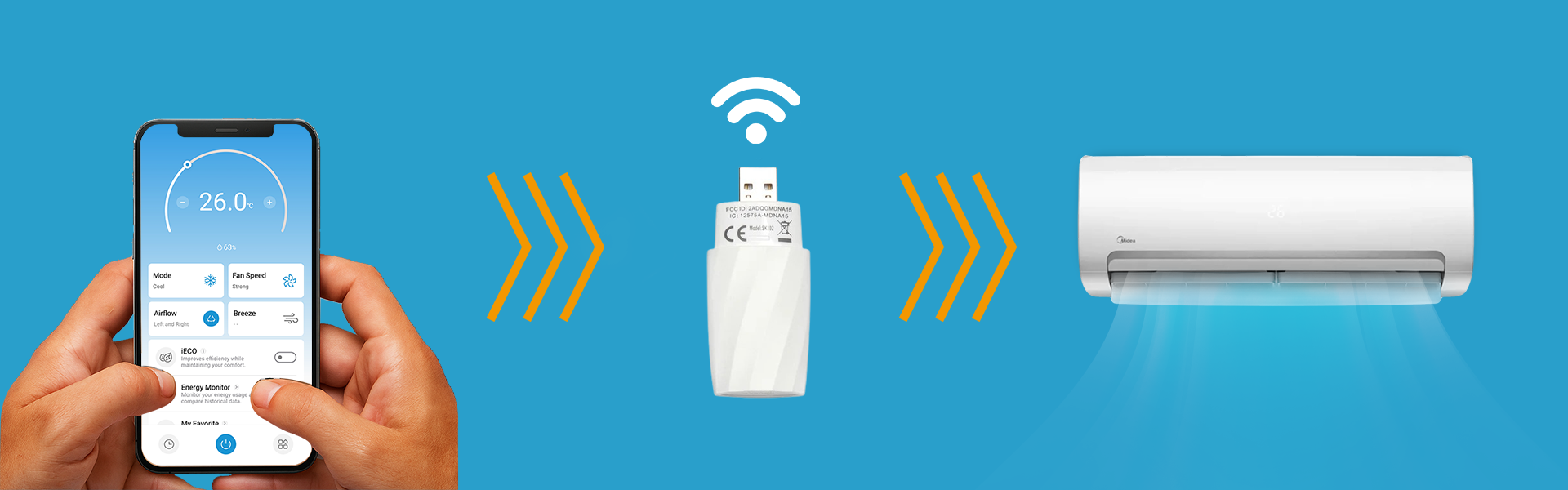
To connect your Midea air conditioner to WiFi, start by downloading the Midea app. It is available on both Google Play Storeand Apple App Store. Make sure your phone is connected to the same WiFi network you want the air conditioner to use.
After downloading, open the app and create an account or log in. The app will guide you through the setup process. Keep your air conditioner powered on and nearby.
- Search for “Midea” in the app store.
- Download and install the app on your smartphone.
- Open the app and sign up or log in.
- Follow the on-screen instructions to add your air conditioner.
Create A Midea Account
To create a Midea account, visit the official Midea app or website. Enter your email address or phone number. Choose a strong password that you can remember. You will receive a verification code via email or SMS. Enter the code to verify your account. Fill in your personal details as required. Agree to the terms and conditions. Once done, your Midea account will be ready to use.
Having a Midea account lets you control your air conditioner from anywhere. It also helps save energy and monitor usage easily.
Credit: github.com
Prepare The Air Conditioner
Make sure the air conditioner is plugged in and switched on. The display panel should light up.
Press the power button on the remote or unit to turn it on.
Locate the WiFi button on the air conditioner or remote control.
Press and hold the WiFi button for a few seconds until the WiFi indicator starts blinking.
This blinking means the unit is ready to connect to your home network.
Connect To Wifi Network
To connect your Midea air conditionerto WiFi, start by selecting your home networkfrom the list of available networks. Make sure the WiFi signal is strong and stable for better performance.
Next, enter the correct passwordfor your WiFi network carefully. Passwords are case-sensitive, so type each character exactly as it appears.
After entering the password, confirm the connection. The air conditioner will then link to your WiFi, allowing remote control through the app.
Credit: www.youtube.com
Pair The Device With App
Download the Midea Air app from the App Store or Google Play. Create an account or log in. Turn on the air conditioner and ensure it is in WiFi pairing mode. Open the app and select “Add Device.” Follow the app’s prompts to connect to your WiFi network. Enter your WiFi password carefully.
Wait for the app to pair with the air conditioner. A successful connection shows a confirmation message. Control the air conditioner remotely through the app once paired. The app also allows scheduling and temperature control for convenience.
Troubleshoot Common Issues
Reset WiFi settingson your Midea air conditioner by pressing the reset button. This clears old data and helps connect fresh.
Check the router and signal. Make sure the router is on and near the AC. Walls and distance can weaken the signal.
Ensure the firmwareis up to date. Visit Midea’s official site or app to download the latest version. Updates fix bugs and improve connection.
| Issue | Action | Result |
|---|---|---|
| WiFi reset problem | Press reset button on AC | Clears old settings, allows new connection |
| Weak signal | Move router closer or remove obstacles | Stronger WiFi signal to AC |
| Old firmware | Update firmware via app or website | Better performance and fewer errors |
Use Voice Control Features
Connect your Midea Air Conditioner to Alexa by enabling the Midea Smart app skill in the Alexa app. Link your Midea account to Alexa for seamless control. Use simple voice commands like “Alexa, turn on the air conditioner” or “Alexa, set temperature to 72 degrees.”
For Google Assistant, open the Google Home app and add the Midea Smart app service. Sign in with your Midea account to link devices. You can say “Hey Google, turn off the air conditioner” or “Hey Google, change AC mode to cool.”
Voice control lets you operate your AC hands-free. It makes managing temperature easier and faster.
Frequently Asked Questions
How Do I Connect My Midea Ac To Wifi?
To connect your Midea air conditioner to WiFi, first download the Midea Air app. Open the app and create an account. Follow the on-screen instructions to add your device. Ensure your AC is in WiFi setup mode, then select your network and enter the password.
Confirm the connection in the app.
Why Is My Midea Ac Not Connecting To Wifi?
If your Midea AC isn’t connecting, check your WiFi signal strength. Ensure the router is close to the AC. Verify that the WiFi password is correct. Restart both the AC and router. If issues persist, reset the AC’s WiFi settings and try the connection process again.
What App Do I Need For Midea Ac Wifi Setup?
You need the Midea Air app for WiFi setup. Download it from the App Store or Google Play Store. This app allows you to control your air conditioner remotely. Ensure you have the latest version for the best experience and new features.
Can I Control Midea Ac Remotely With Wifi?
Yes, once connected to WiFi, you can control your Midea AC remotely. Use the Midea Air app on your smartphone. This app lets you adjust temperature, modes, and settings from anywhere. Ensure your internet connection is stable for uninterrupted control.
Conclusion
Connecting your Midea air conditioner to WiFi helps control it easily. Follow the steps carefully for a smooth setup. Once connected, you can adjust settings from your phone anytime. This saves energy and keeps your room comfortable. No need to worry about complex instructions.
Just take it one step at a time. Enjoy the convenience of smart cooling at your fingertips.