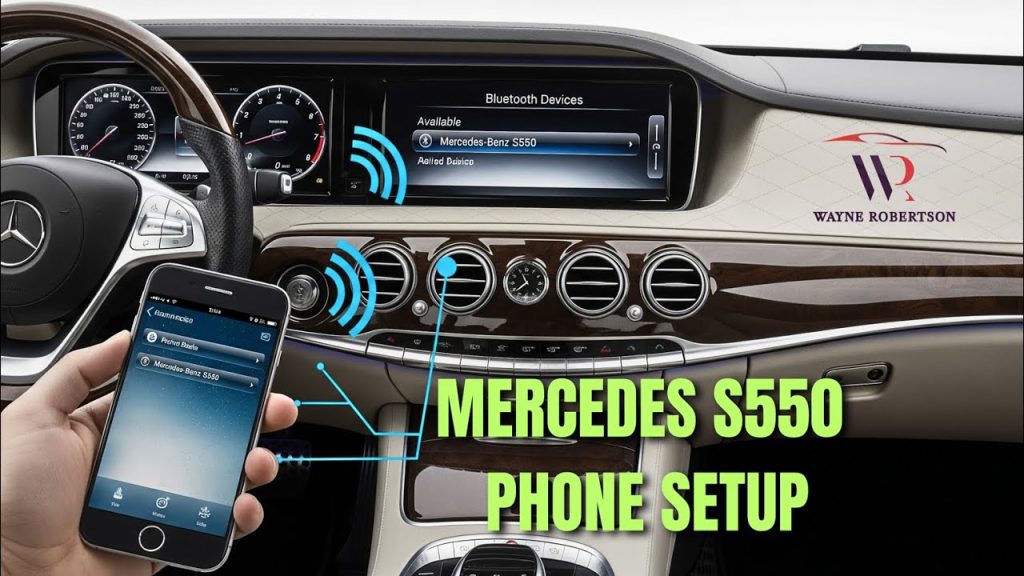
Want to enjoy your favorite music, make hands-free calls, or use navigation right from your Mercedes Benz dashboard? Connecting your phone to your car is the key to unlocking all these features.
But if you’re unsure how to do it, don’t worry. This guide will walk you through simple steps to link your phone with your Mercedes Benz quickly and easily. By the end, you’ll be ready to drive smarter and safer, with all your essential apps just a tap away.
Keep reading to find out how!
Prepare Your Phone And Car
Preparing your phone and Mercedes Benz for connection is the first step. This ensures smooth pairing and reliable communication. Taking time to set up both devices properly avoids frustration later.
Focus on three key actions. Check if your phone works with your car’s system. Turn on Bluetooth on your phone. Then start your Mercedes Benz to enable pairing mode.
Check Compatibility
Verify your phone supports Bluetooth and car integration. Most modern phones and Mercedes Benz models work well together. Some older phones may not connect to newer car systems.
Find your car’s user manual or visit the Mercedes Benz website. Look for supported phone models and Bluetooth versions. This saves time by confirming compatibility before connecting.
Enable Bluetooth On Phone
Turn on Bluetooth in your phone’s settings menu. This allows the car to detect your device. Keep your phone unlocked during the pairing process.
Set your phone to visible or discoverable mode if needed. This lets your Mercedes Benz find your phone easily. Avoid connecting multiple devices at once to prevent confusion.
Start Your Mercedes Benz
Switch on your car and keep it in park. Your Mercedes Benz system needs to be active for pairing. Access the multimedia or infotainment screen to begin connection.
Follow prompts on the car display to search for nearby Bluetooth devices. Your phone should appear in the list. Confirm the connection on both devices to complete pairing.
Credit: www.mercedes-benz-peterborough.ca
Access The Mercedes-benz Infotainment System
Connecting your phone to the Mercedes-Benz infotainment system is simple and fast. Use Bluetooth settings on both devices to pair and enjoy hands-free calls and music. The system also supports Apple CarPlay and Android Auto for seamless smartphone integration.
Accessing the Mercedes-Benz infotainment system is your gateway to a seamless driving experience. Whether you’re making calls, playing music, or getting directions, it all starts here. Connecting your phone to your Mercedes-Benz is straightforward, but the right approach makes it even easier.Locate The Comand Controller Or Touchscreen
First, find the COMAND controller or touchscreen in your vehicle. In many Mercedes-Benz models, the COMAND controller is centrally located between the driver and passenger seats. It looks like a rotary dial and is intuitive to use. If your model is equipped with a touchscreen, it will be located in the center of the dashboard. Touchscreens provide a more direct interaction, much like your smartphone. Which one does your car have?Navigate To Phone Settings
Once you’ve located the controller or touchscreen, access the main menu. Here, you’ll find various options, but your focus should be on the phone settings. Select the phone icon from the menu. This is where you will pair your device. Ensure Bluetooth is enabled on your phone. Your car will search for available devices, and your phone should appear on the list. Select your phone from the list and follow the prompts to complete the connection. And just like that, you’re ready to enjoy hands-free calls and music streaming! How often do you use your car’s infotainment system?Pair Your Phone With The Car
Pairing your phone with your Mercedes Benz allows you to enjoy hands-free calls, music streaming, and access to apps. The process is simple and takes only a few minutes. Follow the steps below to connect your device securely.
Search For Devices
Turn on Bluetooth on your phone. On your car’s infotainment screen, open the Bluetooth menu. Select the option to search for new devices. Your Mercedes will begin scanning for nearby phones.
Select Your Phone
Once your phone appears on the car screen, tap it to select. Make sure your phone also shows the car’s Bluetooth name. This ensures you connect the right device. Wait a moment while the connection starts.
Confirm Pairing Code
A pairing code will appear on both your phone and the car screen. Check that the codes match exactly. Confirm the code on both devices to complete the pairing. Your phone is now connected and ready to use.

Credit: www.youtube.com
Sync Contacts And Media
Syncing contacts and media between your phone and Mercedes Benz enhances your driving experience. It allows easy access to your phonebook and favorite music through the car’s system. This connection helps keep your hands on the wheel and eyes on the road.
Allow Access To Contacts
Grant permission for the car to access your phone contacts. This step lets the system display names and numbers on the dashboard screen. You usually see a prompt on your phone asking for contact access. Approve it to enable hands-free calling and texting features.
Enable Media Playback
Activate media playback to listen to music or podcasts from your phone. Connect via Bluetooth or USB cable and select your phone as the audio source. The car system should recognize your media files automatically. Use the car’s controls to play, pause, or skip tracks safely.
Customize Sync Settings
Adjust sync settings to suit your preferences. Choose which contacts to share, such as favorites or all contacts. Select specific media folders or playlists for playback. These options help organize your information for easy access in the car.
Troubleshooting Connection Issues
Connecting your phone to a Mercedes Benz should be smooth, but sometimes issues pop up. These connection problems can be frustrating, especially when you need to make a call or play music on the go. Troubleshooting these hiccups step-by-step can save you time and get you back on the road with ease.
Restart Devices
Have you tried turning it off and on again? Restarting both your phone and your car’s infotainment system can clear minor glitches. This simple step often fixes temporary issues like unresponsive Bluetooth or connectivity errors.
Turn off your phone, then power down your Mercedes Benz’s system. Wait for about 30 seconds before switching them back on. This reset can refresh the connection and sometimes works better than more complicated fixes.
Update Software
Outdated software is a common cause of connection troubles. Check if your phone’s operating system and your car’s infotainment system have any pending updates. Software updates often include bug fixes and improved compatibility with devices.
Go to your phone’s settings and look for system updates. For your Mercedes Benz, you may need to visit the manufacturer’s website or use the car’s update feature in the settings menu. Keeping both devices up to date can prevent many Bluetooth problems.
Reset Bluetooth Settings
If restarting and updating don’t help, resetting Bluetooth settings can clear out old pairings and corrupted data. On your phone, this usually means going into Bluetooth settings and removing your Mercedes Benz from the paired devices list.
After forgetting the car’s Bluetooth, do the same on your Mercedes Benz by deleting your phone from the paired devices menu. Then, try pairing them again as if it’s the first time. This clean slate approach often resolves stubborn connection issues.

Credit: www.youtube.com
Use Voice Commands And Apps
Using voice commands and apps can make connecting your phone to your Mercedes Benz not only easier but also safer while driving. These tools let you keep your hands on the wheel and eyes on the road, which improves your driving experience.
Activate Voice Control
To start using voice commands, you first need to activate the voice control system in your Mercedes. Usually, this involves pressing the voice control button on your steering wheel until you hear a beep or see a prompt on the display.
Once activated, you can say simple commands like “Call John,” “Play my favorite playlist,” or “Navigate to the nearest gas station.” Voice control understands natural language, so you don’t have to memorize strict phrases.
Have you tried asking your car to read your messages aloud? It’s a real game changer that keeps you informed without distractions.
Connect To Mercedes Me App
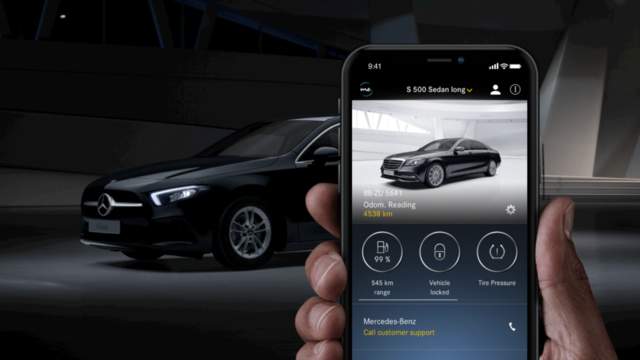
The Mercedes Me app enhances your connection by allowing you to control many vehicle functions right from your phone. Download the app from your device’s app store and create an account if you don’t have one already.
Linking your car to the app requires entering your Vehicle Identification Number (VIN) and following the in-app instructions. Once connected, you can check your fuel level, lock or unlock doors, and even schedule maintenance.
Using the Mercedes Me app can make managing your car’s needs more convenient. Have you ever needed to pre-heat your car on a cold morning? This app lets you do that without stepping outside.
Frequently Asked Questions
How Do I Pair My Phone With A Mercedes Benz?
To pair, enable Bluetooth on your phone and access the Mercedes Benz COMAND system. Select “Phone” and then “Connect Device. ” Choose your phone from the list and confirm the pairing code. Your phone will now sync with your car for calls and media.
Can I Connect An Android Phone To Mercedes Benz?
Yes, Mercedes Benz supports Android phones via Bluetooth and Android Auto. Enable Bluetooth or connect via USB cable. Use the COMAND system or MBUX interface to pair and access calls, messages, and navigation directly from your car’s display.
What Phones Are Compatible With Mercedes Benz Bluetooth?
Most smartphones with Bluetooth 4. 0 or higher are compatible. This includes iPhones (iOS 10+) and Android devices (Android 6. 0+). Always update your phone’s software and the car’s system for the best connection and functionality.
How To Troubleshoot Phone Connection Issues In Mercedes Benz?
Restart your phone and car system. Delete old Bluetooth pairings and reconnect. Ensure your phone’s Bluetooth visibility is on. Update both phone and vehicle software. If issues persist, consult your Mercedes Benz manual or contact customer support.
Conclusion
Connecting your phone to a Mercedes Benz is simple and quick. Follow the steps carefully for a smooth setup. Enjoy hands-free calls and music while driving safely. Stay connected without distractions on the road. Practice a few times to feel comfortable with the system.
This connection enhances your driving experience every day. Keep your phone ready and enjoy the ride.