Have you ever needed a professional-looking tent card but didn’t know where to start? Creating one in Word is easier than you think, and you don’t need any special design skills.
Whether it’s for a meeting, event, or a simple desk label, a well-made tent card can make a big impression. In this guide, you’ll discover step-by-step how to make your own tent card quickly and effortlessly. Keep reading, and by the end, you’ll have a custom tent card ready to print that stands out and grabs attention every time.
Choosing The Right Tent Card Size
Choosing the right size for your tent card is important. It affects how well your message shows and fits the space.
Consider the setting and the information you want to display. This guide helps you pick the best size.
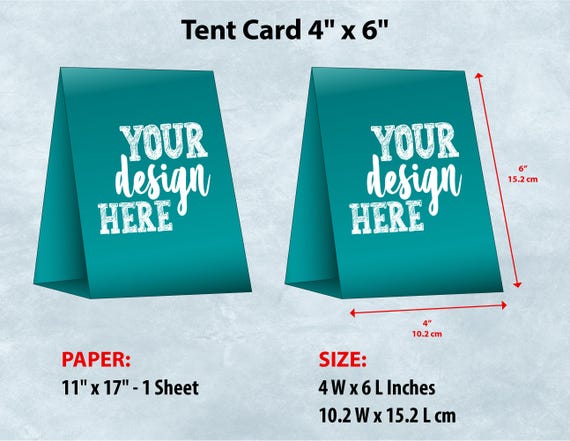
Standard Tent Card Dimensions
Most tent cards come in common sizes that fit many needs. These sizes work well for events and businesses.
| Size | Dimensions (inches) | Common Use |
|---|---|---|
| Small | 4 x 6 | Place cards or small notices |
| Medium | 5 x 7 | Menus and event information |
| Large | 6 x 9 | Promotional or detailed info |
Customizing Size For Different Needs
You can change tent card sizes to match your specific needs. Think about space and what you want to show.
- Use smaller cards for tight spaces or brief messages.
- Choose larger cards for more text or images.
- Make sure the size fits the table or surface where you place it.
- Consider folding style to avoid crowding the content.
Setting Up The Document In Word
Creating a tent card in Word starts with setting up your document properly. This ensures your design fits well and looks professional.
We will focus on adjusting the page orientation and configuring margins and layout to make your tent card perfect.
Adjusting Page Orientation
Page orientation changes the way your content is displayed. For tent cards, landscape orientation is usually best.
Landscape mode allows the card to fold easily and stand up properly on tables.
- Open your Word document.
- Go to the “Layout” tab on the ribbon.
- Click on “Orientation.”
- Select “Landscape” to change the page layout.
Configuring Margins And Layout
Setting the right margins ensures your text and design fit inside the card. Small margins work best for tent cards.
Changing layout options helps you divide the page correctly for folding the tent card.
- Go to the “Layout” tab.
- Click “Margins” and choose “Custom Margins.”
- Set narrow margins, such as 0.5 inches on all sides.
- Use “Columns” to split the page if you want two tent cards per page.
- Choose “Two” columns for a simple fold design.
Designing The Tent Card Layout
Designing a tent card in Word starts with setting the right layout. This helps your card stand firm and look neat. It is important to plan the card’s size and how it will fold.
In this guide, we focus on creating the fold line and dividing the card into panels. These steps make your tent card easy to use and attractive.
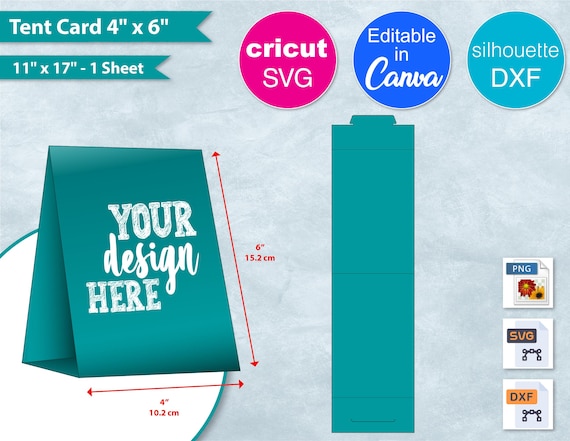
Creating The Fold Line
The fold line is where the card bends to stand up. Setting this line clearly is key for a good tent card. In Word, you can add a fold line by inserting a dashed line or using the ruler guides.
- Open a new Word document and set the page size to your card’s dimensions.
- Go to the “Insert” tab and choose “Shapes.” Select the line shape.
- Draw a vertical dashed line where the card will fold.
- Adjust the line’s position to be exactly in the middle or where you want the fold.
- Use the “Format” options to change the line style to dashed for easy identification.
Dividing The Card Into Panels
A tent card usually has two main panels. Dividing the card helps you place text and images correctly on each side. Panels must be equal in size for balance.
| Panel | Description | Use |
| Front Panel | The side facing out when folded | Place title, logo, or main message |
| Back Panel | The opposite side of the front panel | Include additional details or images |
Credit: www.etsy.com
Adding Text And Images
Creating a tent card in Word is easy and fun. You can add text and images to make it look great.
These simple steps will help you add and arrange text and pictures on your card.
Inserting And Formatting Text
Start by opening a new Word document. Use text boxes to place your text where you want.
You can change the font size, style, and color to make the text clear and attractive.
- Click Insert > Text Box to add text.
- Type your message inside the box.
- Use the Home tab to change font and size.
- Drag the text box to position it on the card.
- Use bold or italics for emphasis.
Incorporating Graphics And Logos
Adding images and logos makes your tent card look professional. You can insert pictures from your computer.
Resize and move the images to fit the card design without covering the text.
- Click Insert > Pictures to add an image.
- Select the file and click Insert.
- Use the corner handles to resize the image.
- Right-click the image to wrap text around it.
- Place logos in a visible but neat spot.
Enhancing Design With Styles And Colors
Designing a tent card in Word is easy with styles and colors. These features make your card look clear and eye-catching.
Choosing the right styles and colors helps your tent card stand out. It also makes the message easy to read.
Applying Themes And Color Schemes
Word offers many themes to change colors and fonts quickly. You can pick a theme that fits your event or style.
- Go to the Design tab to find themes.
- Select a theme to apply color and font styles.
- Use color schemes to match your brand or mood.
- Change colors for headings and body text separately.
- Try different theme colors to see what looks best.
Using Borders And Shapes
Borders and shapes add style and structure to your tent card. They can highlight important parts or frame your text nicely.
| Border Option | Use | Effect |
| Simple Line | Around the card edges | Clean and classic look |
| Shadow | Behind the card | Adds depth and focus |
| Rounded Corners | For shape edges | Soft and modern feel |
| Colored Borders | Highlight sections | Draws attention to text |
Previewing And Printing The Tent Card
After designing your tent card in Word, you need to check its layout. This helps avoid mistakes before printing.
Printing settings also affect the final look. Use the right paper and printer options for the best result.
Checking Layout Before Printing
Look at your tent card on the screen to see how it will appear when printed. Use Word’s Print Preview tool.
Make sure all text and images are inside the fold lines. Check if the design is centered and clear.
- Open the File menu and select Print.
- View the Print Preview on the right side.
- Check margins and alignment carefully.
- Fix any overlapping or cut-off parts.
Selecting Paper And Printer Settings
Choose thick or glossy paper for a sturdy tent card. This paper holds the shape better when folded.
Adjust your printer settings to match the paper type and size. Use high-quality print mode for clear text and images.
- Set paper size to match your tent card dimensions.
- Select the correct paper type in printer settings.
- Use color printing if your design has colors.
- Print a test page to check colors and alignment.
Folding And Finishing Touches
Creating a tent card in Word is not complete without proper folding and finishing. These steps make your card stand firm and look professional.
Folding your tent card carefully and adding the right coatings can improve its durability and appearance. Let’s explore these important touches.
Proper Folding Techniques
Fold the printed sheet evenly to create a clean tent shape. Use a ruler or a bone folder for sharp creases.
- Align the edges of the card carefully before folding.
- Create a crisp center fold by pressing firmly along the crease.
- Use a flat surface to avoid wrinkles or bumps.
- Fold the card so it forms an inverted “V” shape that stands upright.
Adding Laminations Or Coatings
Laminations protect the card from water, dirt, and wear. They also add a polished look.
| Type of Coating | Benefits | Best Use |
|---|---|---|
| Glossy Lamination | Enhances colors and shine | Vibrant and colorful tent cards |
| Matte Lamination | Reduces glare and fingerprints | Professional and subtle designs |
| UV Coating | Strong surface protection | Outdoor or frequently handled cards |
Credit: www.etsy.com

Credit: www.reddit.com
Frequently Asked Questions
How Do I Set The Page Size For A Tent Card?
To set the page size for a tent card in Word, go to the “Layout” tab. Click on “Size” and select “More Paper Sizes. ” Enter the custom dimensions, ensuring the width and height match your tent card requirements. Confirm your settings by clicking “OK.
“
Can I Use Templates To Create A Tent Card?
Yes, Word offers tent card templates. Go to “File” and select “New. ” Search for “tent card” in the template search box. Choose a template that suits your needs, and customize it with your text and images. Templates simplify the design process.
How Do I Print My Tent Card In Word?
To print your tent card, select “File” and then “Print. ” Ensure your printer settings match your tent card’s dimensions. Use high-quality paper for the best results. You may need to test print to confirm alignment before printing the final version.
Can I Add Images To My Tent Card?
Yes, you can add images to your tent card. Click “Insert,” then select “Pictures” to add images from your computer. Resize and reposition the image as needed. Ensure images are high resolution for clear printing and align them with your text for a professional look.
Conclusion
Creating a tent card in Word is simple and quick. Just follow the steps carefully. You can add text, images, and colors to make it unique. This helps your card stand out at events or meetings. Practice a few times to get comfortable with the tools.
Soon, you will create clear and attractive tent cards easily. Try different styles and designs to match your needs. Keep your message short and neat for the best effect. Enjoy making your own tent cards with Word!