Are you tired of your Shark Robot Vacuum whirring around when you want peace and quiet? You’re not alone.
Many people struggle to find the right way to turn off their robot vacuum, especially when it seems to have a mind of its own. Imagine coming home after a long day, eager to relax, only to hear the hum of your vacuum still cleaning away.
You deserve control over your home environment, and knowing how to effectively turn off your Shark Robot Vacuum can give you that peace of mind. Stay with us as we guide you through simple, step-by-step instructions to regain control and enjoy your space on your terms. You won’t want to miss out on these easy tips that can transform your home experience.
Locate The Power Button
Locating the power button on your Shark robot vacuum is the first step to turn it off quickly. This button controls the device’s power and allows you to stop cleaning safely. Knowing its position helps avoid confusion and saves time.
The power button is designed for easy access. It is usually visible on the top or side of the vacuum. Identifying it ensures you can turn off the vacuum without needing the remote or app.
Check The Top Surface Of The Vacuum
Most Shark robot vacuums have the power button on the top. Look for a round or square button. It often shows a power symbol, like a circle with a line.
The button is usually near the center or edge. It may be a different color, making it easier to spot.
Inspect The Side Edges
Some models place the power button on the side. Run your fingers along the edges to find a small button. It may be recessed to avoid accidental presses.
Feel for a button that clicks when pressed. This is often the power button.
Refer To The User Manual For Exact Location
The user manual provides clear information about the power button location. It includes pictures and descriptions. Keep the manual handy for quick reference.
Use The Control Panel Or Remote As A Backup
If you cannot find the power button, check the control panel or remote. Some Shark models allow power control through these devices. This helps turn off the vacuum without touching it directly.

Credit: manuals.plus
Using The Control Panel
The control panel on your Shark Robot Vacuum offers a simple way to power off the device. It puts essential functions right at your fingertips. Understanding these buttons helps you manage the vacuum with ease. The control panel is designed for quick access to power and settings. It keeps the vacuum ready for use or shutdown in seconds.
Power Button Functions
The power button is the main control to turn off the vacuum. Press it once to stop the cleaning cycle immediately. Holding the power button for a few seconds will fully power down the machine. This helps save battery and prevents accidental starts. The button is usually located at the top center of the control panel. It is clearly marked for easy identification.
Additional Controls
The control panel also includes other buttons for different settings. You might find buttons for spot cleaning and scheduling. These controls allow you to customize the vacuum’s behavior before turning it off. Some models have a reset button to clear errors. Use these buttons carefully to avoid interrupting a cleaning cycle.
Using The Remote Control
Using the remote control to operate your Shark Robot Vacuum gives you quick and easy access to its functions without needing to bend down or interact directly with the device. It’s perfect for those moments when you want to pause cleaning or make adjustments from across the room. Understanding how to effectively use the remote can save you time and make your cleaning experience smoother.
Power Off Command
The power off button on the remote control is your go-to for stopping the vacuum immediately. Pressing this button sends a signal to the vacuum to shut down its cleaning cycle and return to standby mode.
It’s surprisingly simple, yet vital—especially if you need to stop the vacuum quickly, say if it gets stuck or you want to move it manually. Have you ever found yourself chasing the vacuum around to turn it off? The remote saves you from that hassle.
Other Useful Buttons
Beyond powering off, the remote offers several buttons that enhance your control over the Shark Robot Vacuum:
- Start/Pause:Begin or pause cleaning without touching the vacuum itself.
- Spot Clean:Focuses the vacuum on a small, specific area for intensive cleaning.
- Directional Controls:Manually guide the vacuum to areas you want cleaned or avoided.
- Return to Dock:Sends the vacuum back to its charging station instantly.
Using these buttons allows you to customize your cleaning sessions. Have you tried steering your robot vacuum to tackle high-traffic spots more often? It’s like having a handheld vacuum with the hands-free convenience of a robot.

Credit: www.youtube.com
Using The Mobile App
Using the mobile app offers a quick and easy way to control your Shark Robot Vacuum. It lets you manage the vacuum from anywhere in your home. The app connects your phone directly to the vacuum, giving you full control at your fingertips.
Connecting To Your Vacuum
First, download the SharkClean app from your device’s app store. Open the app and create an account or log in. Make sure your vacuum is powered on and close to your Wi-Fi router. Follow the in-app instructions to connect your vacuum to your home Wi-Fi network. The app will search and find your vacuum automatically. Once connected, your vacuum’s status will appear on the app screen.
Turning Off Via App
With the vacuum connected, open the app’s main control panel. Look for the power or pause button on the screen. Tap this button to stop and turn off the vacuum immediately. The vacuum will stop cleaning and return to its dock. You can also schedule times to turn off the vacuum in the app settings. This feature helps save battery and keeps your home quiet when needed.
Manual Shutdown Tips
Knowing how to manually shut down your Shark Robot Vacuum can save you time and prevent frustration, especially if the device becomes unresponsive or needs immediate attention. Manual shutdown tips provide a direct way to power off the vacuum without relying solely on the app or remote control.
Unplugging The Device
One of the simplest ways to turn off your Shark Robot Vacuum is to unplug it from the charging dock. This immediately stops any charging and powers down the unit once the battery runs out.
If you notice your vacuum is stuck or not responding, unplugging can act as a quick reset. Just remember, unplugging alone won’t instantly turn off the vacuum if it’s running—allow a few moments for the battery to drain or combine this step with pressing the power button.
Battery Removal
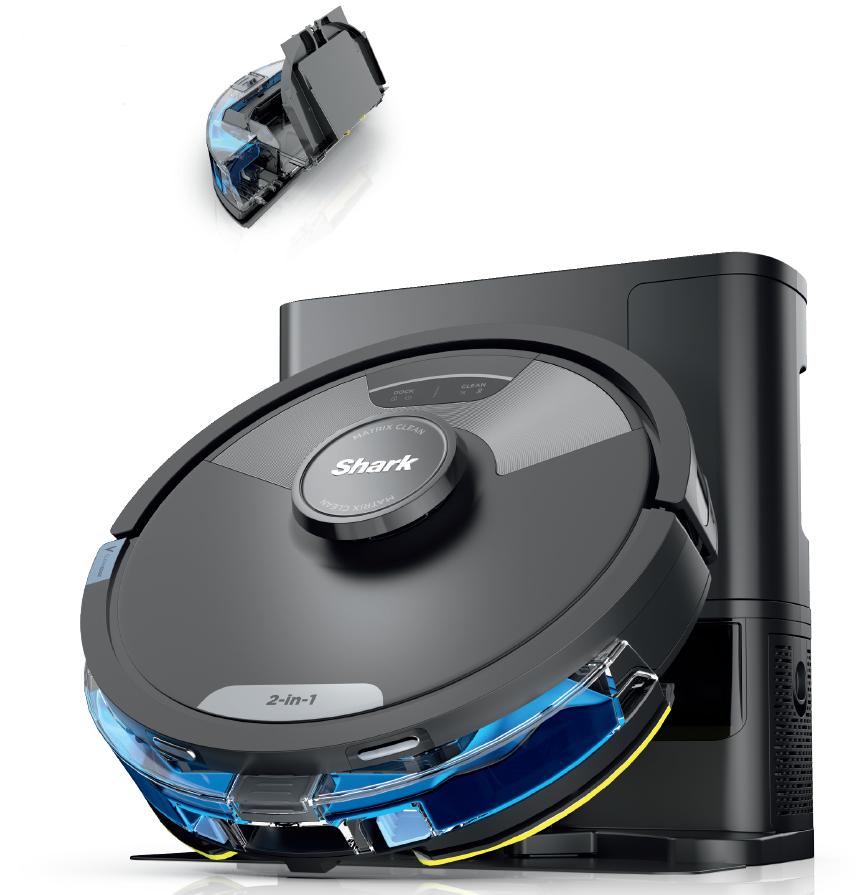
Removing the battery is a more direct method to shut down your Shark Robot Vacuum, especially in emergencies. Open the battery compartment, usually located on the underside or back of the device, and carefully take out the battery.
This method completely cuts power to the vacuum, ensuring it’s off. However, be cautious when handling the battery to avoid damage or voiding your warranty.
Have you ever had to remove the battery to fix a stuck vacuum? It’s not a frequent task, but knowing how to do it can save you a service call or long wait times.
Credit: support.sharkclean.com
Troubleshooting Power Issues
Power issues with your Shark Robot Vacuum can be frustrating, especially when you need it to stop or start cleaning promptly. Troubleshooting these problems helps you regain control without waiting for professional help. Understanding why your vacuum isn’t responding or how to reset it can save you time and avoid unnecessary stress.
Vacuum Not Responding
If your Shark Robot Vacuum doesn’t respond when you try to turn it off or on, start by checking the battery level. Sometimes, the vacuum might appear unresponsive because the battery is completely drained. Plug it into the charger and see if the charging indicator lights up.
Another common cause is a stuck power button. Press the button firmly but gently, ensuring you’re not applying too much force. Also, check for any debris or dust around the button that might block its function.
Consider whether the vacuum is stuck in an error mode. Does it flash any lights or make unusual sounds? These signals often point to specific problems, which you can look up in your user manual or Shark’s support site. Have you noticed any patterns in when the vacuum stops responding?
Resetting The Vacuum
Resetting your Shark Robot Vacuum can resolve many power-related issues quickly. It clears temporary glitches that may prevent the vacuum from turning off or on properly. To reset, first power off the vacuum if possible.
Then, press and hold the power button for about 10 seconds. You should see the lights blink or hear a beep indicating the reset process has started. If your model has a reset button or a specific reset sequence, follow the instructions in your manual carefully.
After resetting, place the vacuum on its charging dock and allow it to fully charge before use. This step often ensures the vacuum’s battery and software are aligned. Have you tried resetting your vacuum before calling support? It might be the simple fix you need.
Safety Precautions
Safety should always be your top priority when turning off your Shark robot vacuum. Taking a few simple precautions can prevent accidents and protect both you and your device. Let’s look at some practical tips to keep in mind before powering down your vacuum.
Power Off Before Cleaning Or Maintenance
Always turn off the vacuum before you clean or perform maintenance. This step prevents unexpected movement that could cause injury or damage. I once skipped this and nearly got my fingers caught—trust me, it’s not worth the risk.
Unplug The Charging Dock
Make sure to unplug the charging dock if you’re not using the vacuum for an extended time. This reduces the chance of electrical hazards and preserves battery life. Have you ever wondered if leaving chargers plugged in wastes energy? It does, and this is a simple fix.
Keep Away From Water And Wet Surfaces
Never turn off or handle the vacuum near water or wet areas. Water can cause electrical shorts or damage the internal parts. I learned this after a spill near my vacuum—now I always ensure the floor is dry before interacting with it.
Use The Official Power Button Or App Controls
Stick to using the vacuum’s official power button or the app to turn it off. Avoid unplugging it abruptly, as this can harm the battery and internal systems. Have you noticed how some devices last longer when you power them down properly? This is why.
Store In A Safe, Dry Place
After turning off, store your vacuum in a place free from dust and moisture. This keeps it in good condition and ready for the next cleaning. Consider how much dust your home gathers—keeping your vacuum protected means fewer breakdowns.
Frequently Asked Questions
How Do I Turn Off My Shark Robot Vacuum?
To turn off your Shark Robot Vacuum, press and hold the power button until it shuts down. This stops all cleaning operations immediately and conserves battery life.
Can I Stop Shark Robot Vacuum Mid-cleaning?
Yes, press the power button once during cleaning to pause or stop the vacuum. This allows you to move it or check for obstacles.
Does Shark Robot Vacuum Turn Off Automatically?
Yes, it powers off automatically after finishing a cleaning cycle or when the battery is low. This feature helps save energy and prolong battery life.
How To Reset Shark Robot Vacuum After Turning Off?
Turn off the vacuum, wait 10 seconds, then press the power button to restart. This resets the device and clears minor errors.
Conclusion
Turning off your Shark robot vacuum is simple and quick. Just press the power button or use the app. This helps save battery and keeps the vacuum safe. Remember to clean the device regularly for best results. Knowing how to switch it off makes using the vacuum easier.
Keep these steps in mind for smooth operation every time. Your Shark vacuum will work well with proper care and attention. Easy to follow, right?