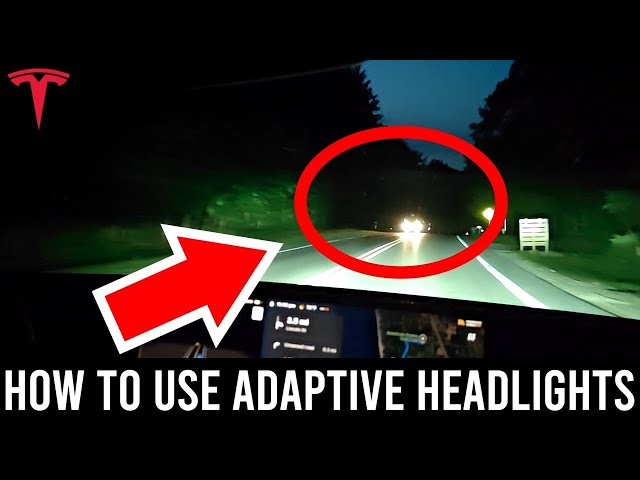
Are you ready to drive your Tesla Model Y safely at night or in low-light conditions? Knowing how to turn on your headlights quickly is essential for your safety and the safety of others on the road.
If you’ve ever wondered where the headlight controls are or how to activate them, you’re in the right place. This guide will walk you through the simple steps to switch on your Tesla Model Y headlights, so you never have to fumble in the dark again.
Keep reading to make sure your next drive is clear, confident, and safe.
Locate The Headlight Controls
Locating the headlight controls in a Tesla Model Y is simple. Knowing where these controls are helps you turn on your headlights quickly and safely. This section guides you to find the controls without any confusion.
Dashboard Control Stalk
The main headlight control is on the left side of the steering wheel. This stalk controls high beams and headlights. You can push or pull it to switch between different lighting modes.
Touchscreen Interface
The Tesla Model Y has a large center touchscreen. This screen lets you adjust many car settings, including headlights. Tap the car icon, then select lights to find headlight options.
Automatic Headlight Sensor
The Model Y includes an automatic light sensor. It turns headlights on or off based on outside light. You can enable or disable this feature in the touchscreen settings.
Steering Wheel Buttons
Some headlight functions can be controlled using buttons on the steering wheel. These buttons allow quick access to light controls without taking your hands off the wheel.

Credit: www.tesla.com
Use The Touchscreen Settings
Using the touchscreen settings in a Tesla Model Y offers a simple way to control your headlights. The touchscreen acts as a central hub for many vehicle functions, including lighting. This section explains how to navigate these settings and adjust your headlights easily.
Access The Controls Menu
Start by tapping the car icon at the bottom of the touchscreen. This opens the Controls menu, where you find many vehicle settings. Here, you can customize your driving experience, including the headlights.
The Controls menu is divided into tabs for easier navigation. Look for the “Lights” tab to manage headlight options. This tab contains all settings related to exterior and interior lighting.
Adjust Headlight Options
Inside the Lights tab, you see several options for your headlights. You can turn the headlights on or off manually from here.
- Toggle the switch to activate or deactivate headlights.
- Choose between automatic and manual lighting modes.
- Adjust brightness and sensitivity for auto headlights.
Automatic mode lets the car turn headlights on when needed, such as in low light. Manual mode gives you full control to switch lights on anytime.
Using the touchscreen to control headlights is quick and precise. It ensures safe driving with proper lighting in different conditions.
Enable Auto Headlights
Enabling auto headlights in your Tesla Model Y lets the car control the lights automatically. This feature turns the headlights on and off based on outside light levels. It helps you drive safely without manual adjustments.
The system detects dusk, dawn, tunnels, and dark weather. It switches the headlights on to improve visibility. When light returns, it turns the lights off to save energy.
Accessing The Controls On The Touchscreen
Start by sitting inside the car and powering it on. Tap the car icon at the bottom left of the screen. This opens the main control menu where you find lighting options.
Finding The Headlights Settings
Within the control menu, look for the “Lights” tab. Tap this section to see all headlight-related settings. This area manages how your lights behave during driving.
Turning On Auto Headlights
In the “Lights” menu, locate the “Automatic Headlights” option. Toggle this switch to enable the feature. The car then handles headlight operation based on external lighting.
Benefits Of Using Auto Headlights
- Hands-free lighting control
- Improved safety during low light
- Energy saving by turning off lights when not needed
- Convenience in varying weather and road conditions
Use Voice Commands
Using voice commands to turn on the headlights in your Tesla Model Y is quick and easy. This hands-free feature helps you focus on driving safely. Just speak naturally, and the car responds right away.
Voice commands make controlling your vehicle more convenient. You don’t need to look away from the road or search for buttons. Simply say what you want, and your Tesla listens.
Activating Headlights With Voice Commands
Press the voice command button on the steering wheel. Then say a clear command like “Turn on headlights” or “Headlights on.” The system will switch your headlights on immediately.
Turning Off Headlights Using Voice
To turn off the headlights, press the voice button again. Say “Turn off headlights” or “Headlights off.” The headlights will switch off without any delay.
Using Voice Commands For High Beams
Control high beams by voice too. Say “Turn on high beams” or “High beams on.” To turn them off, say “High beams off.” This keeps your hands free and eyes on the road.
Tips For Clear Voice Commands
- Speak slowly and clearly.
- Use simple phrases.
- Make sure cabin noise is low.
- Press the voice button before speaking.
Check For Headlight Activation
Checking for headlight activation is essential before driving your Tesla Model Y at night or in low visibility. Ensuring the headlights are on improves safety for you and others on the road. This quick check confirms the system is working properly and the lights illuminate as expected.
There are simple ways to verify if the headlights have turned on. These steps help avoid driving without proper lighting, which can be dangerous and illegal. Understanding how to check the activation saves time and prevents surprises on the road.
Look For The Headlight Indicator On The Dashboard
The Tesla Model Y shows a headlight symbol on the dashboard when the lights are active. This icon usually glows green or blue, depending on the lighting mode. Spotting this indicator confirms the headlights are working without stepping outside.
Observe The Vehicle’s Exterior Lights
Walk around your car to see if the headlights emit light. This physical check ensures the bulbs and electronics function correctly. It also verifies if the headlights adjust automatically to ambient light conditions as designed.
Use The Touchscreen Controls
The central touchscreen lets you control the headlights easily. Navigate to the lighting settings to confirm the status or switch the headlights on manually. This digital approach gives clear feedback about the current headlight state.
Check The Automatic Headlight Settings
The Model Y can turn headlights on and off automatically based on the environment. Verify if the automatic headlight feature is enabled in the settings menu. This feature helps keep the lights on when needed without manual input.

Credit: www.tesla.com
Troubleshooting Headlight Issues
Experiencing headlight issues in your Tesla Model Y can be frustrating, especially when visibility is key for safe driving. Fortunately, some common problems can be fixed quickly without a trip to the service center. Understanding how to troubleshoot these issues empowers you to get back on the road with confidence.
Resetting The System
Sometimes, the headlights might not turn on due to a temporary glitch in your vehicle’s software. You can try a simple reset by holding down both scroll wheels on the steering wheel until the screen goes black and the Tesla logo appears. This reboot often clears minor bugs affecting the lighting system.
If the headlights still don’t respond after the reset, check your settings in the touchscreen menu. Make sure the headlight mode is set correctly—automatic or manual—as accidental changes here can cause confusion.
Contacting Tesla Support
If resetting doesn’t solve the problem, reaching out to Tesla support is the next best step. Tesla’s customer service can guide you through advanced diagnostics or schedule a service appointment if needed.
When contacting support, have your vehicle’s VIN and software version handy. Sharing specific details about when the headlights fail—such as during rain or after a software update—can help technicians identify the issue faster.
Have you ever experienced a sudden headlight failure in the middle of a drive? How did you handle it? Sharing your story can help others prepare and respond effectively.

Credit: www.tesla.com
Frequently Asked Questions
How Do I Turn On Tesla Model Y Headlights?
To turn on the Tesla Model Y headlights, use the touchscreen. Go to “Controls” then “Lights. ” Choose “Auto” for automatic adjustment or “On” to manually activate them. This ensures optimal visibility during driving, especially in low-light conditions.
Can I Set Tesla Headlights To Auto Mode?
Yes, Tesla Model Y headlights can be set to auto mode. Access the touchscreen, select “Controls,” then “Lights,” and choose “Auto. ” This setting automatically adjusts the headlights according to lighting conditions, providing convenience and safety.
Do Tesla Model Y Headlights Have Manual Control?
Yes, Tesla Model Y headlights offer manual control. Access the touchscreen, select “Controls,” then “Lights,” and choose “On. ” This allows you to manually activate the headlights, providing flexibility in various driving conditions.
Are Tesla Model Y Headlights Adaptive?
Yes, Tesla Model Y headlights are adaptive. They automatically adjust based on ambient light and driving conditions. This feature enhances visibility and ensures a safer driving experience. You can activate it through the “Auto” mode in the “Lights” section on the touchscreen.
Conclusion
Turning on the headlights of your Tesla Model Y is simple and quick. Just follow the steps clearly to ensure safety while driving. Proper use of headlights helps you see better at night and signals others on the road. Always check your lights before driving in low visibility.
Practice these steps a few times to feel confident. Safe driving starts with small actions like this. Keep your Tesla ready and enjoy every ride with clear vision.