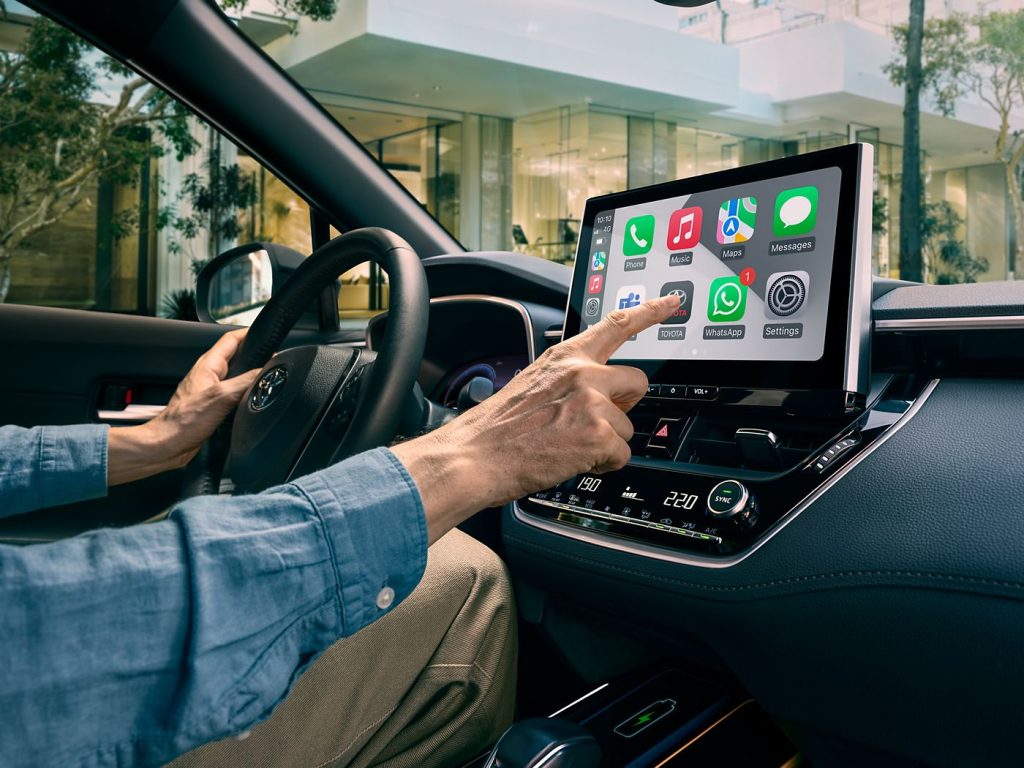
Want to make your drives smoother and safer? Connecting your phone to your Toyota Camry is the key.
Imagine answering calls, playing your favorite music, or using navigation hands-free—all without taking your eyes off the road. In this guide, you’ll learn simple steps to link your phone to your Camry quickly and easily. Keep reading, and you’ll be enjoying a smarter, more connected driving experience in no time.
Prepare Your Phone And Car
Ensure your phone’s Bluetooth is turned on and fully charged. Check that your Toyota Camry’s system is ready to pair. Keep both devices close for a smooth connection.
Preparing your phone and car is crucial for a seamless connection. This step ensures a smooth experience and avoids potential hiccups. Let’s dive into the essentials for connecting your phone to your Toyota Camry. Follow these easy steps to get started.Check Compatibility
Before connecting, ensure your phone is compatible with your Camry. Check the car manual or the manufacturer’s website. Some older models may not support advanced features. Verify the software version on both devices. This helps avoid connection issues.Enable Bluetooth On Phone
First, activate Bluetooth on your phone. Access the settings menu, then locate the Bluetooth option. Toggle it to the “on” position. Your phone will start searching for nearby devices. Ensure it’s visible to your car.Start Your Toyota Camry
Turn on your Toyota Camry. Ensure the infotainment system is operational. The system must be on to connect your phone. Some models may require you to be in park mode. This is for safety reasons and easier setup.
Credit: www.bridgecomsystems.com
Access The Camry Infotainment System
Connecting your phone to the Toyota Camry starts with accessing the infotainment system. This system controls all media, navigation, and phone settings. It allows you to link your smartphone easily for calls, music, and more.
Accessing the infotainment system is simple. The touchscreen display is usually located in the center of the dashboard. It gives you clear menus and options to manage your devices and settings.
Navigate To Bluetooth Settings
Begin by turning on the Camry’s infotainment display. Look for the “Setup” or “Menu” button on the screen or near the center console. Tap this to open the system settings.
Scroll through the menu until you find “Bluetooth” or “Phone” settings. Select this option to enter the Bluetooth configuration area. This is where you manage all paired devices.
Select Pair New Device
Inside the Bluetooth settings, choose “Pair New Device” or “Add Device.” This action makes the Camry visible to nearby phones. Your car will start searching for devices to connect with.
At this point, switch to your phone’s Bluetooth settings. Find the Camry’s name in the available devices list. Tap it to start the pairing process. Confirm any passcodes that appear on both screens.
Pair Your Phone With Camry
Pairing your phone with the Toyota Camry is a quick way to enjoy hands-free calls and music. The process connects your device to the car’s Bluetooth system. It lets you drive safer and stay connected without distraction.
Find Your Car On Phone Bluetooth List
First, turn on Bluetooth on your phone. Open the Bluetooth settings and start scanning for devices. Look for a name like “Toyota Camry” or “Camry” in the list. Tap on it to start the pairing process. Make sure your Camry’s Bluetooth is active and ready to pair.
Confirm Pairing Code
A code will appear on both your phone and the Camry’s screen. Check that the numbers match exactly. Confirm the pairing on both devices to connect them. This step ensures a secure connection between your phone and car.
Allow Access To Contacts And Messages
After pairing, your phone will ask to share contacts and messages. Allow access to use the car’s hands-free calling and messaging features. This permission helps the Camry display caller info and read texts aloud. You can always change these settings later.
Troubleshoot Connection Issues
Connection issues between your phone and Toyota Camry can be frustrating. Many common problems have simple fixes. Try these troubleshooting tips to get your devices talking again. These steps help clear glitches and improve the connection quality.
Restart Devices
Turn off your phone and your Camry’s infotainment system. Wait for about 30 seconds. Power both devices back on. Restarting refreshes system memory and clears minor bugs. This step often solves temporary connection problems.
Clear Previous Pairings
Old Bluetooth pairings can cause conflicts. Open the Bluetooth settings on your phone. Delete the Toyota Camry from the list of paired devices. On the car’s system, remove your phone from saved devices. After clearing, try pairing again fresh. This removes any confusing data.
Update Software
Outdated software may block connections. Check your phone for the latest OS updates. Visit Toyota’s website or use the car’s update feature for the infotainment system. Installing updates fixes bugs and adds new compatibility. Keep both systems current for smooth connection.
Use Features After Sync
Once your phone is synced with your Toyota Camry, a range of convenient features become instantly accessible. These features are designed to keep you connected, entertained, and informed without taking your focus off the road. Understanding how to use these functions will enhance your driving experience and safety.
Make Hands-free Calls
With your phone connected, you can make and receive calls without touching your device. Simply use the steering wheel buttons or voice commands to dial contacts stored on your phone. This lets you stay focused on driving while keeping communication open.
Have you tried asking your Camry’s voice system to call a friend? It’s surprisingly quick and accurate. This hands-free option reduces distractions and helps you stay safe, especially during busy commutes.
Stream Music
Enjoy your favorite playlists or radio stations by streaming music directly through the car’s audio system. Whether you use apps like Spotify, Apple Music, or your phone’s default player, controlling music is easy via the touchscreen or voice commands.
Think about how much smoother your drive feels when your favorite songs play clearly through the speakers. Don’t forget to explore creating custom playlists for different moods or trips to make every ride more enjoyable.
Access Navigation
Once synced, you can use your phone’s GPS navigation through the Camry’s display. This means you can get real-time directions, traffic updates, and estimated arrival times without picking up your phone.
Have you noticed how much safer it is to glance at the car’s screen instead of your phone? The integrated navigation keeps your eyes closer to the road and hands on the wheel, making your journey less stressful and more efficient.

Credit: getoffroam.com

Credit: www.reddit.com
Frequently Asked Questions
How Do I Pair My Phone With Toyota Camry Bluetooth?
To pair your phone, enable Bluetooth on your phone and vehicle. Access the Camry’s multimedia system, select “Add Device,” then choose your phone. Confirm the pairing code on both devices. Your phone will connect and be ready for hands-free use.
What Phones Are Compatible With Toyota Camry Bluetooth?
Most smartphones with Bluetooth 3. 0 or higher work with Toyota Camry. This includes iPhones, Androids, and other Bluetooth-enabled devices. Check your phone’s Bluetooth settings and Toyota’s manual for specific compatibility details to ensure smooth connectivity.
How To Fix Toyota Camry Bluetooth Connection Issues?
Restart your phone and car system if connection fails. Delete old paired devices and re-pair the phone. Ensure software is updated on both phone and Camry. If issues persist, consult your Toyota dealer for technical support.
Can I Use Voice Commands After Connecting Phone To Camry?
Yes, Toyota Camry supports voice commands via Bluetooth. After connecting, press the voice command button and speak commands to make calls, play music, or get directions safely while driving.
Conclusion
Connecting your phone to a Toyota Camry is quick and easy. Follow the steps carefully for a smooth setup. Enjoy hands-free calls and music while driving. Stay focused on the road and stay safe. This simple connection improves your driving experience.
Try it today and see the difference yourself.