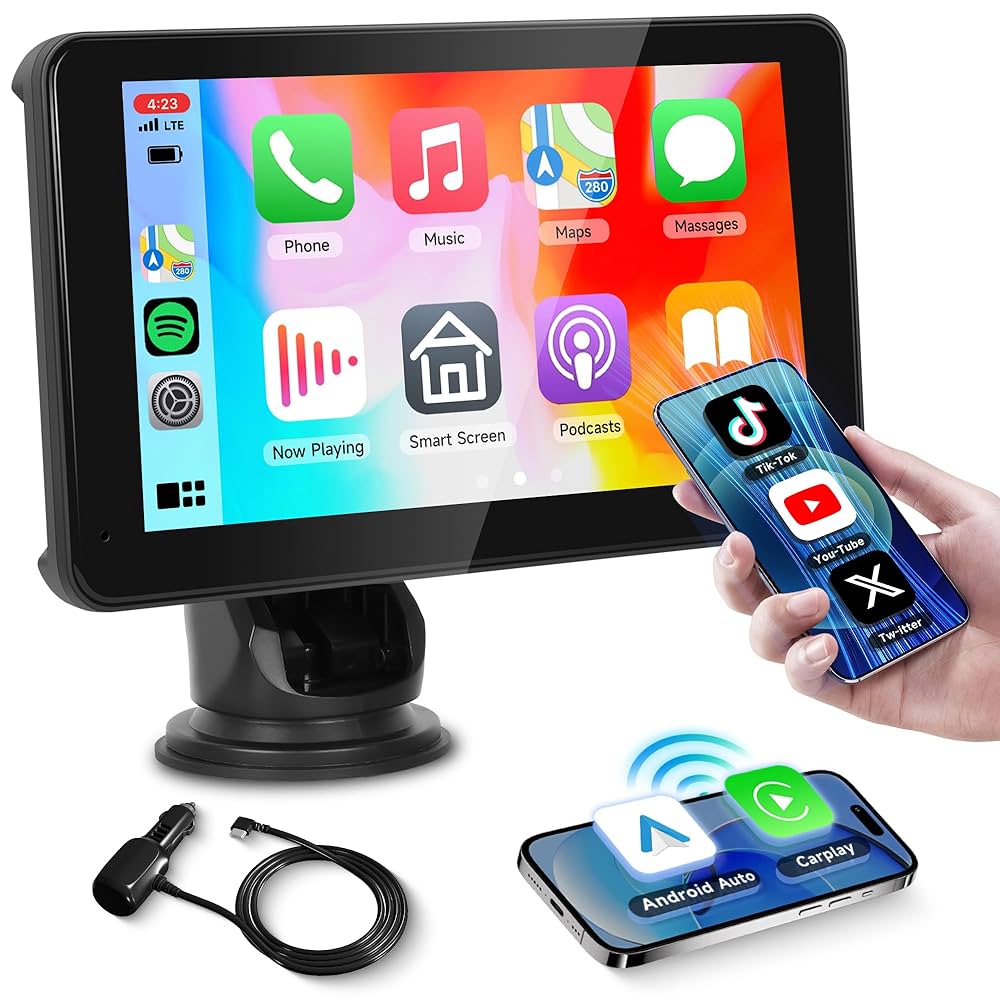
Imagine having your favorite apps, maps, and music right on your car’s big screen—without fumbling with your phone while driving. If you want to make your drives safer and more fun, learning how to mirror your Android to your car screen is a game-changer.
You’ll discover simple, step-by-step ways to connect your phone and enjoy everything you need at a glance. Ready to upgrade your driving experience? Let’s dive in and make your car smarter today.
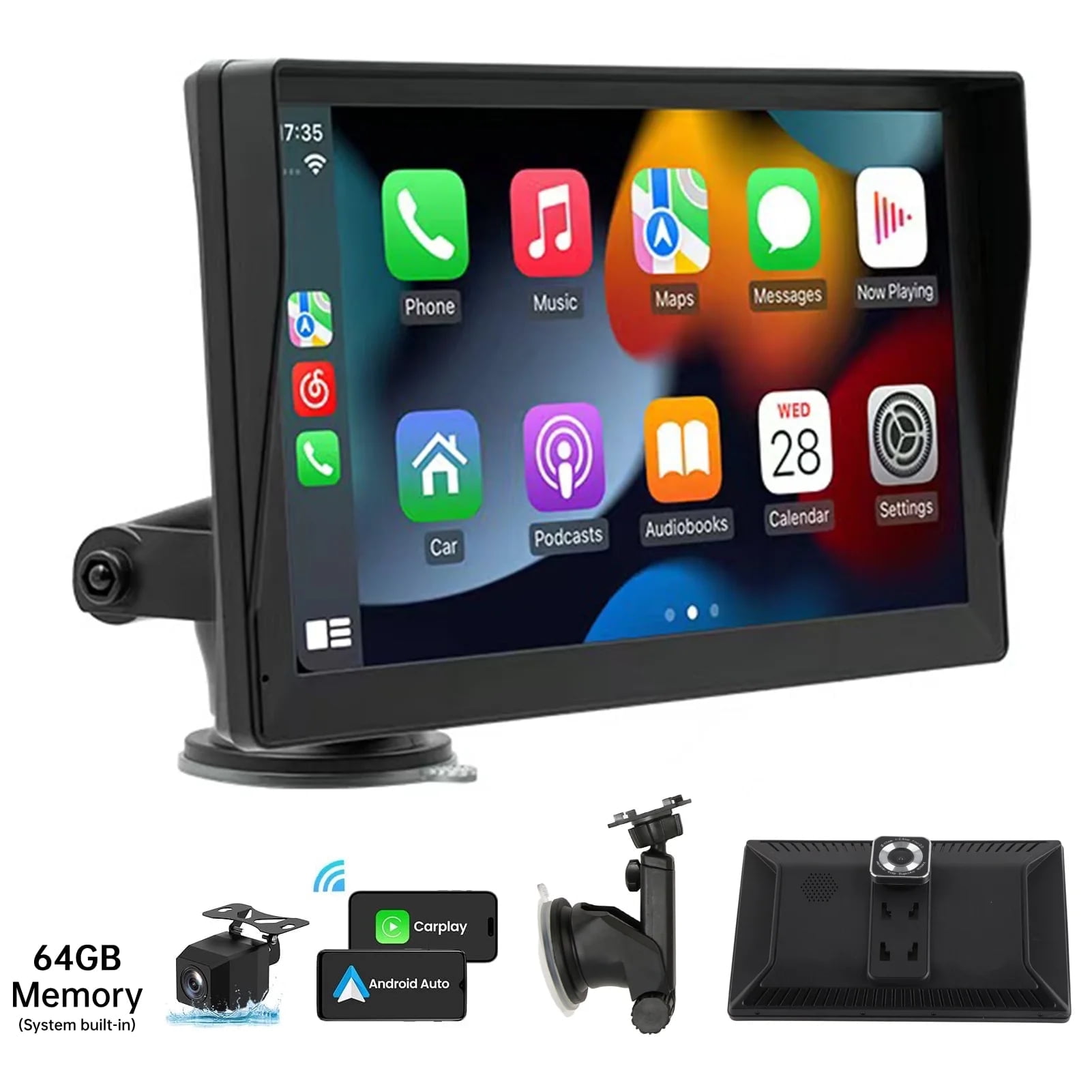
Credit: www.walmart.com
Requirements For Mirroring
Mirroring your Android phone to your car screen lets you see your apps while driving. To do this, you need some basic tools and compatible devices.
Understanding the requirements helps you set up the connection smoothly. Here are the main things you need.
Compatible Android Devices
Not all Android phones can mirror to a car screen. Your phone must support screen sharing features like Miracast or Google Cast.
Most phones with Android 5.0 or higher work well. Some older models may not support mirroring.
- Android version 5.0 (Lollipop) or newer
- Phones with Miracast or Google Cast support
- Devices with Wi-Fi and Bluetooth enabled
Supported Car Screens
Your car screen must support mirroring or have a compatible infotainment system. Many newer cars come with this feature built-in.
Some car screens work with Android Auto, which also allows mirroring in a limited way. Check your car’s manual to see if it supports screen mirroring.
- Car screens with Miracast or wireless display support
- Infotainment systems compatible with Android Auto
- Displays that accept HDMI input for wired mirroring
Necessary Cables And Adapters
Sometimes, you need cables or adapters to connect your phone to the car screen. This is common for wired mirroring options.
Using the right cables ensures a stable and clear connection. Wireless options may not require cables.
- USB-C to HDMI adapter for many Android phones
- Micro USB to HDMI adapter for older phones
- High-quality HDMI cable to connect adapter to car screen
- USB cable for charging while mirroring
Wi-fi And Bluetooth Connectivity
Wireless mirroring uses Wi-Fi or Bluetooth to link your phone and car screen. A strong connection helps prevent lag or disconnection.
Both devices must have Wi-Fi or Bluetooth turned on and be paired or connected to the same network.
- Wi-Fi connection for wireless display or Miracast
- Bluetooth for initial pairing and control
- Stable network to keep mirroring smooth
- Optional mobile hotspot if no Wi-Fi available
Preparation Steps
Mirroring your Android device to your car screen needs some setup. These steps help you get ready for a smooth connection.
Follow the instructions below to prepare your phone and car system for screen mirroring.
Enable Developer Options
Developer Options unlock advanced settings on your Android phone. You need to enable them before connecting to your car screen.
- Open your phone’s Settings app.
- Scroll down and tap “About phone.”
- Find “Build number” and tap it seven times quickly.
- Enter your lock screen PIN or pattern if asked.
- Developer Options will activate and appear in Settings.
Activate Usb Debugging
USB Debugging allows your phone to communicate with the car’s system through a USB cable. Turn it on to enable screen mirroring.
- Go to Settings on your phone.
- Open Developer Options.
- Scroll to find “USB Debugging.”
- Toggle the switch to turn it on.
- Confirm any warning messages that appear.
Check Screen Resolution Settings
Your car screen and phone should have compatible resolutions. Check your phone’s display settings to avoid image problems.
| Device | Recommended Resolution | Notes |
| Android Phone | 1080 x 1920 pixels | Standard Full HD works well |
| Car Screen | 800 x 480 pixels | Lower resolution, adjust phone accordingly |
Wired Connection Method
Mirroring your Android phone to your car screen helps you use apps and navigate easily. Using a wired connection is fast and stable.
This guide explains how to connect your Android to your car screen using a cable. It covers using a USB cable, setting up Android Auto, and fixing common problems.
Using Usb Cable
First, get a good quality USB cable that fits your phone and car USB port. Most cars support USB-C or micro USB.
Connect your phone to the car’s USB port. The car screen should detect your phone and show a prompt to start mirroring.
- Use a cable that supports data transfer, not just charging.
- Plug the USB cable firmly into both devices.
- Unlock your phone to allow the connection.
Setting Up Android Auto
Android Auto lets you control your phone from the car screen. To use it, download the Android Auto app if it is not pre-installed.
Open the app and follow the setup instructions. You may need to agree to permissions for the app to work properly.
- Enable notifications and location access in your phone settings.
- Keep your phone unlocked during setup.
- Choose Android Auto on your car screen after connection.
Troubleshooting Wired Connections
If your phone does not connect, try these simple fixes. Check the cable for damage or try another cable.
Restart your phone and car system. Make sure the phone screen is unlocked and the Android Auto app is updated.
- Use a different USB port in the car if available.
- Clear cache of the Android Auto app in phone settings.
- Check the car’s manual for supported phone models.
- Disable battery saver mode on your phone during connection.

Credit: www.amazon.ca
Wireless Connection Method
Mirroring your Android screen to your car display can be done without cables. Wireless methods offer convenience and fewer distractions.
This guide explains three easy ways to connect your Android phone to your car screen wirelessly.
Using Wi-fi Direct
Wi-Fi Direct creates a direct wireless link between devices. It lets you mirror without a home Wi-Fi network.
To use Wi-Fi Direct, enable it on both your phone and car screen. Then, connect the devices directly.
- Go to Settings on your Android phone.
- Find and enable Wi-Fi Direct.
- On your car screen, open Wi-Fi Direct settings.
- Select your phone from the available devices list.
- Accept the connection on both devices.
- Start screen mirroring from your phone.
Setting Up Miracast
Miracast is a wireless standard for screen mirroring. Many Android phones and car displays support it.
To use Miracast, both devices must be connected to the same Wi-Fi network or support Wi-Fi Direct.
- Open Settings on your Android phone.
- Go to Display and tap Cast or Screen Mirroring.
- Turn on Miracast on your car screen.
- Select your car display from the list on your phone.
- Confirm the connection on your car screen.
- Your phone screen will appear on the car display.
Using Third-party Apps
Some apps help mirror your Android to a car screen wirelessly. They work over Wi-Fi or Bluetooth.
These apps usually require installation on your phone and sometimes on the car display.
- Download a screen mirroring app from the Play Store.
- Open the app and follow the connection instructions.
- Make sure your car screen supports the app or can connect via Wi-Fi.
- Start the mirroring session within the app.
- Control your phone screen through the car display.
Optimizing Mirroring Experience
Mirroring your Android phone to your car screen can make driving safer and more fun. Adjusting settings helps you get the best picture and sound quality.
Good connection and clear audio are important. This guide shows how to improve your mirroring experience step by step.
Adjusting Display Settings
Set the screen brightness and resolution on both your Android phone and car display. This helps avoid glare and blurry images.
- Lower brightness in dark environments
- Increase brightness under sunlight
- Choose a resolution that fits your car screen
- Use full-screen mode for better viewing
Managing Audio Output
Sound quality is important for calls and music. Make sure audio plays from your car speakers, not your phone.
| Audio Setting | Purpose |
| Bluetooth connection | Play sound wirelessly through car speakers |
| Volume level | Adjust for clear and safe listening |
| Mute phone speakers | Prevent sound from playing on phone |
Ensuring Stable Connection
A strong connection stops interruptions. Use Wi-Fi or USB cable for best results.
- Check that your phone and car are close
- Turn off other devices that may cause interference
- Use a high-quality USB cable if connecting by wire
- Keep your phone’s software updated
- Restart your phone and car system if needed
Common Issues And Fixes
Mirroring your Android phone to a car screen can be very useful. It lets you see apps and navigation on a bigger display. Still, you might face some problems.
This guide explains common issues and how to fix them. It will help you get a smooth connection and better performance.
Connection Drops
Connection drops happen when the link between your phone and car screen breaks. This can cause the screen to go black or stop mirroring.
Common causes include weak Wi-Fi signals, loose cables, or outdated apps. Fixing these helps keep the connection stable.
- Move closer to your car’s Wi-Fi or Bluetooth source
- Check and secure all cables and connectors
- Restart both your phone and car system
- Update your mirroring apps and car firmware
Lag And Latency
Lag means a delay between your phone actions and what shows on the car screen. This can make using the system frustrating.
Lag happens due to slow Wi-Fi, high phone CPU use, or many apps running at once. Reducing these can help speed up the mirror.
- Close unused apps on your Android phone
- Use a fast Wi-Fi network or direct cable connection
- Lower the video quality in mirroring app settings
- Restart your phone to free up memory
Compatibility Problems
Not all cars and Android phones work well together. Some apps or features may not show correctly on the car screen.
Compatibility issues can come from old Android versions or unsupported car systems. Updating software often fixes this.
- Check your phone and car system versions
- Use mirroring apps recommended by your car maker
- Update Android to the latest version available
- Consult your car’s manual for supported features
Safety Tips While Mirroring
Mirroring your Android phone to your car screen can help with navigation and media. It is important to stay safe while using this feature.
Follow these tips to keep your focus on the road and avoid distractions.
Minimizing Distractions
Keep your eyes on the road, not your phone or car screen. Use mirroring only for essential tasks.
Set up your apps before driving. Avoid changing settings while the car is moving.
- Use simple, clear apps with easy controls
- Limit the use of video or complex apps
- Keep notifications silent or off
Using Voice Commands
Voice commands help you control your phone hands-free. This reduces the need to touch the screen.
Learn the basic voice commands for calling, navigation, and music. Speak clearly to improve recognition.
- Use Google Assistant or your car’s voice system
- Keep commands short and simple
- Practice before driving to avoid confusion
Avoiding Unauthorized Apps
Only use trusted apps for mirroring your phone. Unauthorized apps may cause errors or distractions.
Download apps from official stores and keep them updated. Check app permissions before use.
- Use apps recommended by your car or phone maker
- Avoid apps with poor reviews or many ads
- Update apps regularly for better safety and performance
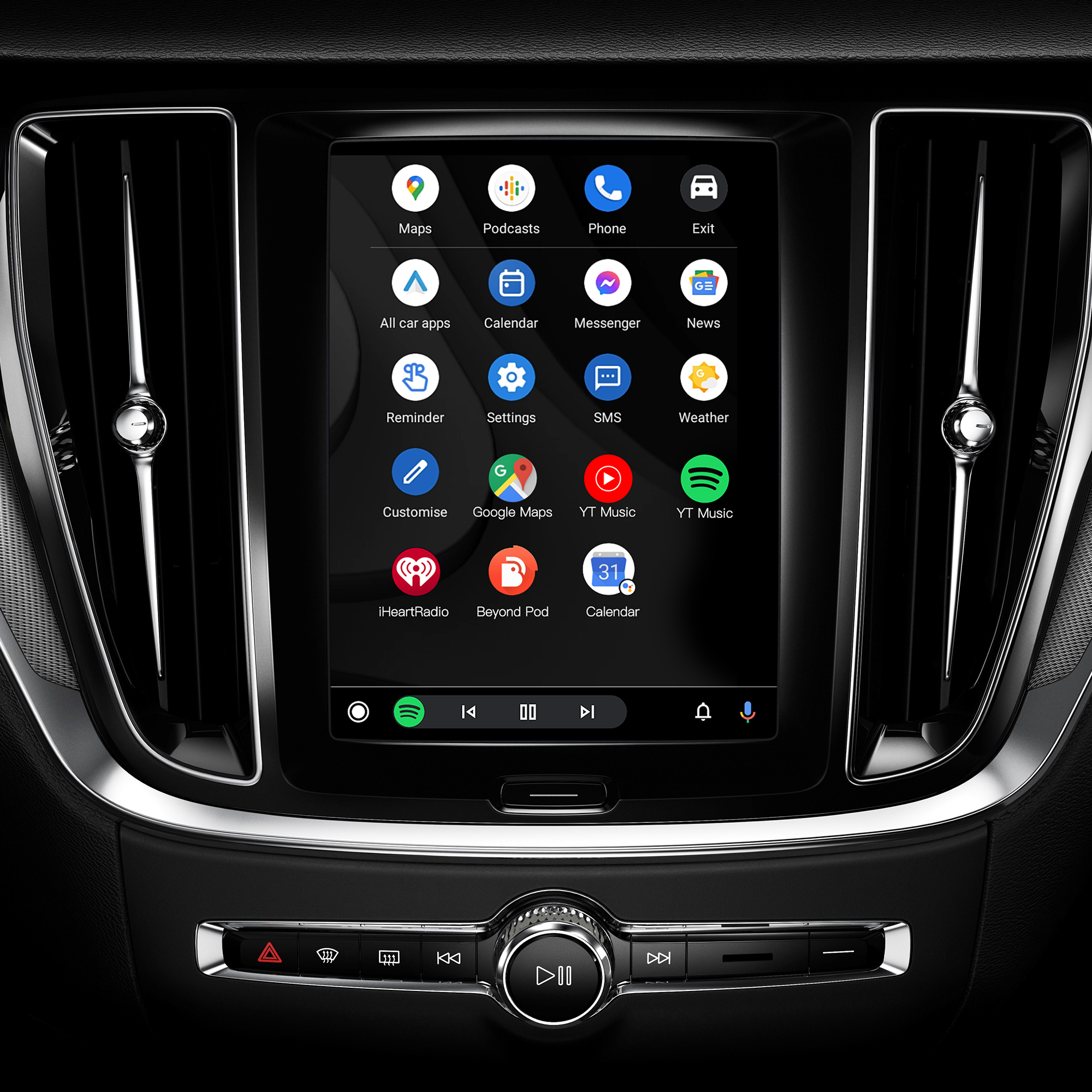
Credit: www.dvdplayer.com.cn
Frequently Asked Questions
How To Mirror Android To Car Screen?
To mirror your Android to a car screen, use Android Auto. Ensure your phone is compatible and update the app. Connect your phone to the car via USB or Bluetooth. Follow on-screen prompts to enable mirroring. Some cars may require a specific app or feature activation.
Is My Car Compatible With Android Mirroring?
Check your car’s manual or manufacturer’s website for compatibility information. Most modern cars support Android Auto. If your car is older, you might need an aftermarket device. Ensure your car’s infotainment system firmware is up-to-date for seamless integration.
What Apps Work With Android Auto?
Android Auto supports various apps like Google Maps, Spotify, and WhatsApp. It focuses on navigation, music, and communication apps. Check the Google Play Store for compatible apps. Ensure your apps are updated for the best experience.
Why Won’t My Phone Connect To Android Auto?
Ensure your phone’s software and Android Auto app are updated. Check your USB cable for damage or try a different one. Restart your phone and car’s infotainment system. Make sure Bluetooth is enabled and paired correctly. Consult your car’s manual for specific troubleshooting steps.
Conclusion
Mirroring your Android to a car screen makes driving more fun and safe. It lets you see apps and maps clearly while on the road. Choose the best method that fits your car and phone. Always check your connections before driving.
Enjoy easy access to music, navigation, and calls. Stay focused and use your mirrored screen responsibly. This simple step improves your driving experience every day.