Have you ever been watching your favorite show on your LED TV when suddenly the screen freezes? It’s frustrating, right?
You might wonder, “Will my LED TV freeze often? Is this normal? ” Understanding why your LED TV freezes and how to fix it can save you a lot of headaches. You’ll discover the common reasons behind freezing issues and easy steps to get your TV running smoothly again.
Keep reading—your next movie night depends on it!
Why Led Tvs Freeze
LED TVs can freeze for several reasons. This issue disrupts viewing and causes frustration. Understanding why your LED TV freezes helps in fixing the problem quickly. Problems often come from software, hardware, or connectivity. Identifying the cause prevents recurring freezes and improves TV performance.
Common Causes
Freezing often happens due to simple causes. Overheating can slow down your TV’s processor. Running many apps at once may overload the system. Outdated software can cause bugs and crashes. Poor internet connection can interrupt streaming services.
Software Glitches
Software bugs are frequent reasons for freezing. TV operating systems need regular updates. Without updates, apps may not work well. Cached data can also cause the system to freeze. Restarting the TV often clears these glitches.
Hardware Issues
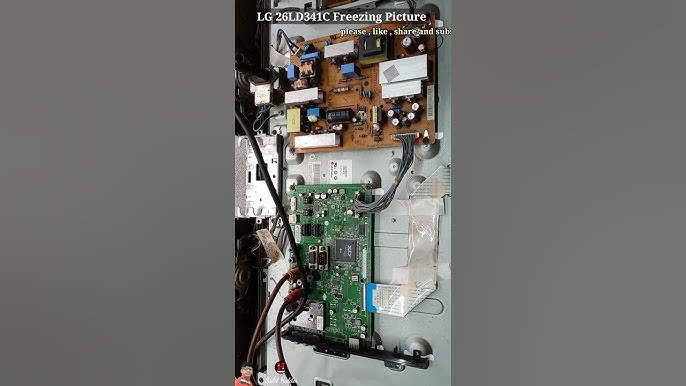
Hardware problems also cause freezes. Faulty memory or processor can slow down your TV. Loose cables inside the TV may disrupt performance. Dust buildup inside the TV affects cooling. Physical damage can lead to permanent freezing issues.
Connectivity Problems
Weak internet connection causes freezing during streaming. Wi-Fi signal drops or slow speeds interrupt video playback. Faulty HDMI or Ethernet cables can cause screen freezes. Network congestion leads to buffering and temporary freezes. Checking cables and internet speed helps avoid these issues.

Credit: eu.community.samsung.com
Quick Fixes For Freezing
Freezing issues on LED TVs can disrupt your viewing experience. Quick fixes often solve the problem without needing expert help. These simple steps can restore smooth operation fast.
Restarting The Tv
Turning off the TV and unplugging it from power can clear temporary glitches. Wait about one minute before plugging it back in. Then, turn the TV on and check if the freezing stops.
Checking For Updates
Software updates improve TV performance and fix bugs. Access the settings menu to find the update option. Download and install any available updates. This can prevent freezing caused by outdated software.
Resetting To Factory Settings
Resetting the TV erases custom settings and returns it to original state. Use this step if other fixes fail. Navigate to the reset option in the settings menu. Confirm the reset and wait for the TV to restart.
Inspecting Cables And Connections
Loose or damaged cables may cause freezing. Check all HDMI, power, and other connections for tightness and damage. Replace any faulty cables. Secure connections often stop freezing and improve picture quality.
Advanced Troubleshooting
LED TVs may freeze due to software glitches or overheating. Restarting the TV or checking for updates often solves the issue. Sometimes, unplugging the TV for a few minutes resets its system and stops freezing.
Advanced troubleshooting can help resolve issues with a freezing LED TV. These steps help identify and fix common problems. Let’s explore effective solutions for a smoother viewing experience.Testing External Devices
External devices can impact your LED TV’s performance. Disconnect each connected device. Reconnect them one by one. Check if the TV freezes after each device. This helps identify faulty equipment. Ensure cables are securely connected. Damaged cables may cause interruptions.Clearing Cache And Data
Clearing cache and data can improve TV performance. Access the TV’s settings menu. Navigate to the storage or app section. Select the option to clear cache. This frees up space and resolves temporary issues. Regularly clearing cache helps maintain optimal performance.Managing Overheating
Overheating can cause your LED TV to freeze. Ensure proper ventilation around the TV. Avoid placing it near heat sources. Dust can block vents, so keep them clean. Use a fan to improve air circulation if needed.Replacing Faulty Components
Sometimes, internal components may fail. This requires professional help. Contact a qualified technician. They can inspect and replace faulty parts. Prompt repair can prevent further damage.
Credit: www.foxnews.com
Prevention Tips
Keeping your LED TV running smoothly depends on good care and smart habits. Freezing issues often come from simple problems. Follow these prevention tips to avoid interruptions and enjoy clear viewing.
Regular Maintenance
Clean your TV screen and vents regularly. Dust blocks airflow and can cause overheating. Check for software updates to fix bugs and improve performance. Restart your TV once in a while to clear temporary glitches.
Optimizing Settings
Adjust picture settings for your room lighting. Lower the brightness to reduce strain on the TV. Turn off unused features like motion smoothing. These can slow down the TV and cause freezing.
Using Stable Internet Connections
Use a reliable Wi-Fi or wired connection. A weak signal causes buffering and freezing during streaming. Place your router near the TV or use an Ethernet cable for better stability. Avoid running many devices on the same network at once.
Avoiding Power Surges
Protect your TV with a surge protector. Sudden power spikes can damage internal parts and cause freezing. Unplug the TV during storms or long periods of no use. Consistent power keeps your TV safe and working well.
When To Seek Professional Help
Knowing when to seek professional help for your LED TV can save you time, money, and frustration. Sometimes, what seems like a simple freeze or glitch might be a sign of deeper hardware problems. Recognizing these signs early can prevent further damage and help you get your TV back to optimal performance faster.
Signs Of Serious Hardware Damage
If your LED TV frequently freezes, but also shows other issues like flickering screens, strange noises, or complete failure to power on, these can indicate serious hardware problems.
Another warning sign is when the TV freezes during startup or after a firmware update. This often points to internal component failure rather than software glitches.
Have you noticed your remote control also stops working or your TV heats up unusually? These symptoms suggest damage beyond simple software fixes and require expert diagnosis.
Warranty And Support Options
Before attempting any repairs yourself, check if your TV is still under warranty. Manufacturers often cover hardware failures within a specific period, saving you repair costs.
Contacting the official support line can also provide guidance on whether the issue can be resolved remotely or if a technician visit is necessary.
Keep your purchase receipt and warranty card handy. These documents streamline the repair or replacement process and can sometimes qualify you for free service.
Choosing The Right Repair Service
Not all repair shops offer the same quality. Look for certified technicians who specialize in LED TVs and have positive customer reviews.
Ask about their experience with your TV model, turnaround time, and warranty on repairs. A quick fix isn’t always the best if it doesn’t last.
Consider the cost versus the value of your TV. Sometimes, professional repair might cost more than a replacement, so weigh your options carefully.

Credit: eu.community.samsung.com
Frequently Asked Questions
Why Does My Led Tv Freeze Sometimes?
LED TVs freeze due to software glitches, overheating, or insufficient memory. Updates, restarting, or cooling the TV often fix freezing issues quickly.
Can Outdated Firmware Cause Led Tv Freezing?
Yes, outdated firmware can cause freezing by creating compatibility or performance problems. Regularly updating your TV’s firmware improves stability and prevents freezes.
How To Prevent My Led Tv From Freezing?
Prevent freezing by updating firmware, avoiding overheating, and closing unused apps. Regularly restart your TV and ensure a stable internet connection for smooth performance.
Does Internet Speed Affect Led Tv Freezing?
Slow or unstable internet can cause streaming freezes on LED TVs. Ensure a fast, stable connection for uninterrupted video playback and better overall TV performance.
Conclusion
LED TVs can freeze due to many reasons like software bugs or signal issues. Restarting the TV often fixes the problem quickly. Keeping the TV’s software updated helps avoid freezing. Poor connections or weak signals also cause screen freezes. Checking cables and internet speeds can improve performance.
Regular maintenance keeps your TV running smoothly. Remember, most freezes are temporary and easy to solve. Stay patient and try simple fixes first. Your LED TV can work well with proper care and attention.