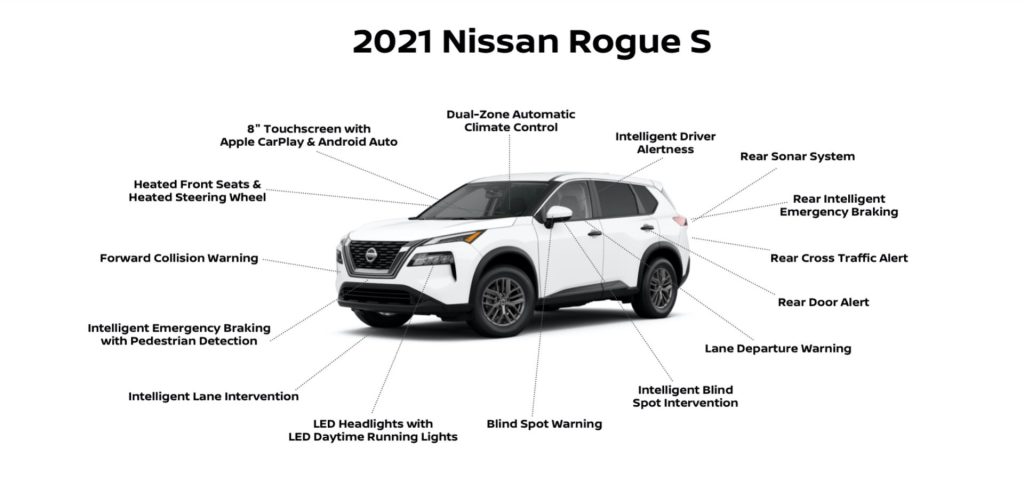
Are you thinking about getting a Nissan Rogue and wondering if it supports Android Auto? You want a car that keeps you connected, safe, and entertained without distractions.
Knowing whether the Nissan Rogue offers Android Auto can make a big difference in your driving experience. Keep reading to find out how this feature fits into the Rogue and why it might be just what you need for your next drive.

Credit: usa.nissanstories.com
Nissan Rogue And Android Auto Compatibility
Wondering if your Nissan Rogue supports Android Auto? This feature has become essential for many drivers who want to stay connected and entertained while on the road. Understanding which Rogue models work with Android Auto and how to set it up will help you make the most of your driving experience.
Models Supporting Android Auto
Not all Nissan Rogue models come with Android Auto compatibility. Generally, models from 2017 onward offer Android Auto support, but availability can vary depending on the trim level.
- 2017 Nissan Rogue and newer usually include Android Auto.
- Higher trims like SV and SL more commonly have this feature pre-installed.
- Some base models may lack Android Auto but might support it through software updates.
If you’re unsure whether your specific Rogue model has Android Auto, check your vehicle’s manual or the infotainment system settings. It’s worth confirming because missing out means you lose easy access to apps, navigation, and hands-free controls.
Android Auto Integration Process
Connecting Android Auto in your Rogue is straightforward and doesn’t require technical skills. First, make sure your phone runs Android 6.0 or higher and has the Android Auto app installed.
- Use a high-quality USB cable to connect your phone to the vehicle’s USB port.
- Follow the prompts on both your phone and the Rogue’s touchscreen to grant necessary permissions.
- Once connected, the infotainment screen will switch to the Android Auto interface.
After this initial setup, your phone will often connect automatically when plugged in. Have you noticed how seamless integration improves your focus by minimizing distractions? It’s a simple step that makes your drives safer and more enjoyable.

Credit: www.autocan.ca
Key Features Of Android Auto In Nissan Rogue
Android Auto in the Nissan Rogue offers smart features that improve driving comfort. It connects your phone to the car’s display. This makes it easier to use apps safely while driving. The system helps you stay focused on the road and enjoy your drive.
Navigation And Maps
Android Auto gives clear directions with Google Maps. It shows real-time traffic updates and suggests faster routes. You can search for places easily using the touchscreen. The system guides you with voice prompts, so your eyes stay on the road.
Voice Commands And Google Assistant
Use voice commands to control many functions. Just say “Hey Google” to start. You can ask for directions, play music, or send messages. This hands-free feature helps keep your attention on driving.
Music And Media Playback
Listen to your favorite songs, podcasts, or audiobooks. Android Auto supports many apps like Spotify and Google Play Music. Control playback with simple taps or voice commands. The sound quality adapts to the car’s system.
Messaging And Calls
Stay connected without distractions. Android Auto reads your messages aloud and lets you reply by voice. You can make calls or answer them hands-free. This keeps your focus on the road and your hands on the wheel.
Setting Up Android Auto In Nissan Rogue
Setting up Android Auto in your Nissan Rogue can transform your driving experience by bringing your favorite apps, navigation, and music directly to your car’s touchscreen. The process is straightforward, but ensuring you meet all the necessary requirements and understand the connection options is key. Let’s break down what you need to get started and how to handle common issues that might pop up.
System Requirements
First, check that your Nissan Rogue supports Android Auto. Most models from 2017 onward are compatible, but it’s best to confirm with your vehicle’s manual or the Nissan website.
Your phone must run Android 6.0 (Marshmallow) or higher. Also, ensure you have the latest version of the Android Auto app installed from the Google Play Store.
Stable internet access on your phone is important for real-time updates and app functionality. Don’t forget to enable your phone’s Bluetooth and location services for a smooth connection.
Connection Methods
You can connect your phone to the Nissan Rogue using either a USB cable or wirelessly, depending on your vehicle’s model and phone compatibility.
- USB Connection:Use a high-quality USB cable to plug your phone into the car’s USB port. This method offers a reliable, fast connection and charges your phone simultaneously.
- Wireless Connection:If your Rogue supports wireless Android Auto, enable Bluetooth and Wi-Fi on your phone and pair it with the car’s system. This option provides convenience by eliminating cables but may drain your phone’s battery faster.
After connecting, the Android Auto interface should automatically launch on your Rogue’s display. If it doesn’t, look for the Android Auto icon on the infotainment screen and tap it to start.
Troubleshooting Tips
Sometimes, Android Auto won’t connect or work correctly. If this happens, first restart your phone and the car’s infotainment system.
Check your USB cable for damage or try a different cable if using a wired connection. Not all cables support data transfer, so a charging-only cable won’t work.
Make sure your phone’s Android Auto app is updated and that your vehicle’s software is current. You can usually find software updates in your car’s settings menu or on Nissan’s official site.
If problems persist, clear the cache of the Android Auto app on your phone or uninstall and reinstall it. Also, verify that your phone’s Bluetooth and location settings are enabled.
Have you ever had to troubleshoot a connection issue while on the road? Preparing ahead can save you from frustration and keep your drive enjoyable.
Benefits Of Android Auto In Nissan Rogue
Android Auto in the Nissan Rogue offers many advantages. It enhances connectivity between your phone and car. This feature helps drivers stay focused and entertained safely.
With Android Auto, you get easy access to apps, navigation, and music. It simplifies tasks, making driving smoother and more enjoyable. The system also keeps improving with updates and support.
Enhanced Driving Safety
Android Auto reduces distractions by using voice commands. Drivers can make calls, send texts, or get directions hands-free. The system shows only essential information on the screen. This helps keep eyes on the road and hands on the wheel. Alerts and notifications appear clearly, avoiding confusion.
Improved User Experience
The interface is simple and easy to use. Large icons and clear menus improve visibility. You can access favorite apps like maps, music, and messaging quickly. Android Auto adapts to your preferences for a personalized feel. It supports multiple languages, helping diverse users.
Regular Updates And Support
Android Auto receives frequent updates to fix bugs and add features. These updates improve compatibility with new apps and devices. Nissan also provides support to help with setup and troubleshooting. Continuous updates ensure the system stays current and reliable.
Alternatives To Android Auto In Nissan Rogue
If you drive a Nissan Rogue and want to stay connected on the road without Android Auto, there are several alternatives you can rely on. These options ensure you still get a seamless infotainment experience tailored to your needs. Let’s look at how you can enjoy smart connectivity and entertainment without missing a beat.
Apple Carplay Compatibility
If you’re an iPhone user, Apple CarPlay is a powerful alternative to Android Auto in the Nissan Rogue. It mirrors your iPhone’s screen on the car’s display, making it easy to use apps like Maps, Messages, and Music safely while driving.
Apple CarPlay supports voice commands through Siri, which means you can keep your hands on the wheel and eyes on the road. Have you tried asking Siri to play your favorite playlist or read your latest messages while driving? It’s a game-changer for staying connected without distraction.
Nissanconnect Features
NissanConnect is Nissan’s own infotainment system, offering a range of useful features that go beyond basic connectivity. With NissanConnect, you can access navigation, emergency assistance, and even remote vehicle controls through your smartphone.
This system integrates with apps designed specifically for Nissan vehicles, providing real-time traffic updates, maintenance alerts, and more. Have you explored how NissanConnect can simplify your driving experience, especially if you don’t use Android Auto?
Third-party Apps
Even without Android Auto, you can use various third-party apps that connect directly to the Rogue’s infotainment system via Bluetooth or USB. Apps for streaming music, podcasts, or audiobooks like Spotify, Pandora, and Audible work well without the need for smartphone mirroring.
Consider using apps with offline capabilities to reduce data usage and avoid interruptions. What apps have you found most reliable to keep you entertained or informed during long drives? Experimenting with different apps can help you customize your ride to suit your preferences perfectly.

Credit: www.ebay.ca
Frequently Asked Questions
Does The Nissan Rogue Support Android Auto?
Yes, the Nissan Rogue supports Android Auto. This feature allows seamless integration of your smartphone with the vehicle’s infotainment system. You can access navigation, music, and other apps directly from the display. It’s available in most recent models, enhancing your driving experience with convenience and technology.
How Do I Enable Android Auto In My Rogue?
To enable Android Auto, connect your smartphone via USB to the Nissan Rogue. Ensure your phone has the Android Auto app installed. Once connected, follow the prompts on the infotainment screen. This setup allows you to access compatible apps and features directly from your car’s display.
Which Nissan Rogue Models Include Android Auto?
Most Nissan Rogue models from 2017 onwards include Android Auto. It’s available in various trims, providing smartphone integration for drivers. Always check the specific model year and trim for feature availability. This ensures you get the desired connectivity and functionality in your vehicle.
Can I Use Google Maps With Android Auto?
Yes, Google Maps is accessible through Android Auto in the Nissan Rogue. It provides real-time navigation, traffic updates, and route guidance. This feature enhances your driving experience, offering efficient and safe navigation. Simply launch the app via the car’s display for seamless access.
Conclusion
The Nissan Rogue supports Android Auto in most recent models. It helps drivers connect their phones easily. You can use apps like maps, music, and calls safely. The setup is simple and quick. This feature improves driving comfort and convenience.
Check your Rogue’s model year to be sure. Older models might not have Android Auto. Overall, it adds value to your driving experience. A connected car feels smarter and more fun. Consider this feature when choosing your next car.