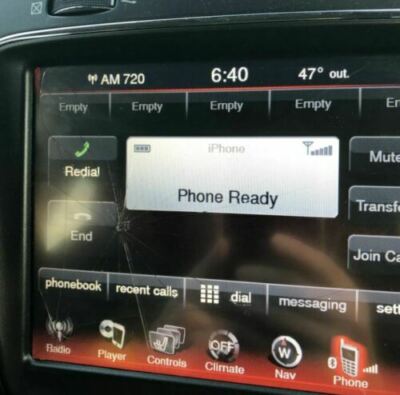
Is your Dodge Journey screen acting up or frozen? You’re not alone, and the good news is that resetting it is easier than you might think.
Whether your touchscreen is unresponsive, displaying errors, or just not working the way it used to, a simple reset can often fix the problem quickly. You’ll discover step-by-step instructions to get your screen back to normal without any hassle. Keep reading, and you’ll have your Dodge Journey’s screen running smoothly again in no time.

Credit: www.reddit.com
Resetting The Dodge Journey Screen
The Dodge Journey’s touchscreen enhances driving with easy control access. Sometimes, it may freeze or not respond well. A reset can solve these issues. It’s simple and requires no special tools.
When To Reset The Screen
Recognize the signs your screen needs a reset. It might freeze or respond slowly. Touch commands may fail. These indicate a reset might help. Regular resets can maintain screen efficiency.
Types Of Screen Resets
There are different reset methods for your screen. A soft reset solves minor glitches. It doesn’t delete data. A hard reset is more thorough. It may erase settings. Choose the right method based on the problem.

Credit: cocofacil.com
Soft Reset Method
The soft reset method is a simple way to fix issues with your Dodge Journey screen. It refreshes the system without deleting your settings or data. This quick process often resolves minor bugs and glitches. It is safe and does not require special tools or skills.
Steps To Perform A Soft Reset
- Turn off the engine and make sure the vehicle is in park.
- Press and hold the power button on the screen for about 10 seconds.
- Wait for the screen to go black and then release the button.
- The screen will restart and display the home menu.
- Check if the screen responds normally after the reset.
What A Soft Reset Fixes
- Frozen or unresponsive touchscreen.
- Slow response or lag in the system.
- Minor software glitches affecting display functions.
- Problems with audio or navigation not loading correctly.
- Temporary errors in system menus or apps.
Hard Reset Method
If your Dodge Journey screen is frozen or unresponsive, a hard reset can often bring it back to life quickly. This method forces the system to restart, clearing temporary glitches that might be causing the issue. Unlike a simple reboot, a hard reset is more thorough and can fix stubborn problems without needing professional help.
Steps To Perform A Hard Reset
- Turn off your vehicle completely and make sure the ignition is off.
- Press and hold the power button on the screen for about 10 to 15 seconds.
- Release the button once the screen goes black and then wait for it to restart.
- If the screen does not power off with the power button, try pressing and holding both the power and volume down buttons simultaneously.
- After the screen restarts, check if the interface is responsive and functioning normally.
These steps usually take less than a minute but can save you a trip to the dealer. If you find yourself repeating this often, it might be worth investigating other underlying issues.
Risks And Precautions
A hard reset should be safe for your Dodge Journey’s screen, but it’s important to be cautious. You might lose unsaved settings or personalized preferences after the reset.
Avoid forcing the reset too frequently, as repeated hard resets can stress the system over time. If the screen remains unresponsive after several attempts, it’s better to consult a professional technician.
Have you noticed any patterns in when your screen freezes? Identifying triggers can help prevent the problem before it starts. Always back up important settings if possible, so you don’t lose valuable data during resets.
Resetting Via Vehicle Settings
Resetting your Dodge Journey screen through the vehicle settings is a straightforward process. This method allows you to restore the screen’s functionality without external tools. It is especially useful for fixing minor glitches or display issues quickly.
By navigating the settings menu, you can find specific reset options designed for the infotainment system. These options help refresh the screen and clear temporary errors. The process takes only a few minutes and requires no special skills.
Accessing The Settings Menu
Start by turning on your vehicle’s ignition. Wait for the screen to fully load. Tap the “Settings” icon on the main display. It usually looks like a gear or wrench symbol.
Use the touchscreen or control knob to navigate the menu. Scroll through the options until you find “System” or “Display.” Select this section to access screen-related settings. The menu layout may vary by model year, so check carefully.
Reset Options Available
Inside the system settings, look for options labeled “Reset,” “Restore,” or “Factory Reset.” These control different levels of reset:
- Soft Reset:Refreshes the screen without deleting personal data.
- Factory Reset:Restores all settings to default, erasing saved preferences.
Choose the reset type based on your needs. Confirm the selection by tapping “Yes” or “OK.” The screen will restart, and the reset process will complete shortly.
Troubleshooting Common Screen Issues
Screen issues on a Dodge Journey can disrupt your driving experience. Knowing how to identify and fix these problems saves time and stress. This section covers common issues like freezing, unresponsive touch, and connectivity troubles. Each problem has simple checks and fixes you can try.
Screen Freezing
The screen may freeze due to software glitches or overheating. A quick reset often clears the issue. Hold the power button for 10 seconds to reboot the system. Avoid pressing too many buttons at once. Keep the vehicle off for a few minutes before restarting to cool the system.
Unresponsive Touch
Touch screen problems can come from dirt or screen damage. Clean the screen with a soft cloth and mild cleaner. Check if gloves or screen protectors block touch sensitivity. Restarting the screen system can restore touch functions. Persistent issues may require professional help.
Connectivity Problems
Connectivity troubles affect Bluetooth and other connections. Confirm devices are paired correctly in the settings menu. Turn off Bluetooth on your phone, then turn it on again. Restart the vehicle’s screen system to refresh connections. Clear paired devices and re-pair if needed for better results.
When To Seek Professional Help
Knowing when to seek professional help for your Dodge Journey screen is important. Some issues can be fixed with simple resets. Others need expert attention to avoid further damage. Recognizing signs of serious problems saves time and money.
Persistent Screen Problems
If your screen keeps freezing or not responding, it may need professional care. Troubleshooting steps might not fix the issue. Constant flickering or blank screens also signal deeper problems. A technician can diagnose hardware or software faults. Avoid forcing resets repeatedly, as this might worsen the problem.
Warranty And Service Options
Check if your vehicle is still under warranty before repairs. Many Dodge Journeys have coverage for screen malfunctions. Authorized service centers provide reliable repairs and genuine parts. Using warranty services can reduce repair costs. Keep your service records and receipts ready for smooth processing.
Tips To Prevent Future Screen Issues
Preventing screen issues in your Dodge Journey is much easier than fixing them after they happen. Taking a few simple steps can keep your screen responsive and clear for a long time. Let’s look at practical tips that you can apply right now to avoid future headaches with your vehicle’s display.
Regular Software Updates
Keeping your vehicle’s software up to date is crucial for smooth screen performance. Updates often fix bugs that could cause the screen to freeze or malfunction. Have you checked your system’s update settings lately?
Set a reminder to check for updates every few months. If your Journey supports over-the-air updates, enable automatic downloads to save time. This small effort can prevent many common screen problems before they start.
Safe Usage Practices
How you interact with your screen impacts its longevity. Avoid pressing the screen too hard or using sharp objects that can scratch or damage it. Treat the screen gently, as if it were a delicate tablet.
Also, keep the screen clean by wiping it regularly with a soft, lint-free cloth. Avoid using harsh chemicals; a damp microfiber cloth usually does the trick. Protecting the screen from extreme temperatures, like leaving your car in direct sun for hours, can prevent display issues too.

Credit: hydal.se
Frequently Asked Questions
How Do I Reset My Dodge Journey Screen?
To reset your Dodge Journey screen, press and hold the power button for about 10 seconds. The screen will turn off and reboot, resolving most minor glitches quickly.
Why Won’t My Dodge Journey Screen Respond?
If your screen is unresponsive, try restarting the system by holding the power button. If the issue persists, check for software updates or consult a dealer.
Can I Reset The Dodge Journey Screen Without Tools?
Yes, resetting the screen requires no tools. Simply press and hold the power button until the system reboots. This soft reset often fixes display problems.
How Often Should I Reset My Dodge Journey Screen?
Only reset your screen when it freezes or behaves abnormally. Regular resets are unnecessary and won’t improve performance unless issues arise.
Conclusion
Resetting your Dodge Journey screen is simple and quick. Follow the steps carefully to avoid any mistakes. This helps fix most screen issues like freezing or unresponsiveness. Keep your vehicle’s manual handy for extra tips. Regular resets can improve your screen’s performance.
Stay calm and take your time during the process. Doing this yourself saves time and money. Now your screen should work smoothly again. Easy, right?