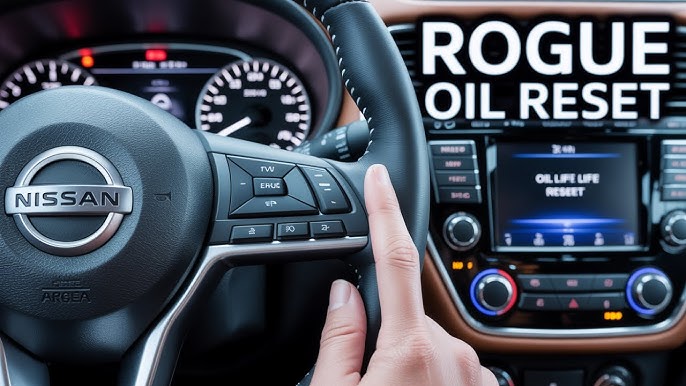
Is your Nissan Rogue screen acting up or frozen? You’re not alone, and the good news is that resetting it is easier than you might think.
Imagine getting your screen back to perfect working order with just a few simple steps—no need for costly repairs or long waits. You’ll discover exactly how to reset your Nissan Rogue screen quickly and effectively. Keep reading, and you’ll be back in control of your car’s system in no time.

Credit: www.youtube.com
Reasons To Reset Your Nissan Rogue Screen
Resetting your Nissan Rogue screen can fix many common problems. The screen controls navigation, audio, and vehicle settings. When the screen freezes or acts strangely, resetting it often restores normal function. Knowing why to reset helps you decide the best time to do it.
Common Screen Issues
- Screen freezes or becomes unresponsive
- Touch inputs do not register correctly
- Navigation system fails to update or load maps
- Audio controls stop working or lag
- System crashes or restarts unexpectedly
- Bluetooth or phone connectivity problems
When To Perform A Reset
Reset the screen if it stops responding during use. If menus or apps fail to open, try a reset. When audio or navigation features freeze, a reset often fixes the issue. Sudden crashes or unexpected restarts signal a reset need. Try a reset after software updates if problems begin. Regular resets keep the system running smoothly.
Preparation Before Resetting
Before you reset the Nissan Rogue screen, taking some time to prepare can save you from headaches later. Resetting might erase settings or data you rely on daily. Are you ready to make sure nothing important gets lost in the process?
Backup Important Data
Start by saving all your important data from the vehicle’s infotainment system. This includes saved radio stations, Bluetooth connections, navigation favorites, and any personal settings.
You can usually back up this data by syncing your phone or exporting settings to a USB drive. Don’t skip this step—once the screen resets, recovering lost preferences can be tough and time-consuming.
Gather Necessary Tools
Having the right tools on hand makes the reset process smoother and safer for your vehicle’s electronics. You might need a USB drive, a compatible smartphone, or even a diagnostic tool depending on your Rogue’s model year.
Check your owner’s manual or Nissan’s official support site to confirm what’s required. Preparing these tools beforehand means you won’t get stuck halfway through the reset, wondering where to find what you need.
Methods To Reset The Nissan Rogue Screen
The Nissan Rogue screen may freeze or become unresponsive at times. Resetting the screen can fix many common issues quickly. Several methods exist to reset the screen, depending on the problem’s severity. Choose the best option based on your situation. Each method is simple and does not require special tools.
Soft Reset Via Touchscreen
The soft reset is the easiest way to refresh the Nissan Rogue screen. It uses the touchscreen controls to restart the system. This method clears minor glitches without affecting any settings.
- Press and hold the power button on the screen for 10 seconds.
- Wait for the screen to go black and then restart.
- The system will reboot and return to normal operation.
This reset does not erase saved data or settings. Use it first if the screen is slow or frozen.
Hard Reset Using Vehicle Controls
The hard reset uses physical vehicle buttons to force a reboot. This method helps if the touchscreen is completely unresponsive.
- Turn the vehicle off and open the driver’s door.
- Press and hold both the power button and volume knob simultaneously.
- Keep holding until the screen turns off and the Nissan logo appears.
- Release the buttons and wait for the system to restart.
This reset can fix deeper software issues. It does not remove personal settings.
Reset Through Fuse Removal
Removing the fuse cuts power to the screen system. This method resets the hardware completely. Use this only if other resets fail.
- Locate the fuse box under the hood or dashboard.
- Find the fuse labeled for the infotainment system.
- Use a fuse puller or pliers to remove the fuse carefully.
- Wait 10 minutes before reinserting the fuse.
- Start the vehicle and check if the screen works properly.
This reset removes all temporary system data. It might require reprogramming some settings afterward.
Step-by-step Reset Instructions
Resetting the Nissan Rogue screen helps fix glitches or unresponsive displays. Follow clear steps to restore the screen quickly. Choose the reset method based on the issue’s severity. A soft reset handles minor glitches. A hard reset solves deeper software problems. Fuse removal targets power-related screen faults.
Soft Reset Steps
- Turn the vehicle off and open the driver’s door.
- Press and hold the power button on the screen for 10 seconds.
- Release the button and wait for the screen to turn off.
- Turn the vehicle back on; the screen should restart.
- Check if the screen responds normally now.
Hard Reset Steps
- Turn off the engine and remove the key.
- Press and hold the volume and power buttons together.
- Keep holding for about 15 seconds until the screen restarts.
- Release the buttons once the Nissan logo appears.
- Allow the system to fully reboot before use.
Fuse Removal And Reinstallation
- Locate the fuse box under the dashboard or hood.
- Find the fuse labeled for the infotainment system.
- Use a fuse puller or needle-nose pliers to remove it.
- Wait about 30 seconds to let power drain completely.
- Reinsert the fuse firmly back into its slot.
- Start the vehicle and check if the screen powers on.
Post-reset Setup
After resetting your Nissan Rogue screen, the system returns to its default state. This means all your previous settings are wiped, and you’ll need to set things up again. Taking a few moments to reconfigure and reconnect can save you frustration later on.
Reconfigure Settings
Your first task is to personalize the settings to match your preferences. Adjust the display brightness, language, and time settings to suit your needs. Don’t forget to check the sound settings too—volume levels and equalizer presets can make a big difference in your driving experience.
Think about your daily routine and what features you use most. Do you prefer automatic screen dimming at night? Would you like to enable or disable certain notifications? Tailoring these options now helps avoid distractions and keeps your focus on the road.
Re-pair Bluetooth Devices
Resetting your screen disconnects all Bluetooth connections, so you’ll need to pair your devices again. This includes your phone, any music players, or other gadgets you use regularly. Make sure your device’s Bluetooth is visible and ready to connect.
Once paired, test the connection by making a call or playing music. If you have multiple devices, decide which one should connect automatically to prevent confusion. Have you ever been frustrated by your phone not connecting mid-drive? Taking the time to organize your Bluetooth connections now can prevent that hassle.
Troubleshooting Persistent Screen Issues
Persistent screen issues in your Nissan Rogue can disrupt your driving experience. These problems might include freezing, unresponsiveness, or display errors. Troubleshooting can save time and avoid unnecessary visits to the dealer. Start with basic checks before considering professional help. This approach often resolves common screen glitches effectively.
Software Update Check
Outdated software often causes screen problems. Check your Nissan Rogue’s system for the latest updates. Updates fix bugs and improve system performance. Follow these tips:
- Turn on the vehicle and access the settings menu.
- Navigate to the system or software update section.
- Check if an update is available for download.
- Download and install the update carefully.
- Restart the screen or vehicle after installation.
Updating software often restores screen functionality and responsiveness. Perform this check regularly to keep your system current.
When To Visit A Dealer
Screen issues that persist after basic troubleshooting need expert attention. Visit a Nissan dealer in these cases:
- The screen stays frozen despite resets and updates.
- Display shows unusual lines or colors.
- Touchscreen does not respond at all.
- System crashes frequently or fails to start.
Dealers have specialized tools and knowledge to diagnose complex problems. Professional repair ensures safety and restores full screen functionality.
Tips To Prevent Future Screen Problems
Keeping your Nissan Rogue screen working well saves time and stress. Small actions can stop many screen issues. Follow simple tips to keep the system smooth and responsive. These habits protect your screen and improve its life.
Regular System Updates
Updating your Nissan Rogue system fixes bugs and improves performance. Updates bring new features and better security. Check for updates often through your vehicle’s settings. Use a stable internet connection to avoid update errors. Avoid skipping updates to keep your screen running smoothly.
Safe Usage Practices
Handle the screen gently to prevent damage. Avoid pressing too hard or using sharp objects. Clean the screen with a soft, dry cloth only. Do not use harsh chemicals or abrasive materials. Keep liquids away from the screen to prevent short circuits. Park in shaded areas to reduce heat damage to the screen. Turn off the system before cleaning or servicing to avoid glitches.

Credit: www.youtube.com

Credit: www.youtube.com
Frequently Asked Questions
How Do I Reset My Nissan Rogue Screen?
To reset your Nissan Rogue screen, turn off the vehicle and restart it. If that doesn’t work, locate the reset button on the screen or consult your owner’s manual for specific instructions related to your model. This often resolves minor glitches and restores normal functionality.
Why Is My Nissan Rogue Screen Frozen?
A frozen Nissan Rogue screen could be due to software glitches or connectivity issues. Restarting the vehicle might help. If the problem persists, check for software updates or consult a professional technician. Regularly updating your infotainment system helps prevent such issues.
Can A Factory Reset Fix My Screen Issues?
Yes, a factory reset can fix many screen issues by restoring default settings. This process clears system errors and refreshes the software. However, it will erase all personal settings and data. Consult your owner’s manual for the correct procedure to perform a factory reset.
How To Update My Nissan Rogue Screen Software?
To update your Nissan Rogue screen software, check the manufacturer’s website for available updates. Download updates onto a USB drive and follow the instructions in your owner’s manual. Keeping the software updated ensures optimal performance and helps prevent screen issues.
Conclusion
Resetting your Nissan Rogue screen can solve many common issues fast. Follow the steps carefully for the best results. Keep your vehicle’s manual nearby for extra help. Regular resets can keep your system running smoothly. Don’t ignore small problems; they may get worse.
A quick reset often restores proper screen function. Stay calm and patient during the process. Your screen will work better and improve your driving experience. Simple actions make a big difference. Try these steps whenever your screen acts up.